
10.1.5 Packet Tracer - Use CDP to Map a Network (Instructor Version)
Instructor Note: Red font color or gray highlights indicate text that appears in the instructor copy only.
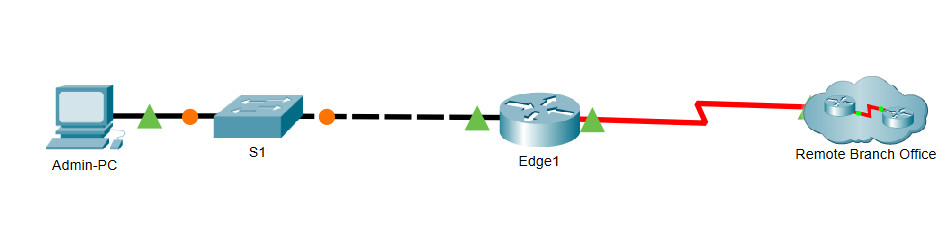
10.1.5 Packet Tracer - Use CDP to Map a Network
Addressing Table
| Device | Interface | IP Address | Subnet Mask | Local Interface and Connected Neighbor |
|---|---|---|---|---|
| Edge1 | G0/0 | 192.168.1.1 | 255.255.255.0 | G0/1 - S1 |
| S0/0/0 | 209.165.200.5 | 255.255.255.252 | S0/0/0 - ISP | |
| Branch-Edge | S0/0/1 | 209.165.200.10 | 255.255.255.252 | S0/0/1 - ISP |
| G0/0 | 192.168.3.249 | 255.255.255.248 | G0/0 – Branch-Firewall | |
| Branch-Firewall | G0/0 | 192.168.3.253 | 255.255.255.248 | G0/0 – Branch-Edge |
| G0/1 | 192.168.4.129 | 255.255.255.128 | G0/1 – sw-br-floor2 | |
| sw-br-floor1 | G0/1 | G0/1 - sw-br-floor3 | ||
| G0/2 | G0/2 - sw-br-floor2 | |||
| sw-br-floor2 | G0/1 | G0/1 – Branch-Firewall | ||
| G0/2 | G0/2 – sw-br-floor1 | |||
| F0/24 | F0/24 – sw-br-floor3 | |||
| SVI | 192.168.4.132 | 255.255.255.128 | ||
| sw-br-floor3 | F0/24 | F0/24 – sw-br-floor2 | ||
| G0/1 | G0/1 – sw-br-floor1 | |||
| SVI | 192.168.4.133 | 255.255.255.128 |
Objectives
Map a network using CDP and SSH remote access.
Background / Scenario
A senior network administrator requires you to map the Remote Branch Office network and discover the name of a recently installed switch that still needs an IP address to be configured. Your task is to create a map of the branch office network. You must record all of the network device names, IP addresses and subnet masks, and physical interfaces interconnecting the network devices, as well as the name of the switch that does not have an IP address.
To map the network, you will use SSH for remote access and the Cisco Discovery Protocol (CDP) to discover information about neighboring network devices. Because CDP is a Layer 2 protocol, it can be used to discover information about devices that do not have IP addresses. You will record the gathered information to complete the Addressing Table and provide a topology diagram of the Remote Branch Office network.
The local and remote administrative usernames and passwords are:
Local Network
Username: admin01
Password: S3cre7P@55
Branch Office Network
Username: branchadmin
Password: S3cre7P@55
Instructions
Part 1: Use SSH to Remotely Access Network Devices
In Part 1, use the Admin-PC to remotely access the Edge1 gateway router. Next, from the Edge1 router you will SSH into the Remote Branch Office.
a. On the Admin-PC, open a command prompt.
b. SSH into the gateway router at 192.168.1.1 using the username admin01 and the password S3cre7P@55
PC> ssh -l admin01 192.168.1.1
Open
Password:

Edge1#
Note: Notice that you are placed directly into privileged EXEC mode. This is because the admin01 user account is set to privilege level 15.
c. Use the show ip interface brief and show interfaces commands to document the Edge1 router’s physical interfaces, IP addresses, and subnet masks in the Addressing Table.

IP Address and Subnet Mask of the s0/0/0 Interface on Edge1 Router
Based on the output of the show command, the s0/0/0 interface on the Edge1 router has the IP address 209.165.200.5. The /30 prefix corresponds to the subnet mask 255.255.255.252.
d. From Edge1, use SSH to access the Remote Branch Office at 209.165.200.10 with the username branchadmin and the same password as above:
Edge1# ssh -l branchadmin 209.165.200.10
Open
Password:

Branch-Edge#
After connecting to the Remote Branch Office what piece of previously missing information can now be added to the Addressing Table above?
Part 2: Use CDP to Discover Neighboring Devices
You are now remotely connected to the Branch-Edge router. Using CDP, begin looking for connected network devices.
a. Issue the show ip interface brief and show interfaces commands to document the Branch-Edge router’s network interfaces, IP addresses, and subnet masks. Add the missing information to the Addressing Table to map the network:
Branch-Edge# show ip interface brief
Branch-Edge# show interfaces

IP Address and Subnet Mask of Interfaces g0/0 and s0/0/1 on the Branch-Edge Router
b. Security best practice recommends only running CDP when needed, so CDP may need to be turned on. Use the show cdp command to display its status.
Branch-Edge# show cdp
% CDP is not enabled
c. You need to turn on CDP, but it is a good idea to only broadcast CDP information to internal network devices and not to external networks. To do this, turn on the CDP protocol and then disable CDP on the S0/0/1 interface.
Branch-Edge# configure terminal
Branch-Edge(config)# cdp run
Branch-Edge(config)# interface s0/0/1
Branch-Edge(config-if)# no cdp enable
Branch-Edge(config-if)# exit
d. Issue a show cdp neighbors command to find any neighboring network devices.
Note: CDP will only show connected Cisco devices that are also running CDP.
Branch-Edge# show cdp neighbors
Is there a neighboring network device? What type of device is it? What is its name? On what interface is it connected? Is the device’s IP address listed? Record the information in the Addressing Table.
Note: It may take some time for CDP updates to be received. If you see no output from the command, press the Fast Forward Time button several times.

e. To find the IP address of the neighboring device use the show cdp neighbors detail command and record the ip address:
Branch-Edge# show cdp neighbors detail

Aside from the neighboring device’s IP address, what other piece of potentially sensitive information is listed?
f. Now that you know the IP address of the neighbor device, connect to it with SSH in order to discover other devices that may be its neighbors.
Note: To connect with SSH use the same Remote Branch Office username and password.
Branch-Edge# ssh -l branchadmin <the ip address of the neighbor device>
Branch-Edge# ssh -l branchadmin 192.168.3.253
After successfully connecting with SSH, what does the command prompt show?
g. You are remotely connected to the next neighbor. Use the show cdp neighbors command, and the show cdp neighbors detail command, to discover other connected neighbor devices.
What types of network devices neighbor this device? Record any newly discovered devices in the Addressing Table. Include their hostname, interfaces, and IP addresses.

h. Continue discovering new network devices using SSH and the show CDP commands. Eventually, you will reach the end of the network and there will be no more devices to discover.
Branch-Firewall#ssh -l branchadmin 192.168.4.132

Password:


What is the name of the switch that does not have an IP address on the network?
i. Draw a topology of the Remote Branch Office network using the information you have gathered using CDP.

Packet Tracer – Use CDP to Map a Network - Answers
Quick Reference Summary
Only one real configuration change exists in this entire lab – enabling and selectively disabling CDP on Branch-Edge. Everything else is SSH-hopping and reading CDP output. Use this table to jump straight to the answers without re-reading every step.
| Device / Step | Command | Answer / Result |
|---|---|---|
| Admin-PC → Edge1 | ssh -l admin01 192.168.1.1 |
Lands directly in privileged EXEC (admin01 is privilege level 15) |
| Edge1 | show ip interface brief / show interfaces |
Record Edge1's interfaces: G0/0 192.168.1.1/24 (to S1), S0/0/0 209.165.200.5/30 (to ISP) |
| Edge1 → Branch-Edge | ssh -l branchadmin 209.165.200.10 |
New info learned: the Branch-Edge router's hostname |
| Branch-Edge | show cdp |
% CDP is not enabled |
| Branch-Edge (the only real config in this lab) |
Branch-Edge(config)# cdp run Branch-Edge(config)# interface s0/0/1 Branch-Edge(config-if)# no cdp enable |
CDP enabled globally, but suppressed on the ISP-facing link so internal topology isn't leaked outward |
| Branch-Edge | show cdp neighbors |
Neighbor found: a router named Branch-Firewall, on interface G0/0 – IP address not shown by this command |
| Branch-Edge | show cdp neighbors detail |
Sensitive info besides the IP: the neighbor's IOS software version (a potential vulnerability if known to a threat actor) Branch-Firewall's IP: 192.168.3.253 |
| Branch-Edge → Branch-Firewall | ssh -l branchadmin 192.168.3.253 |
Prompt becomes: Branch-Firewall# |
| Branch-Firewall | show cdp neighbors / detail |
Neighbors: Branch-Edge (router, already known) and sw-br-floor2 (switch, newly discovered) at 192.168.4.132 on G0/1 |
| Branch-Firewall → sw-br-floor2 | ssh -l branchadmin 192.168.4.132 |
Discovers sw-br-floor1 (G0/2) and sw-br-floor3 (F0/24) |
| sw-br-floor3 | show cdp neighbors |
SVI 192.168.4.133/25; confirms sw-br-floor1 (G0/1) |
| sw-br-floor1 | — | Switch with no IP address on the network: sw-br-floor1 |
Device Configs - Final
! ==============================================================
!--- 10.1.5 Packet Tracer - Use CDP to Map a Network
!--- ANSWER SCRIPT FOR ROUTER Branch-Edge
!--- Usage: after SSH'ing into Branch-Edge (see the companion observation cheat sheet for
!--- the full SSH-hopping chain), enter privileged EXEC mode (branchadmin is already
!--- privilege 15, so you land there directly), then paste this whole file. Every line
!--- beginning with "!" is a comment; IOS ignores it.
!--- This is the ONLY device configuration change in the entire lab - everything else is
!--- show commands, SSH hops to other devices, and manually filling in the Addressing Table
!--- / drawing the topology from what CDP reveals.
! ==============================================================

configure terminal

! --------------------------------------------------------------
!--- Part 2, Step 2-3: CDP is disabled globally by default on this router (security best
!--- practice - "show cdp" confirms "% CDP is not enabled" beforehand). Turn it on, then
!--- immediately disable it on the ISP-facing interface only, so internal topology details
!--- are never advertised out to the ISP cloud.
! --------------------------------------------------------------
cdp run

interface Serial0/0/1
 no cdp enable
exit

! ==============================================================
!--- Verification:
!---   Branch-Edge# show cdp -> now shows CDP globally enabled (timers, holdtime, version)
!---   Branch-Edge# show cdp neighbors -> lists Branch-Firewall (router) on G0/0 only - no
!---   entry for S0/0/1 (the ISP link), confirming CDP is suppressed there as intended
!--- From here, continue the SSH/CDP discovery chain per the observation cheat sheet - no
!--- further configuration changes are needed on any device for the rest of this lab.
! ==============================================================


