
Open the PT Activity. Perform the tasks in the activity instructions and then answer the question.
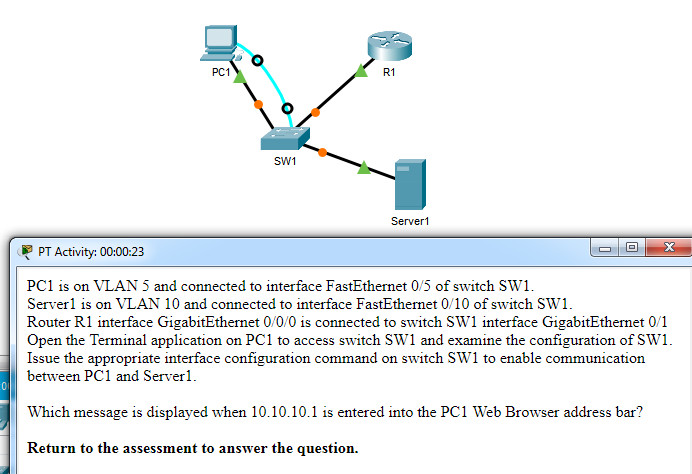
Which message is displayed when 10.10.10.1 is entered into the PC1 Web Browser address bar?
- Local Server
- Test Server
- File Server
- Cisco Server
Explanation: PC1 (VLAN 5) and Server1 (VLAN 10) are in different VLANs, so their traffic must be routed by R1. R1 uses router-on-a-stick: subinterfaces G0/0/0.5 (10.10.5.254) and G0/0/0.10 (10.10.10.254) carry both VLANs over one physical link. The SW1 interface connected to R1 must therefore be an 802.1Q trunk. The configuration of SW1 shows that GigabitEthernet0/1 has no configuration, so it is an access port in VLAN 1, and show interfaces trunk lists no trunk. Issuing the interface configuration command switchport mode trunk on Gi0/1 enables the trunk, which carries VLANs 5 and 10 to R1. PC1 can then reach Server1, and the web page at 10.10.10.1 displays File Server.
Step 1: Examine the configuration of SW1.
On PC1, open Desktop > Terminal and click OK to connect to SW1 through the console cable. Fa0/5 and Fa0/10 are assigned to VLANs 5 and 10, but GigabitEthernet0/1 (the link to R1) has no configuration.
SW1# show running-config
Building configuration...

Current configuration : 1130 bytes
!
version 12.2
no service timestamps log datetime msec
no service timestamps debug datetime msec
no service password-encryption
!
hostname SW1
!
!
!
!
!
!
spanning-tree mode pvst
spanning-tree extend system-id
!
interface FastEthernet0/1
!
interface FastEthernet0/2
!
interface FastEthernet0/3
!
interface FastEthernet0/4
!
interface FastEthernet0/5
 switchport access vlan 5
!
interface FastEthernet0/6
!
interface FastEthernet0/7
!
interface FastEthernet0/8
!
interface FastEthernet0/9
!
interface FastEthernet0/10
 switchport access vlan 10
!
interface FastEthernet0/11
!
interface FastEthernet0/12
!
interface FastEthernet0/13
!
interface FastEthernet0/14
!
interface FastEthernet0/15
!
interface FastEthernet0/16
!
interface FastEthernet0/17
!
interface FastEthernet0/18
!
interface FastEthernet0/19
!
interface FastEthernet0/20
!
interface FastEthernet0/21
!
interface FastEthernet0/22
!
interface FastEthernet0/23
!
interface FastEthernet0/24
!
interface GigabitEthernet0/1
!
interface GigabitEthernet0/2
!
interface Vlan1
 no ip address
 shutdown
!
!
!
!
line con 0
!
line vty 0 4
 login
line vty 5 15
 login
!
!
!
!
end
The switch has no trunk port, and Gi0/1 is an access port in VLAN 1:
SW1# show interfaces trunk
SW1# show vlan brief

VLAN Name                             Status    Ports
---- -------------------------------- --------- -------------------------------
1    default                          active    Fa0/1, Fa0/2, Fa0/3, Fa0/4
                                                Fa0/6, Fa0/7, Fa0/8, Fa0/9
                                                Fa0/11, Fa0/12, Fa0/13, Fa0/14
                                                Fa0/15, Fa0/16, Fa0/17, Fa0/18
                                                Fa0/19, Fa0/20, Fa0/21, Fa0/22
                                                Fa0/23, Fa0/24, Gig0/1, Gig0/2
5    VLAN0005                         active    Fa0/5
10   VLAN0010                         active    Fa0/10
1002 fddi-default                     active
1003 token-ring-default               active
1004 fddinet-default                  active
1005 trnet-default                    active
Step 2: Test access to the web server before the fix.
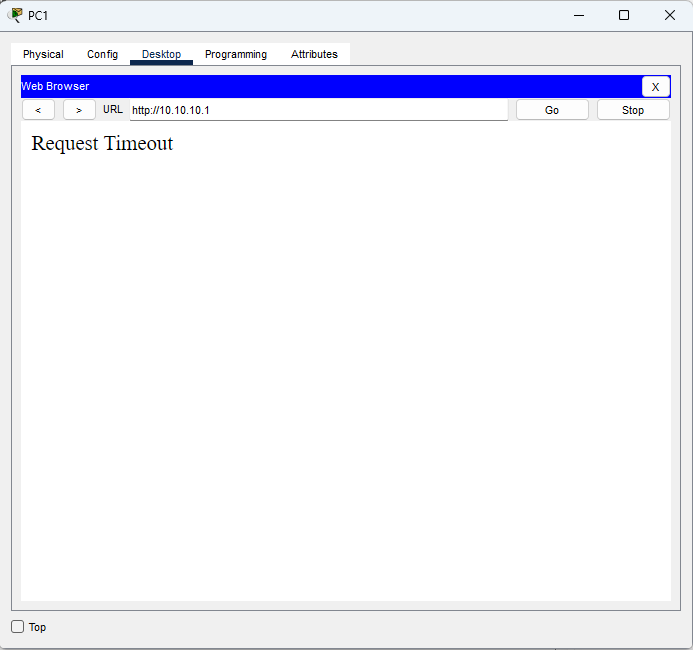
On PC1, open Desktop > Web Browser, enter 10.10.10.1 and click Go. The page cannot be reached (Request Timeout).
Step 3: Configure Gi0/1 as a trunk port.
SW1(config)# interface gigabitethernet 0/1
SW1(config-if)# switchport mode trunk

%LINEPROTO-5-UPDOWN: Line protocol on Interface GigabitEthernet0/1, changed state to down

%LINEPROTO-5-UPDOWN: Line protocol on Interface GigabitEthernet0/1, changed state to up
Verify the trunk. Gi0/1 is now trunking and carries VLANs 5 and 10:
SW1# show interfaces trunk
Port        Mode         Encapsulation  Status        Native vlan
Gig0/1      on           802.1q         trunking      1

Port        Vlans allowed on trunk
Gig0/1      1-1005

Port        Vlans allowed and active in management domain
Gig0/1      1,5,10

Port        Vlans in spanning tree forwarding state and not pruned
Gig0/1      none
On R1, the subinterfaces for VLAN 5 and VLAN 10 are up:
R1# show ip interface brief
Interface              IP-Address      OK? Method Status                Protocol
GigabitEthernet0/0/0   unassigned      YES unset  up                    up
GigabitEthernet0/0/0.5 10.10.5.254     YES manual up                    up
GigabitEthernet0/0/0.10 10.10.10.254   YES manual up                    up
GigabitEthernet0/0/1   unassigned      YES unset  administratively down down
Vlan1                  unassigned      YES unset  administratively down down
Step 4: Access the web server again.
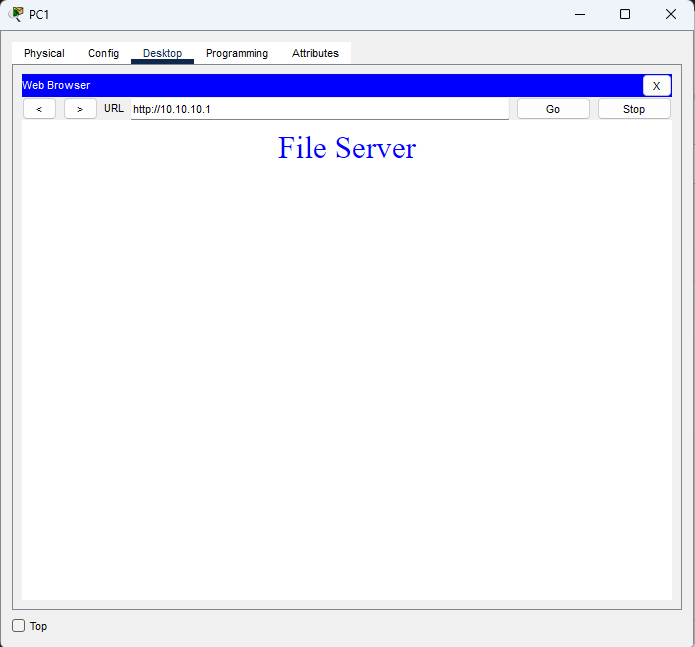
On PC1, enter 10.10.10.1 in the Web Browser again. The page now loads and displays File Server.
Related exam: CCNA 2 v7 Modules 1 – 4 Exam Answers
