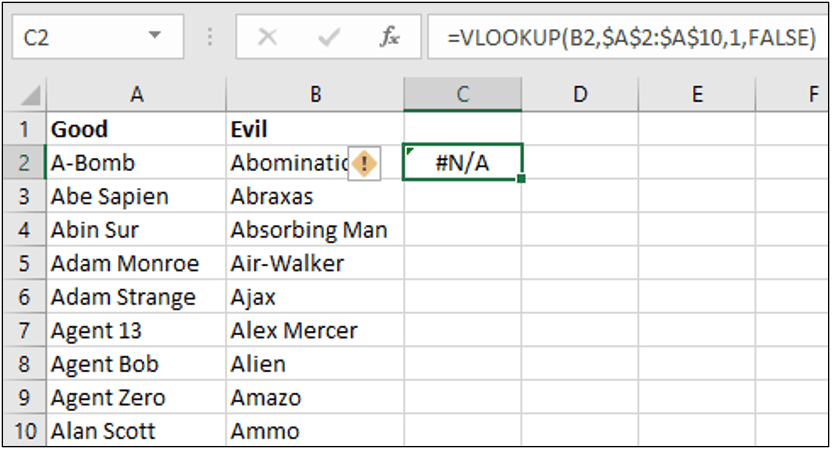
The figure contains a section of an Excel spreadsheet. Cell C2 contains the formula "=VLOOKUP(B1,$A$2:$A$10,1,FALSE)" When cell C2 is clicked "#N/A" is displayed. Refer to the exhibit. A learner is analyzing a data spreadsheet in Microsoft Excel and notices a formula function "=VLOOKUP(B1,$A$2:$A$10,1,FALSE)". When clicking on cell C2, the value displayed in the field in cell C2 is "#N/A". Why is this value displayed?
IT Exam Items Repository › Category: Data Analytics Essentials › The figure contains a section of an Excel spreadsheet. Cell C2 contains the formula "=VLOOKUP(B1,$A$2:$A$10,1,FALSE)" When cell C2 is clicked "#N/A" is displayed. Refer to the exhibit. A learner is analyzing a data spreadsheet in Microsoft Excel and notices a formula function "=VLOOKUP(B1,$A$2:$A$10,1,FALSE)". When clicking on cell C2, the value displayed in the field in cell C2 is "#N/A". Why is this value displayed?
The figure contains a section of an Excel spreadsheet. Cell C2 contains the formula "=VLOOKUP(B1,$A$2:$A$10,1,FALSE)" When cell C2 is clicked "#N/A" is displayed.
Refer to the exhibit. A learner is analyzing a data spreadsheet in Microsoft Excel and notices a formula function "=VLOOKUP(B1,$A$2:$A$10,1,FALSE)". When clicking on cell C2, the value displayed in the field in cell C2 is "#N/A". Why is this value displayed?
- The formula is entered in the wrong cell.
- The cell range is incorrect.
- No value is entered in cell C3.
- No duplicate value for the value entered in cell B2 is found.
Explanation: VLOOKUP can also be used to help with data cleaning by finding duplicates. With VLOOKUP you can compare two columns (or lists) and find duplicate values. The formula is written in cell C2 as =VLOOKUP(B1,$A$2:$A$10,1,FALSE). This formula compares the value in B1 with the range A2:A10. If there is no duplicate then an error is displayed as "#N/A". If a duplicate was found it would display the name of the duplicate.
Related exam: Data Analytics Essentials Course Final Exam
About The Author

The ITExamAnswers Editorial Team is a dedicated group of certified IT professionals and network engineers. We rigorously review, verify, and update all exam materials to ensure you receive the most accurate and reliable resources for your certification journey.