
17.7.6 Packet Tracer - Troubleshooting Connectivity Issues Answers
17.7.7 Packet Tracer - Troubleshoot Connectivity Issues
Topology
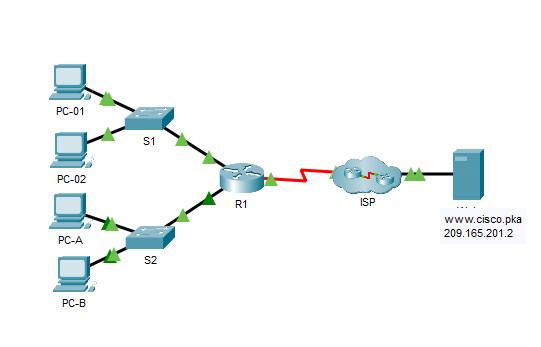
17.7.7 Packet Tracer - Troubleshoot Connectivity Issues
Addressing Table
| Device | Interface | IP Address | Subnet Mask | Default Gateway |
|---|---|---|---|---|
| R1 | G0/0 | 172.16.1.1 | 255.255.255.0 | N/A |
| R1 | G0/1 | 172.16.2.1 | 255.255.255.0 | N/A |
| R1 | S0/0/0 | 209.165.200.226 | 255.255.255.252 | N/A |
| R2 | G0/0 | 209.165.201.1 | 255.255.255.224 | N/A |
| R2 | S0/0/0 (DCE) | 209.165.200.225 | 255.255.255.252 | N/A |
| PC-01 | NIC | 172.16.1.3 | 255.255.255.0 | 172.16.1.1 |
| PC-02 | NIC | 172.16.1.4 | 255.255.255.0 | 172.16.1.1 |
| PC-A | NIC | 172.16.2.3 | 255.255.255.0 | 172.16.2.1 |
| PC-B | NIC | 172.16.2.4 | 255.255.255.0 | 172.16.2.1 |
| Web | NIC | 209.165.201.2 | 255.255.255.224 | 209.165.201.1 |
| DNS1 | NIC | 209.165.201.3 | 255.255.255.224 | 209.165.201.1 |
| DNS2 | NIC | 209.165.201.4 | 255.255.255.224 | 209.165.201.1 |
Objectives
The objective of this Packet Tracer activity is to troubleshoot and resolve connectivity issues, if possible. Otherwise, the issues should be clearly documented and so they can be escalated.
Background / Scenario
Users are reporting that they cannot access the web server, www.cisco.pka after a recent upgrade that included adding a second DNS server. You must determine the cause and attempt to resolve the issues for the users. Clearly document the issues and any solution(s). You do not have access to the devices in the cloud or the server www.cisco.pka. Escalate the problem if necessary.
Router R1 can only be accessed using SSH with the username Admin01 and password cisco12345.
Step 1: Determine the connectivity issue between PC-01 and web server.
a. On PC-01, open the command prompt. Enter the command ipconfig to verify what IP address and default gateway have been assigned to PC-01. Correct as necessary according to the Addressing Table.
C:\> ipconfig
IP incorrect, change IP address to 172.16.1.3
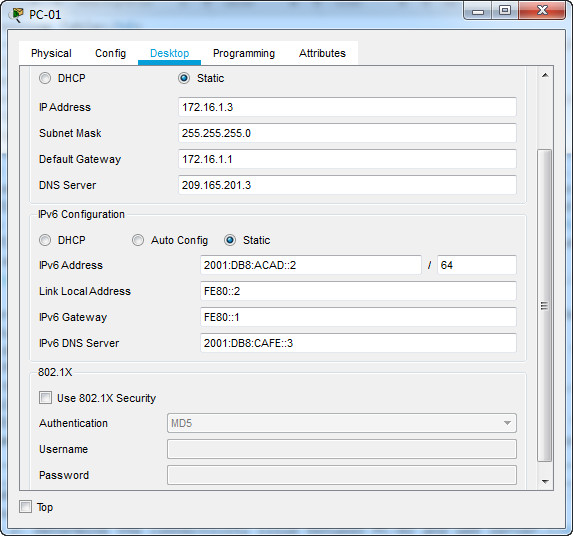
b. After verifying/correcting the IP addressing issues on PC-01, issue pings to the default gateway, web server, and other PCs. Were the pings successful? Record the results.
C:\> ping 172.16.1.1
C:\> ping 209.165.201.2
C:\> ping 172.16.1.4
C:\> ping 172.16.2.3
C:\> ping 172.16.2.4
Ping to default gateway (172.16.1.1)?
Yes
To web server (209.165.201.2)?
Yes
Ping to PC-02?
Yes
To PC-A?
No
To PC-B?
No
c. Use the web browser to access the web server on PC-01. Access the web server by first entering the URL http://www.cisco.pka and then by using the IP address 209.165.201.2. Record the results.
Can PC-01 access www.cisco.pka?
Yes
Using the web server IP address?
Yes
d. Document the issues and provide the solution(s). Correct the issues if possible.
The IP address on PC-01 is incorrectly configured. To resolve the issue, the IP address is changed from 172.168.1.3 to 172.16.1.3. PC-01 cannot successfully ping the PCs on the 172.16.2.0/24 network.
Step 2: Determine the connectivity issue between PC-02 and web server.
a. On PC-02, open the command prompt. Enter the command ipconfig to verify the configuration for the IP address and default gateway. Correct as necessary.
C:\> ipconfig
Default Gateway incorrect, change Default Gateway address to 172.16.1.1:
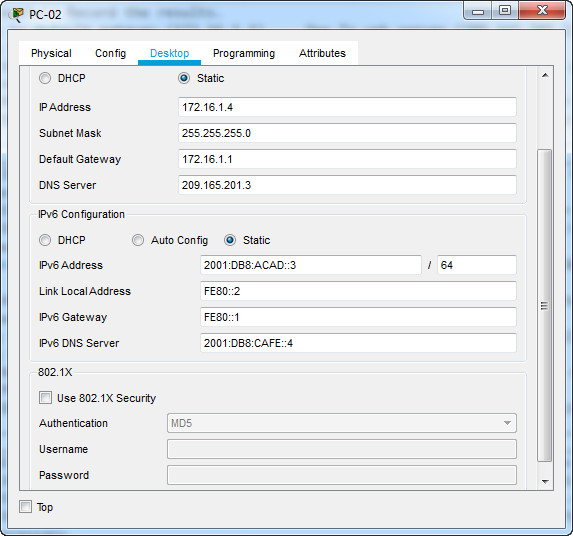
b. After verifying/correcting the IP addressing issues on PC-02, issue pings to the default gateway, web server, and other PCs. Were the pings successful? Record the results.
C:\> ping 172.16.1.1
C:\> ping 209.165.201.2
C:\> ping 172.16.1.3
C:\> ping 172.16.2.3
C:\> ping 172.16.2.4
Ping to default gateway (172.16.1.1)?
Yes
To web server (209.165.201.2)?
Yes
Ping to PC-01?
Yes
To PC-A?
No
To PC-B?
No
c. Navigate to www.cisco.pka using the web browser on PC-02. Record the results.
Can PC-02 access www.cisco.pka?
Yes.
Using the web server IP address?
Yes
d. Document the issues and provide the solution(s). Correct the issues if possible.
PC-02 can access the web server using the IP address after correcting the default gateway. The default gateway should be configured as 172.16.1.1 on PC-02. PC-02 cannot successfully ping the PCs on the 172.16.2.0/24 network.
Step 3: Determine the connectivity issue between PC-A and web server.
a. On PC-A, open the command prompt. Enter the command ipconfig to verify the configuration for the IP address and default gateway. Correct as necessary.
C:\> ipconfig
b. After correcting the IP addressing issues on PC-A, issue the pings to the web server, default gateway, and other PCs. Were the pings successful? Record the results.
C:\> ping 209.165.201.2
C:\> ping 172.16.2.1
C:\> ping 172.16.2.4
C:\> ping 172.16.1.3
C:\> ping 172.16.1.4
To web server (209.165.201.2)?
No
Ping to default gateway (172.16.2.1)?
No
Ping to PC-B?
Yes
To PC-01?
No
To PC-02?
No
c. Navigate to www.cisco.pka using the web browser on PC-A. Record the results.
Can PC-A access www.cisco.pka?
No
Using the web server IP address?
No
d. Document the issues and provide the solution(s). Correct the issues if possible.
PC-A can only access the local LAN. The interface G0/1 on router R1 is incorrectly configured. Correct the IP address on interface G0/1. Access router R1 using SSH from PC-01 or PC-02 to change the IP address from 172.16.3.1 to 172.16.2.1.
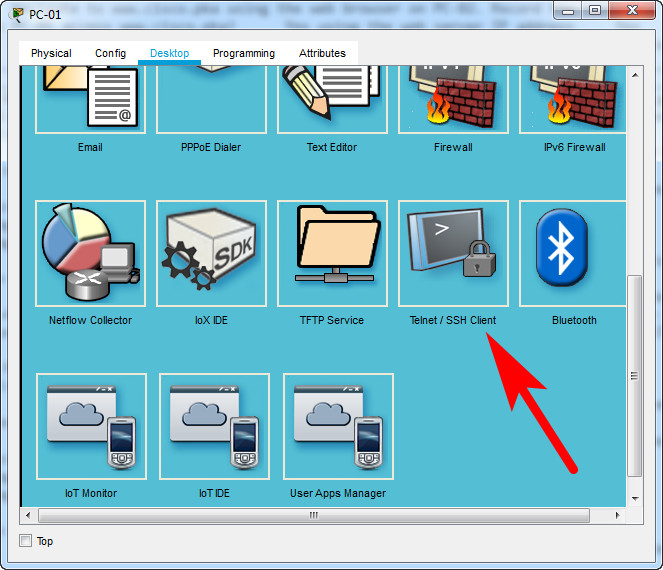
Enter the IP address (172.16.1.1), username (Admin01) and password (cisco12345):
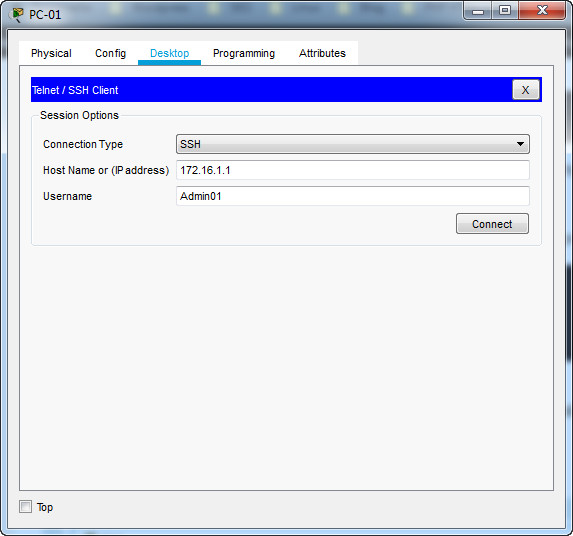
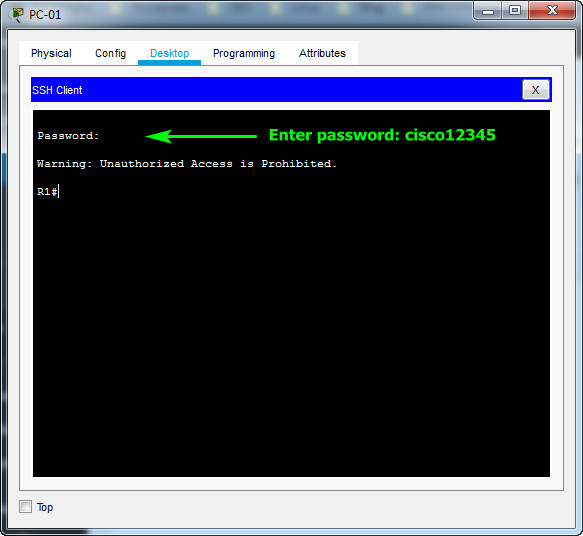
Or open the Command Prompt on PC-01 and connect with SSH (password cisco12345):
C:\> ssh -l Admin01 172.16.1.1
Password:

Warning: Unauthorized Access is Prohibited.

R1#
Enter the command below to change the IP address from 172.16.3.1 to 172.16.2.1.
R1(config)# interface gigabitethernet 0/1
R1(config-if)# ip address 172.16.2.1 255.255.255.0
R1(config-if)# no shutdown
Step 4: Determine the connectivity issue between PC-B and web server.
a. On PC-B, open the command prompt. Enter the command ipconfig to verify the configuration for the IP address and default gateway. Correct as necessary.
C:\> ipconfig
b. After correcting the IP addressing issues on PC-B, issue the pings to the web server, default gateway, and other PCs. Were the pings successful? Record the results.
C:\> ping 209.165.201.2
C:\> ping 172.16.2.1
C:\> ping 172.16.2.3
C:\> ping 172.16.1.3
C:\> ping 172.16.1.4
To web server (209.165.201.2)?
Yes
Ping to default gateway (172.16.2.1)?
Yes
Ping to PC-A?
Yes
To PC-01?
Yes
To PC-02?
Yes
c. Navigate to www.cisco.pka using the web browser. Record the results.
Can PC-B access www.cisco.pka?
No
Using the web server IP address?
Yes
d. Document the issues and provide the solution(s). Correct the issues if possible.
PC-B can access the web server using the IP address only. PC-B is also configured with the correct DNS2 server address. This indicates that the DNS2 server may be incorrectly configured. To resolve this issue temporarily, the DNS server address can be configured to use 209.165.201.3. The issue with the DNS2 server needs to be escalated because you do not have administrative access to devices outside your network.
e. Could all the issues be resolved on PC-B and still make use of DNS2? If not, what would you need to do?
No. DNS2 apparently has configuration issues. You would need to contact the person in charge of the DNS2 server and report your findings.
Step 5: Verify connectivity.
Verify that all the PCs can access the web server www.cisco.pka. Your completion percentage should be 100%. If not, click Check Results to see which required components are not yet completed.
Issues Found and Solutions
| # | Device | Issue | Solution |
|---|---|---|---|
| 1 | PC-01 | Wrong IP address (172.168.1.3; the second octet is incorrect) | Change the IP address to 172.16.1.3 |
| 2 | PC-02 | Wrong default gateway | Change the default gateway to 172.16.1.1 |
| 3 | R1 G0/1 | Wrong interface IP address (172.16.3.1) | Change it to 172.16.2.1 (CLI over SSH) |
| 4 | PC-B | DNS server points to DNS2, which is faulty | Point DNS to 209.165.201.3 (DNS1) as a temporary fix, then escalate |
Device Configs - Final
ROUTER R1
! ==============================================================
!--- 17.7.6 Packet Tracer - Troubleshoot Connectivity Issues
!--- FIX SCRIPT FOR ROUTER R1
!--- Usage: R1 can only be reached over SSH. On PC-01 (after fixing its IP address) open Desktop > Telnet / SSH Client, connect to 172.16.1.1 with username Admin01 and password cisco12345 (or run "ssh -l Admin01 172.16.1.1" in Command Prompt). The session lands directly at R1#; paste this file there (the "enable" line below is harmless at R1#). This is a troubleshooting activity: the script contains only the fix for R1. Every line beginning with "!" is a comment; IOS ignores it.
! ==============================================================

enable
configure terminal

! --------------------------------------------------------------
!--- Step 3: Determine the connectivity issue between PC-A and web server.
! --------------------------------------------------------------

!--- Step 3d: G0/1 is configured with 172.16.3.1, so PC-A and PC-B have no working default gateway. Replace it with 172.16.2.1/24 from the Addressing Table (a new primary IPv4 address replaces the old one). The SSH session runs through G0/0, so it is not dropped.
interface gigabitethernet 0/1
 ip address 172.16.2.1 255.255.255.0
 no shutdown
 exit

end

! --------------------------------------------------------------
!--- Save the configuration to NVRAM. (Press Enter when prompted for the destination filename.)
! --------------------------------------------------------------
copy running-config startup-config


! ==============================================================
!--- Verification:
!---   show ip interface brief  -> GigabitEthernet0/1 172.16.2.1 up/up
!---   From PC-A: ping 172.16.2.1 and ping 209.165.201.2 -> replies
!--- Note: the PC fixes (PC-01 IP address, PC-02 default gateway, PC-B DNS server) are made in Desktop > IP Configuration.
! ==============================================================


