
5.2.7 Packet Tracer - Configure and Modify Standard IPv4 ACLs Answers
Topology
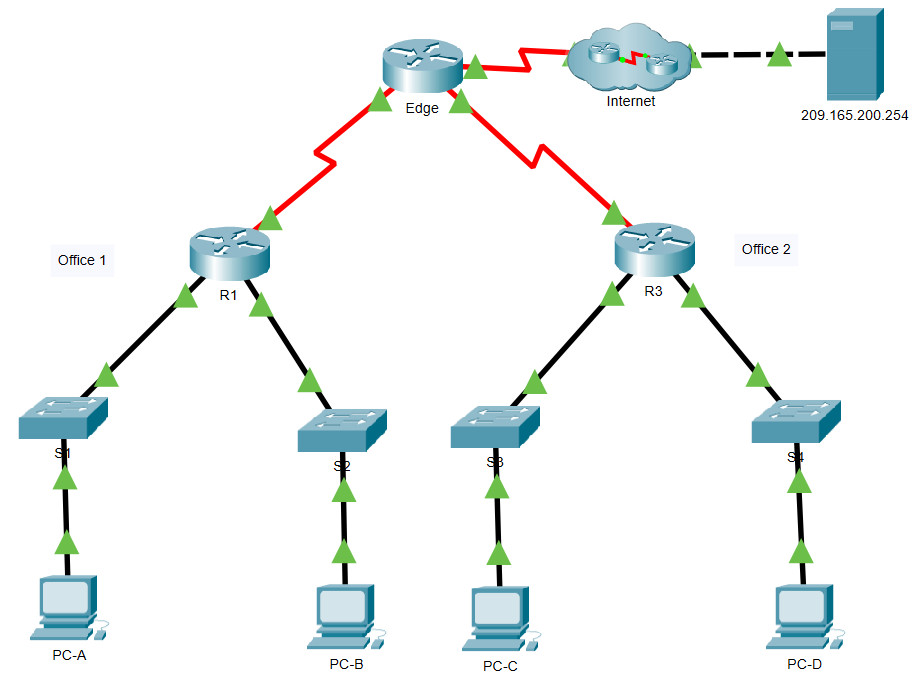
5.2.7 Packet Tracer - Configure and Modify Standard IPv4 ACLs
Addressing Table
| Device | Interface | IP Address | Subnet Mask | Default Gateway |
|---|---|---|---|---|
| R1 | G0/0/0 | 192.168.10.1 | 255.255.255.0 | N/A |
| G0/0/1 | 192.168.20.1 | 255.255.255.0 | ||
| S0/1/0 (DCE) | 10.1.1.1 | 255.255.255.252 | ||
| Edge | S0/1/0 | 10.1.1.2 | 255.255.255.252 | N/A |
| S0/1/1 (DCE) | 10.2.2.2 | 255.255.255.252 | ||
| S0/2/1 | 209.165.200.225 | 255.255.255.224 | ||
| R3 | G0/0/0 | 192.168.30.1 | 255.255.255.0 | N/A |
| G0/0/1 | 192.168.40.1 | 255.255.255.0 | ||
| S0/1/1 | 10.2.2.1 | 255.255.255.252 | ||
| S1 | VLAN 1 | 192.168.10.11 | 255.255.255.0 | 192.168.10.1 |
| S2 | VLAN 1 | 192.168.20.11 | 255.255.255.0 | 192.168.20.1 |
| S3 | VLAN 1 | 192.168.30.11 | 255.255.255.0 | 192.168.30.1 |
| S4 | VLAN 1 | 192.168.40.11 | 255.255.255.0 | 192.168.40.1 |
| PC-A | NIC | 192.168.10.3 | 255.255.255.0 | 192.168.10.1 |
| PC-B | NIC | 192.168.20.3 | 255.255.255.0 | 192.168.20.1 |
| PC-C | NIC | 192.168.30.3 | 255.255.255.0 | 192.168.30.1 |
| PC-D | NIC | 192.168.40.3 | 255.255.255.0 | 192.168.40.1 |
Objectives
- Part 1: Verify Connectivity
- Part 2: Configure and Verify Standard Numbered and Named ACLs
- Part 3: Modify a Standard ACL
Background / Scenario
Network security and traffic flow control are important issues when designing and managing IP networks. The ability to configure proper rules to filter packets, based on established security policies, is a valuable skill.
In this lab, you will set up filtering rules for two business locations that are represented by R1 and R3. Management has established some access policies between the LANs located at R1 and R3, which you must implement. The Edge router sitting between R1 and R3 has been provided by the ISP and will not have any ACLs placed on it. You would not be allowed any administrative access to the Edge router because you can only control and manage your own equipment.
Instructions
Part 1: Verify Connectivity
In Part 1, you verify connectivity between devices.
Note: It is very important to test whether connectivity is working before you configure and apply access lists. You want to be sure that your network is properly functioning before you start to filter traffic.
From PC-A, ping PC-C and PC-D. Were your pings successful?
C:\> ping 192.168.30.3
C:\> ping 192.168.40.3
Yes
From R1, ping PC-C and PC-D. Were your pings successful?
R1# ping 192.168.30.3
R1# ping 192.168.40.3
Yes
From PC-C, ping PC-A and PC-B. Were your pings successful?
C:\> ping 192.168.10.3
C:\> ping 192.168.20.3
Yes
From R3, ping PC-A and PC-B. Were your pings successful?
R3# ping 192.168.10.3
R3# ping 192.168.20.3
Yes
Can all of the PCs ping the server at 209.165.200.254?
PC-A:
C:\> ping 209.165.200.254
PC-B:
C:\> ping 209.165.200.254
PC-C:
C:\> ping 209.165.200.254
PC-D:
C:\> ping 209.165.200.254
Yes
Part 2: Configure and Verify Standard Numbered and Named ACLs
Step 1: Configure a numbered standard ACL.
Standard ACLs filter traffic based on the source IP address only. A typical best practice for standard ACLs is to configure and apply the ACL as close to the destination as possible. For the first access list in this activity, create a standard numbered ACL that allows traffic from all hosts on the 192.168.10.0/24 network and all hosts on the 192.168.20.0/24 network to access all hosts on the 192.168.30.0/24 network. The security policy also states that an explicit deny any access control entry (ACE), also referred to as an ACL statement, should be present at the end of all ACLs.
What wildcard mask would you use to allow all hosts on the 192.168.10.0/24 network to access the 192.168.30.0/24 network?
0.0.0.255
Following Cisco’s recommended best practices, on which router would you place this ACL?
R3
On which interface would you place this ACL? In what direction would you apply it?
G0/0/0. The ACL should be applied going out. Students may answer with placing the ACL on the S0/1/1 interface on R3 going in. Emphasize to them that this would effectively block the LANs on R1 from getting to the 192.168.40.0/24 network as well!
a. Configure the ACL on R3. Use 1 for the access list number.
R3(config)# access-list 1 remark Allow R1 LANs Access
R3(config)# access-list 1 permit 192.168.10.0 0.0.0.255
R3(config)# access-list 1 permit 192.168.20.0 0.0.0.255
R3(config)# access-list 1 deny any
b. Apply the ACL to the appropriate interface in the proper direction.
R3(config)# interface gigabitethernet 0/0/0
R3(config-if)# ip access-group 1 out
c. Verify a numbered ACL.
The use of various show commands can help you to verify both the syntax and placement of your ACLs in your router.
To see access list 1 in its entirety with all ACEs, which command would you use?
show access-lists 1 or show access-lists
What command would you use to see where the access list was applied and in what direction?
show ip interface gigabitethernet 0/0/0 or show ip interface
1) On R3, issue the show access-lists 1 command.
R3# show access-lists 1
Standard IP access list 1
    permit 192.168.10.0 0.0.0.255
    permit 192.168.20.0 0.0.0.255
    deny any
2) On R3, issue the show ip interface g0/0/0 command.
R3# show ip interface gigabitethernet 0/0/0
GigabitEthernet0/0/0 is up, line protocol is up (connected)
  Internet address is 192.168.30.1/24
  Broadcast address is 255.255.255.255
  Address determined by setup command
  MTU is 1500 bytes
  Helper address is not set
  Directed broadcast forwarding is disabled
  Outgoing access list is 1
  Inbound  access list is not set
  Proxy ARP is enabled
  Security level is default
  Split horizon is enabled
  ICMP redirects are always sent
  ICMP unreachables are always sent
  ICMP mask replies are never sent
  IP fast switching is disabled
  IP fast switching on the same interface is disabled
  IP Flow switching is disabled
  IP Fast switching turbo vector
  IP multicast fast switching is disabled
  IP multicast distributed fast switching is disabled
  Router Discovery is disabled
  IP output packet accounting is disabled
  IP access violation accounting is disabled
  TCP/IP header compression is disabled
  RTP/IP header compression is disabled
  Probe proxy name replies are disabled
  Policy routing is disabled
  Network address translation is disabled
  BGP Policy Mapping is disabled
  Input features: MCI Check
  WCCP Redirect outbound is disabled
  WCCP Redirect inbound is disabled
  WCCP Redirect exclude is disabled
3) Test the ACL to see if it allows traffic from the 192.168.10.0/24 network to access the 192.168.30.0/24 network.
From the PC-A command prompt, ping the PC-C IP address. Were the pings successful?
C:\> ping 192.168.30.3
Yes
4) Test the ACL to see if it allows traffic from the 192.168.20.0/24 network access to the 192.168.30.0/24 network.
From the PC-B command prompt, ping the PC-C IP address. Were the pings successful?
C:\> ping 192.168.30.3
Yes
5) Should pings from PC-D to PC-C be successful? Ping from PC-D to PC-C to verify your answer.
C:\> ping 192.168.30.3
No, the pings should not be successful. Trying the ping verifies that the ACL is working as intended.
d. From the R1 prompt, ping PC-C’s IP address again.
R1# ping 192.168.30.3

Type escape sequence to abort.
Sending 5, 100-byte ICMP Echos to 192.168.30.3, timeout is 2 seconds:
UUUUU
Success rate is 0 percent (0/5)
Was the ping successful? Explain.
No, the pings failed. When you ping from the router, it uses the closest interface to the destination as its source address. The pings had a source address of 10.1.1.1. The access list on R3 only allows the 192.168.10.0/24 and the 192.168.20.0/24 networks access.
e. Issue the show access-lists 1 command again. Note that the command output displays information for the number of times each ACE was matched by traffic that reached interface Gigabit Ethernet 0/0/0.
R3# show access-lists 1
Standard IP access list 1
    permit 192.168.10.0 0.0.0.255 (4 match(es))
    permit 192.168.20.0 0.0.0.255 (4 match(es))
    deny any (9 match(es))
Step 2: Configure a named standard ACL.
Create a named standard ACL that conforms to the following policy: allow traffic from all hosts on the 192.168.40.0/24 network access to all hosts on the 192.168.10.0/24 network. Also, only allow host PC-C access to the 192.168.10.0/24 network. The name of this access list should be called BRANCH-OFFICE-POLICY.
Following Cisco’s recommended best practices, on which router would you place this ACL?
R1
On which interface would you place this ACL? In what direction would you apply it?
G0/0/0. The ACL should be applied going out. Students may answer with placing the ACL on the S0/1/0 interface on R1 going in. Emphasize to them that this would effectively block all traffic from the LANs on R3 from getting to the 192.168.20.0/24 network.
a. Create the standard named ACL BRANCH-OFFICE-POLICY on R1.
R1(config)# ip access-list standard BRANCH-OFFICE-POLICY
R1(config-std-nacl)# permit host 192.168.30.3
R1(config-std-nacl)# permit 192.168.40.0 0.0.0.255
Look at the first ACE in the access list. What is another way to write this?
permit 192.168.30.3 0.0.0.0
b. Apply the ACL to the appropriate interface in the proper direction.
R1(config)# interface gigabitethernet 0/0/0
R1(config-if)# ip access-group BRANCH-OFFICE-POLICY out
c. Verify a named ACL.
1) On R1, issue the show access-lists command.
R1# show access-lists
Standard IP access list BRANCH-OFFICE-POLICY
    10 permit host 192.168.30.3
    20 permit 192.168.40.0 0.0.0.255
Is there any difference between this ACL on R1 and the ACL on R3? If so, what is it?
Although there is no line 30 with a deny any on R1, it is implied. You may wish to emphasize this to your students. Having them explicitly configure the deny any ACE is a good practice and reinforces the concept because it shows up in the output of the show access-lists command. It is easy to forget the implicit deny any when troubleshooting ACLs. This could easily result in traffic being denied that should have been allowed. In addition, if the explicit deny any ACE is present, it can be logged, and the number of matches for the ACE condition can be viewed with show access-lists.
2) On R1, issue the show ip interface g0/0/0 command to verify that the ACL is configured on the interface.
R1# show ip interface gigabitethernet 0/0/0
GigabitEthernet0/0/0 is up, line protocol is up (connected)
  Internet address is 192.168.10.1/24
  Broadcast address is 255.255.255.255
  Address determined by setup command
  MTU is 1500 bytes
  Helper address is not set
  Directed broadcast forwarding is disabled
  Outgoing access list is BRANCH-OFFICE-POLICY
  Inbound access list is not set
<Output omitted>
Test the ACL. From the command prompt on PC-C, ping the IP address of PC-A. Were the pings successful?
C:\> ping 192.168.10.3
Yes
3) Test the ACL to ensure that only the PC-C host is allowed access to the 192.168.10.0/24 network. You must do an extended ping and use the G0/0/0 address on R3 as your source. Ping PC-A’s IP address.
R3# ping
Protocol [ip]:
Target IP address: 192.168.10.3
Repeat count [5]:
Datagram size [100]:
Timeout in seconds [2]:
Extended commands [n]: y
Source address or interface: 192.168.30.1
Type of service [0]:
Set DF bit in IP header? [no]:
Validate reply data? [no]:
Data pattern [0xABCD]:
Loose, Strict, Record, Timestamp, Verbose[none]:
Sweep range of sizes [n]:
Type escape sequence to abort.
Sending 5, 100-byte ICMP Echos to 192.168.10.3, timeout is 2 seconds:
Packet sent with a source address of 192.168.30.1
U.U.U
Were the pings successful?
No
4) Test the ACL to see if it allows traffic from the 192.168.40.0/24 network access to the 192.168.10.0/24 network. From the PC-D command prompt, ping the PC-A IP address.
C:\> ping 192.168.10.3
Were the pings successful?
Yes
Part 3: Modify a Standard ACL
It is common in business for security policies to change. For this reason, ACLs may need to be modified. In Part 3, you will change one of the ACLs you configured previously to match a new management policy that is being put in place.
Attempt to ping the server at 209.165.200.254 from PC-A.
C:\> ping 209.165.200.254
Notice that the ping is not successful. The ACL on R1 is blocking internet traffic from returning to PC-A. This is because the source address in the packets that are returned is not in the range of permitted addresses.
Management has decided that traffic that is returning from the 209.165.200.224/27 network should be allowed full access to the 192.168.10.0/24 network. Management also wants ACLs on all routers to follow consistent rules. A deny any ACE should be placed at the end of all ACLs. You must modify the BRANCH-OFFICE-POLICY ACL.
You will add two additional lines to this ACL. There are two ways you could do this:
OPTION 1: Issue a no ip access-list standard BRANCH-OFFICE-POLICY command in global configuration mode. This would remove the ACL from the router. Depending upon the router IOS, one of the following scenarios would occur: all filtering of packets would be cancelled, and all packets would be allowed through the router; or, because you did not remove the ip access-group command from the G0/0/0 interface, filtering is still in place. Regardless, when the ACL is gone, you could retype the whole ACL, or cut and paste it in from a text editor.
OPTION 2: You can modify ACLs in place by adding or deleting specific lines within the ACL itself. This can come in handy, especially with ACLs that are long. The retyping of the whole ACL or cutting and pasting can easily lead to errors. Modifying specific lines within the ACL is easily accomplished.
For this activity, use Option 2.
Step 1: Modify a named standard ACL.
a. From R1, issue the show access-lists command.
R1# show access-lists
Standard IP access list BRANCH-OFFICE-POLICY
    10 permit host 192.168.30.3 (4 match(es))
    20 permit 192.168.40.0 0.0.0.255 (4 match(es))
b. Add two additional lines at the end of the ACL. From global config mode, modify the ACL, BRANCH-OFFICE-POLICY.
R1(config)# ip access-list standard BRANCH-OFFICE-POLICY
R1(config-std-nacl)# 30 permit 209.165.200.224 0.0.0.31
R1(config-std-nacl)# 40 deny any
c. Verify the ACL.
1) On R1, issue the show access-lists command.
R1# show access-lists
Standard IP access list BRANCH-OFFICE-POLICY
    10 permit host 192.168.30.3 (4 match(es))
    20 permit 192.168.40.0 0.0.0.255 (4 match(es))
    30 permit 209.165.200.224 0.0.0.31
    40 deny any
Do you have to apply the BRANCH-OFFICE-POLICY to the G0/0/0 interface on R1?
No, the ip access-group BRANCH-OFFICE-POLICY out command is still in place on G0/0/0.
2) Test the ACL to see if it allows traffic from the 209.165.200.224/27 network access to return to the 192.168.10.0/24 network. From PC-A, ping the server at 209.165.200.254.
C:\> ping 209.165.200.254

Pinging 209.165.200.254 with 32 bytes of data:

Reply from 209.165.200.254: bytes=32 time=34ms TTL=125
Reply from 209.165.200.254: bytes=32 time=45ms TTL=125
Reply from 209.165.200.254: bytes=32 time=17ms TTL=125
Reply from 209.165.200.254: bytes=32 time=29ms TTL=125

Ping statistics for 209.165.200.254:
    Packets: Sent = 4, Received = 4, Lost = 0 (0% loss),
Approximate round trip times in milli-seconds:
    Minimum = 17ms, Maximum = 45ms, Average = 31ms
Were the pings successful?
Yes
Reflection Questions
1. As you can see, standard ACLs are very powerful and work quite well. Why would you ever have the need for using extended ACLs?
Standard ACLs can only filter based on the source address. Also, they are not granular. They allow or deny everything (all protocols and services). Extended ACLs, while harder to write, are well-suited for complex networks where you may need to allow traffic for only certain Layer 4 ports to have access to networks while denying others. In addition, standard ACLs must be applied as close to the destination as possible. This allows unnecessary traffic to use network bandwidth. Extended ACLs can block traffic close to the source. This prevents unnecessary traffic from traveling to the destination where it is blocked.
2. More typing is typically required when using a named ACL as opposed to a numbered ACL. Why would you choose named ACLs over numbered?
Students could list two reasons here. The first reason is that using named ACLs gives you the ability to modify specific lines within the ACL itself, without retyping the entire list. NOTE: Newer versions of the IOS allow numbered ACLs to be modified just like named ACLs. Secondly, having a named ACL is a good best practice as it helps to document the purpose of the ACL with a descriptive name.
Device Configs - Final
ROUTER R1
! ==============================================================
!--- 5.2.7 Packet Tracer - Configure and Modify Standard IPv4 ACLs
!--- ANSWER SCRIPT FOR ROUTER R1
!--- Usage: open the R1 CLI tab and paste this whole file at the R1> prompt. Every line beginning with "!" is a comment; IOS ignores it, so pasting a comment by accident is harmless.
! ==============================================================

enable
configure terminal

! --------------------------------------------------------------
!--- Part 2, Step 2: Configure a named standard ACL.
! --------------------------------------------------------------

!--- a. Named ACL BRANCH-OFFICE-POLICY: permit host PC-C and the 192.168.40.0/24 network.
ip access-list standard BRANCH-OFFICE-POLICY
 permit host 192.168.30.3
 permit 192.168.40.0 0.0.0.255
 exit

!--- b. Apply the ACL outbound on G0/0/0 (toward the 192.168.10.0/24 network).
interface gigabitethernet 0/0/0
 ip access-group BRANCH-OFFICE-POLICY out
 exit

! --------------------------------------------------------------
!--- Part 3, Step 1: Modify a named standard ACL.
! --------------------------------------------------------------

!--- b. Add line 30 (return traffic from 209.165.200.224/27) and line 40 (explicit deny any).
ip access-list standard BRANCH-OFFICE-POLICY
 30 permit 209.165.200.224 0.0.0.31
 40 deny any
 exit

end

! --------------------------------------------------------------
!--- Save the configuration to NVRAM. (Press Enter when prompted for the destination filename.)
! --------------------------------------------------------------
copy running-config startup-config


! ==============================================================
!--- Verification:
!---   show access-lists                        -> lines 10, 20, 30 and 40 of BRANCH-OFFICE-POLICY
!---   show ip interface gigabitethernet 0/0/0  -> Outgoing access list is BRANCH-OFFICE-POLICY
!---   ping 209.165.200.254 from PC-A           -> succeeds after Part 3
!---   ping 192.168.10.3 from PC-C and PC-D     -> succeeds
! ==============================================================
ROUTER R3
! ==============================================================
!--- 5.2.7 Packet Tracer - Configure and Modify Standard IPv4 ACLs
!--- ANSWER SCRIPT FOR ROUTER R3
!--- Usage: open the R3 CLI tab and paste this whole file at the R3> prompt. Every line beginning with "!" is a comment; IOS ignores it, so pasting a comment by accident is harmless.
! ==============================================================

enable
configure terminal

! --------------------------------------------------------------
!--- Part 2, Step 1: Configure a numbered standard ACL.
! --------------------------------------------------------------

!--- a. ACL 1: permit both R1 LANs, then an explicit deny any.
access-list 1 remark Allow R1 LANs Access
access-list 1 permit 192.168.10.0 0.0.0.255
access-list 1 permit 192.168.20.0 0.0.0.255
access-list 1 deny any

!--- b. Apply ACL 1 outbound on G0/0/0 (toward the 192.168.30.0/24 network).
interface gigabitethernet 0/0/0
 ip access-group 1 out
 exit

end

! --------------------------------------------------------------
!--- Save the configuration to NVRAM. (Press Enter when prompted for the destination filename.)
! --------------------------------------------------------------
copy running-config startup-config


! ==============================================================
!--- Verification:
!---   show access-lists 1                      -> permit 192.168.10.0, permit 192.168.20.0, deny any
!---   show ip interface gigabitethernet 0/0/0  -> Outgoing access list is 1
!---   ping 192.168.30.3 from PC-A and PC-B     -> succeeds; from PC-D -> fails
! ==============================================================


