
10.4.4 Packet Tracer - Build a Switch and Router Network - Physical Mode
Topology

10.4.4 Packet Tracer - Build a Switch and Router Network - Physical Mode
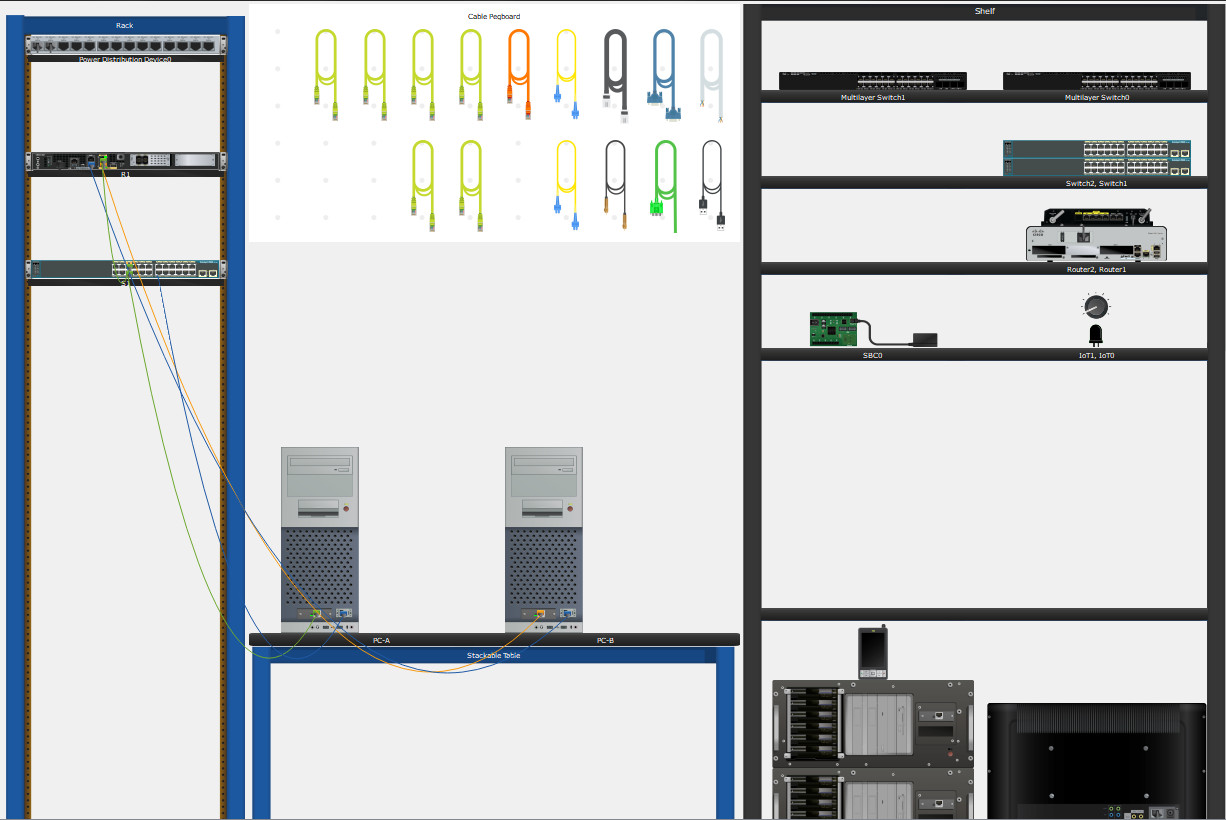
Addressing Table
| Device | Interface | IP Address / Prefix | Default Gateway |
|---|---|---|---|
| R1 | G0/0/0 | 192.168.0.1/24 | N/A |
| 2001:db8:acad::1/64 | |||
| fe80::1 | |||
| G0/0/1 | 192.168.1.1/24 | N/A | |
| 2001:db8:acad:1::1/64 | |||
| fe80::1 | |||
| S1 | VLAN 1 | 192.168.1.2/24 | 192.168.1.1 |
| PC-A | NIC | 192.168.1.3/24 | 192.168.1.1 |
| 2001:db8:acad:1::3/64 | fe80::1 | ||
| PC-B | NIC | 192.168.0.3/24 | 192.168.0.1 |
| 2001:db8:acad::3/64 | fe80::1 |
Objectives
- Part 1: Set Up the Topology
- Part 2: Configure Devices and Verify Connectivity
- Part 3: Display Device Information
Background / Scenario
This is a comprehensive activity to review the IOS commands you have learned. In this Packet Tracer Physical Mode (PTPM) activity, you will cable the equipment as shown in the topology diagram. You will then configure the devices to match the addressing table. After the configurations have been saved, you will verify your configurations by testing for network connectivity.
After the devices have been configured and network connectivity has been verified, you will use IOS commands to retrieve information from the devices to answer questions about your network equipment.
This activity provides minimal assistance with the commands necessary to configure the router. Test your knowledge by trying to configure the devices without referring to the course content or the previous activities.
Instructions
Part 1: Set Up the Topology
a. Move the required router and switch from the Shelf to the Rack.
b. Move the required PCs from the Shelf to the Table.
c. Cable the devices, as shown in the Topology and the Addressing Table.
d. Power on all the devices.
Part 2: Configure Devices and Verify Connectivity
In this part, you will set up the network topology and configure basic settings, such as the interface IP addresses, device access, and passwords. Refer to the Topology and Addressing Table at the beginning of this activity for device names and address information.
Step 1: Assign static IP information to the PC interfaces.
a. On PC-A, configure the IP address, subnet mask, and default gateway settings.
b. On PC-B, configure the IP address, subnet mask, and default gateway settings.
c. From a command prompt window on PC-A, ping PC-B.
C:\> ping 192.168.0.3
Why were the pings not successful?
The router interfaces (default gateways) have not been configured yet so Layer 3 traffic is not being routed between subnets.
Step 2: Configure the router.
a. Console into the router and enable privileged EXEC mode.
Router> enable
b. Enter configuration mode.
Router# configure terminal
c. Assign the device name to the router.
Router(config)# hostname R1
d. Assign class as the privileged EXEC encrypted password.
R1(config)# enable secret class
e. Assign cisco as the console password and enable login.
R1(config)# line console 0
R1(config-line)# password cisco
R1(config-line)# login
f. Assign cisco as the vty password and enable login.
R1(config)# line vty 0 4
R1(config-line)# password cisco
R1(config-line)# login
g. Encrypt the plaintext passwords.
R1(config)# service password-encryption
h. Create a banner that warns anyone accessing the device that unauthorized access is prohibited.
R1(config)# banner motd $ Authorized Users Only! $
i. Configure and activate both interfaces on the router.
R1(config)# interface gigabitethernet 0/0/0
R1(config-if)# ip address 192.168.0.1 255.255.255.0
R1(config-if)# ipv6 address 2001:db8:acad::1/64
R1(config-if)# ipv6 address fe80::1 link-local
R1(config-if)# no shutdown
R1(config-if)# interface gigabitethernet 0/0/1
R1(config-if)# ip address 192.168.1.1 255.255.255.0
R1(config-if)# ipv6 address 2001:db8:acad:1::1/64
R1(config-if)# ipv6 address fe80::1 link-local
R1(config-if)# no shutdown
j. Configure an interface description for each interface indicating which device is connected to it.
R1(config)# interface gigabitethernet 0/0/1
R1(config-if)# description Connected to F0/5 on S1
R1(config-if)# interface gigabitethernet 0/0/0
R1(config-if)# description Connected to Host PC-B
k. To enable IPv6 routing, enter the ipv6 unicast-routing command.
R1(config)# ipv6 unicast-routing
l. Save the running configuration to the startup configuration file.
R1# copy running-config startup-config
m. Set the clock on the router.
R1# clock set 15:30:00 25 Dec 2020
Note: Use the question mark (?) to help with the correct sequence of parameters needed to execute this command.
n. From a command prompt window on PC-A, ping PC-B.
C:\> ping 192.168.0.3
Note: If pings are not successful, the Windows Firewall may need to be turned off.
Were the pings successful? Explain.
Yes. The router is routing traffic across the two subnets. The default settings for the 2960 switch will automatically turn up the interfaces that are connected to devices.
Step 3: Configure the switch.
In this step, you will configure the hostname, the VLAN 1 interface, and its default gateway.
a. Console into the switch and enable privileged EXEC mode.
Switch> enable
b. Enter configuration mode.
Switch# configure terminal
c. Assign a device name to the switch.
Switch(config)# hostname S1
d. Configure and activate the VLAN interface on the switch S1.
S1(config)# interface vlan 1
S1(config-if)# ip address 192.168.1.2 255.255.255.0
S1(config-if)# no shutdown
e. Configure the default gateway for the switch S1.
S1(config)# ip default-gateway 192.168.1.1
f. Save the running configuration to the startup configuration file.
S1# copy running-config startup-config
Step 4: Verify end-to-end connectivity.
a. From PC-A, ping PC-B.
C:\> ping 192.168.0.3
b. From S1, ping PC-B.
S1# ping 192.168.0.3
All the pings should be successful.
Part 3: Display Device Information
In Part 3, you will use show commands to retrieve interface and routing information from the router and switch.
Step 1: Display the routing table on the router.
a. Use the show ip route command on R1 to answer the following questions.
R1# show ip route
Codes: L - local, C - connected, S - static, R - RIP, M - mobile, B - BGP
D - EIGRP, EX - EIGRP external, O - OSPF, IA - OSPF inter area
N1 - OSPF NSSA external type 1, N2 - OSPF NSSA external type 2
E1 - OSPF external type 1, E2 - OSPF external type 2, E - EGP
i - IS-IS, L1 - IS-IS level-1, L2 - IS-IS level-2, ia - IS-IS inter area
* - candidate default, U - per-user static route, o - ODR
P - periodic downloaded static route
Gateway of last resort is not set
192.168.0.0/24 is variably subnetted, 2 subnets, 2 masks
C 192.168.0.0/24 is directly connected, GigabitEthernet0/0/0
L 192.168.0.1/32 is directly connected, GigabitEthernet0/0/0
192.168.1.0/24 is variably subnetted, 2 subnets, 2 masks
C 192.168.1.0/24 is directly connected, GigabitEthernet0/0/1
L 192.168.1.1/32 is directly connected, GigabitEthernet0/0/1
What code is used in the routing table to indicate a directly connected network?
The C designates a directly connected subnet. An L designates a local interface. Both answers are correct.
How many route entries are coded with a C code in the routing table?
2
What interface types are associated to the C coded routes?
Answers may vary depending on the router type, but on the 4221 the correct answer is G0/0/0 and G0/0/1.
b. Use the show ipv6 route command on R1 to display the IPv6 routes.
R1# show ipv6 route
IPv6 Routing Table - 5 entries
Codes: C - Connected, L - Local, S - Static, R - RIP, B - BGP
U - Per-user Static route, M - MIPv6
I1 - ISIS L1, I2 - ISIS L2, IA - ISIS interarea, IS - ISIS summary
ND - ND Default, NDp - ND Prefix, DCE - Destination, NDr - Redirect
O - OSPF intra, OI - OSPF inter, OE1 - OSPF ext 1, OE2 - OSPF ext 2
ON1 - OSPF NSSA ext 1, ON2 - OSPF NSSA ext 2
D - EIGRP, EX - EIGRP external
C 2001:DB8:ACAD::/64 [0/0]
via GigabitEthernet0/0/0, directly connected
L 2001:DB8:ACAD::1/128 [0/0]
via GigabitEthernet0/0/0, receive
C 2001:DB8:ACAD:1::/64 [0/0]
via GigabitEthernet0/0/1, directly connected
L 2001:DB8:ACAD:1::1/128 [0/0]
via GigabitEthernet0/0/1, receive
L FF00::/8 [0/0]
via Null0, receive
Step 2: Display interface information on R1.
a. Use the show interfaces gigabitethernet 0/0/1 command to answer the following questions.
R1# show interfaces gigabitethernet 0/0/1
GigabitEthernet0/0/1 is up, line protocol is up (connected)
Hardware is Lance, address is 0060.4731.8102 (bia 0060.4731.8102)
Description: Connected to F0/5 on S1
Internet address is 192.168.1.1/24
MTU 1500 bytes, BW 1000000 Kbit, DLY 100 usec,
reliability 255/255, txload 1/255, rxload 1/255
Encapsulation ARPA, loopback not set
Full-duplex, 100Mb/s, media type is RJ45
ARP type: ARPA, ARP Timeout 04:00:00,
Last input 00:00:08, output 00:00:05, output hang never
Last clearing of “show interface” counters never
Input queue: 0/75/0 (size/max/drops); Total output drops: 0
Queueing strategy: fifo
Output queue :0/40 (size/max)
5 minute input rate 0 bits/sec, 0 packets/sec
5 minute output rate 72 bits/sec, 0 packets/sec
17 packets input, 1696 bytes, 0 no buffer
Received 0 broadcasts, 0 runts, 0 giants, 0 throttles
0 input errors, 0 CRC, 0 frame, 0 overrun, 0 ignored, 0 abort
0 input packets with dribble condition detected
99 packets output, 8160 bytes, 0 underruns
0 output errors, 0 collisions, 1 interface resets
0 babbles, 0 late collision, 0 deferred
0 lost carrier, 0 no carrier
0 output buffer failures, 0 output buffers swapped out
What is the operational status of the G0/0/1 interface?
GigabitEthernet0/0/1 is up, line protocol is up
What is the Media Access Control (MAC) address of the G0/0/1 interface?
0060.4731.8102
How is the internet address displayed in this command?
Internet address is 192.168.1.1/24.
b. For the IPv6 information, enter the show ipv6 interface interface command.
R1# show ipv6 interface gigabitethernet 0/0/1
GigabitEthernet0/0/1 is up, line protocol is up
IPv6 is enabled, link-local address is FE80::1
No Virtual link-local address(es):
Global unicast address(es):
2001:DB8:ACAD:1::1, subnet is 2001:DB8:ACAD:1::/64
Joined group address(es):
FF02::1:FF00:1
MTU is 1500 bytes
ICMP error messages limited to one every 100 milliseconds
ICMP redirects are enabled
ICMP unreachables are sent
ND DAD is enabled, number of DAD attempts: 1
ND reachable time is 30000 milliseconds
ND advertised reachable time is 0 (unspecified)
ND advertised retransmit interval is 0 (unspecified)
ND router advertisements are sent every 200 seconds
ND router advertisements live for 1800 seconds
ND advertised default router preference is Medium
Hosts use stateless autoconfig for addresses.
Step 3: Display a summary list of the interfaces on the router and switch.
There are several commands that can be used to verify an interface configuration. One of the most useful is the show ip interface brief command. The command output displays a summary list of the interfaces on the device and provides immediate feedback about the status of each interface.
a. Enter the show ip interface brief command on R1.
R1# show ip interface brief
Interface              IP-Address      OK? Method Status                Protocol
GigabitEthernet0/0/0   192.168.0.1     YES manual up                    up
GigabitEthernet0/0/1   192.168.1.1     YES manual up                    up
GigabitEthernet0/1/0   unassigned      YES unset  up                    down
GigabitEthernet0/1/1   unassigned      YES unset  up                    down
GigabitEthernet0/1/2   unassigned      YES unset  up                    down
GigabitEthernet0/1/3   unassigned      YES unset  up                    down
Vlan1                  unassigned      YES unset  administratively down down
b. Enter the show ipv6 interface brief command on R1 to see the IPv6 interface information.
R1# show ipv6 interface brief
GigabitEthernet0/0/0       [up/up]
    FE80::1
    2001:DB8:ACAD::1
GigabitEthernet0/0/1       [up/up]
    FE80::1
    2001:DB8:ACAD:1::1
GigabitEthernet0/1/0       [up/down]
GigabitEthernet0/1/1       [up/down]
GigabitEthernet0/1/2       [up/down]
GigabitEthernet0/1/3       [up/down]
Vlan1                      [administratively down/down]
    unassigned
c. Enter the show ip interface brief command on S1.
S1# show ip interface brief
Interface              IP-Address      OK? Method Status                Protocol
FastEthernet0/1        unassigned      YES manual down                  down
FastEthernet0/2        unassigned      YES manual down                  down
FastEthernet0/3        unassigned      YES manual down                  down
FastEthernet0/4        unassigned      YES manual down                  down
FastEthernet0/5        unassigned      YES manual up                    up
FastEthernet0/6        unassigned      YES manual up                    up
FastEthernet0/7        unassigned      YES manual down                  down
FastEthernet0/8        unassigned      YES manual down                  down
FastEthernet0/9        unassigned      YES manual down                  down
FastEthernet0/10       unassigned      YES manual down                  down
FastEthernet0/11       unassigned      YES manual down                  down
FastEthernet0/12       unassigned      YES manual down                  down
FastEthernet0/13       unassigned      YES manual down                  down
FastEthernet0/14       unassigned      YES manual down                  down
FastEthernet0/15       unassigned      YES manual down                  down
FastEthernet0/16       unassigned      YES manual down                  down
FastEthernet0/17       unassigned      YES manual down                  down
FastEthernet0/18       unassigned      YES manual down                  down
FastEthernet0/19       unassigned      YES manual down                  down
FastEthernet0/20       unassigned      YES manual down                  down
FastEthernet0/21       unassigned      YES manual down                  down
FastEthernet0/22       unassigned      YES manual down                  down
FastEthernet0/23       unassigned      YES manual down                  down
FastEthernet0/24       unassigned      YES manual down                  down
GigabitEthernet0/1     unassigned      YES manual down                  down
GigabitEthernet0/2     unassigned      YES manual down                  down
Vlan1                  192.168.1.2     YES manual up                    up
Reflection Questions
1. If the G0/0/1 interface showed that it was administratively down, what interface configuration command would you use to bring the interface up?
R1(config-if)# no shutdown
2. What would happen if you had incorrectly configured interface G0/0/1 on the router with an IP address of 192.168.1.2?
PC-A would not be able to ping PC-B. This is because PC-B is on a different network than PC-A, which requires the default-gateway router to route these packets. PC-A is configured to use the IP address of 192.168.1.1 for the default-gateway router, but this address is not assigned to any device on the LAN. Any packets that need to be sent to the default-gateway for routing will never reach their destination.
Device Configs - Final
ROUTER R1
! ==============================================================
!--- 10.4.4 Packet Tracer - Build a Switch and Router Network - Physical Mode
!--- ANSWER SCRIPT FOR ROUTER R1
!--- Usage: copy this whole file and paste it into the R1 terminal (start at the Router> prompt). Every line beginning with "!" is a comment; IOS ignores it, so pasting a comment by accident is harmless.
! ==============================================================

enable
configure terminal

! --------------------------------------------------------------
!--- Part 2, Step 2: Configure the router.
! --------------------------------------------------------------

!--- c. Assign the device name to the router.
hostname R1

!--- d. Assign class as the privileged EXEC encrypted password.
enable secret class

!--- e. Assign cisco as the console password and enable login.
line console 0
 password cisco
 login
 exit

!--- f. Assign cisco as the vty password and enable login.
line vty 0 4
 password cisco
 login
 exit

!--- g. Encrypt the plaintext passwords.
service password-encryption

!--- h. Create a banner that warns anyone accessing the device that unauthorized access is prohibited.
banner motd $ Authorized Users Only! $

!--- i. Configure and activate G0/0/0 (PC-B LAN): IPv4, IPv6 GUA and link-local fe80::1.
interface gigabitethernet 0/0/0
 ip address 192.168.0.1 255.255.255.0
 ipv6 address 2001:db8:acad::1/64
 ipv6 address fe80::1 link-local
 no shutdown
 exit

!--- i. Configure and activate G0/0/1 (S1 LAN): IPv4, IPv6 GUA and link-local fe80::1.
interface gigabitethernet 0/0/1
 ip address 192.168.1.1 255.255.255.0
 ipv6 address 2001:db8:acad:1::1/64
 ipv6 address fe80::1 link-local
 no shutdown
 exit

!--- j. Interface description for G0/0/1 (connected to S1 F0/5).
interface gigabitethernet 0/0/1
 description Connected to F0/5 on S1
 exit

!--- j. Interface description for G0/0/0 (connected to PC-B).
interface gigabitethernet 0/0/0
 description Connected to Host PC-B
 exit

!--- k. Enable IPv6 routing.
ipv6 unicast-routing

end

! --------------------------------------------------------------
!--- l. Save the running configuration to the startup configuration file. (Press Enter when prompted for the destination filename.)
! --------------------------------------------------------------
copy running-config startup-config

! --------------------------------------------------------------
!--- m. Set the clock on the router (privileged EXEC command, not saved in the configuration).
! --------------------------------------------------------------
clock set 15:30:00 25 Dec 2020


! ==============================================================
!--- Verification:
!---   show ip route              -> 2 connected (C) routes: 192.168.0.0/24 and 192.168.1.0/24
!---   show ipv6 route            -> connected 2001:db8:acad::/64 and 2001:db8:acad:1::/64
!---   show ip interface brief    -> G0/0/0 and G0/0/1 up/up
!---   show ipv6 interface brief  -> FE80::1 and the GUA on both interfaces
!---   show clock                 -> the time that was set
! ==============================================================
SWITCH S1
! ==============================================================
!--- 10.4.4 Packet Tracer - Build a Switch and Router Network - Physical Mode
!--- ANSWER SCRIPT FOR SWITCH S1
!--- Usage: copy this whole file and paste it into the S1 terminal (start at the Switch> prompt). Every line beginning with "!" is a comment; IOS ignores it, so pasting a comment by accident is harmless.
! ==============================================================

enable
configure terminal

! --------------------------------------------------------------
!--- Part 2, Step 3: Configure the switch.
! --------------------------------------------------------------

!--- c. Assign a device name to the switch.
hostname S1

!--- d. Configure and activate the VLAN interface on the switch S1.
interface vlan 1
 ip address 192.168.1.2 255.255.255.0
 no shutdown
 exit

!--- e. Configure the default gateway for the switch S1.
ip default-gateway 192.168.1.1

end

! --------------------------------------------------------------
!--- f. Save the running configuration to the startup configuration file. (Press Enter when prompted for the destination filename.)
! --------------------------------------------------------------
copy running-config startup-config


! ==============================================================
!--- Verification:
!---   show ip interface brief  -> Vlan1 up/up with 192.168.1.2; F0/5 and F0/6 up
!---   ping 192.168.1.1         -> reaches the default gateway (R1 G0/0/1)
!---   ping 192.168.0.3         -> reaches PC-B on the other LAN (Step 4b)
! ==============================================================


