
Lab - Configure IPv4 and IPv6 Static and Default Routes (Instructor Version)
Topology
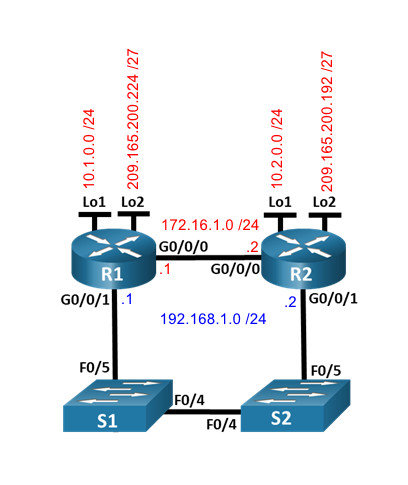
Addressing Table
| Device | Interface | IP Address / Prefix |
|---|---|---|
| R1 | G0/0/0 | 172.16.1.1 /24 |
| 2001:db8:acad:2::1 /64 | ||
| fe80::1 | ||
| G0/0/1 | 192.168.1.1 /24 | |
| 2001:db8:acad:1::1 /64 | ||
| fe80::1 | ||
| Loopback1 | 10.1.0.1 /24 | |
| 2001:db8:acad:10::1 /64 | ||
| fe80::1 | ||
| Loopback2 | 209.165.200.225 /27 | |
| 2001:db8:acad:209::1 /64 | ||
| fe80::1 | ||
| R2 | G0/0/0 | 172.16.1.2 /24 |
| 2001:db8:acad:2::2 /64 | ||
| fe80::2 | ||
| G0/0/1 | 192.168.1.2 /24 | |
| 2001:db8:acad:1::2 /64 | ||
| fe80::2 | ||
| Loopback1 | 10.2.0.1 /24 | |
| 2001:db8:acad:11::2 /64 | ||
| fe80::2 | ||
| Loopback2 | 209.165.200.193 /27 | |
| 2001:db8:acad:210::1 /64 | ||
| fe80::2 |
Objectives
- Part 1: Build the Network and Configure Basic Device Settings
- Part 2: Configure and verify IP and IPv6 addressing on R1 and R2
- Part 3: Configure and verify static and default routing for IPv4 on R1 and R2
- Part 4: Configure and verify static and default routing for IPv6 on R1 and R2
Background / Scenario
Static and Default routing are the simplest forms of network routing and configured manually. They are fixed, meaning that they do not change dynamically to meet changing network conditions. They are either valid and made available to the routing table or invalid and not made available to the routing table. Static routes have an administrative distance of one by default. However, static and default routes can be configured with an administrator-defined administrative distance. This capability allows the administrator to put the static or default route in reserve, and only make it available to the routing table when routes with lower administrative distances (usually generated by dynamic routing protocols) are no longer valid.
Note: In this lab you will configure static, default, and floating default routes for both IPv4 and IPv6 which may not reflect networking best practices.
Note: The routers used with CCNA hands-on labs are Cisco 4221 with Cisco IOS XE Release 16.9.4 (universalk9 image). The switches used in the labs are Cisco Catalyst 2960s with Cisco IOS Release 15.2(2) (lanbasek9 image). Other routers, switches, and Cisco IOS versions can be used. Depending on the model and Cisco IOS version, the commands available and the output produced might vary from what is shown in the labs. Refer to the Router Interface Summary Table at the end of the lab for the correct interface identifiers.
Note: Ensure that the routers and switches have been erased and have no startup configurations. If you are unsure contact your instructor.
Instructor Note: Refer to the Instructor Lab Manual for the procedures to initialize and reload devices
Required Resources
- 2 Routers (Cisco 4221 with Cisco IOS XE Release 16.9.4 universal image or comparable)
- 2 Switches (Cisco 2960 with Cisco IOS Release 15.2(2) lanbasek9 image or comparable)
- 1 PC (Windows with a terminal emulation program, such as Tera Term)
- Console cables to configure the Cisco IOS devices via the console ports
- Ethernet cables as shown in the topology
Instructions
Part 1: Build the Network and Configure Basic Device Settings
In Part 1, you will set up the network topology and configure basic settings on the PC hosts and switches.
Step 1: Cable the network as shown in the topology.
Attach the devices as shown in the topology diagram, and cable as necessary.
Step 2: Configure basic settings for each router.
a. Assign a device name to the router.
router(config)# hostname R1

router(config)# hostname R2
b. Disable DNS lookup to prevent the router from attempting to translate incorrectly entered commands as though they were host names.
R1(config)# no ip domain-lookup

R2(config)# no ip domain-lookup
c. Assign class as the privileged EXEC encrypted password.
R1(config)# enable secret class

R2(config)# enable secret class
d. Assign cisco as the console password and enable login.
R1(config)# line console 0
R1(config-line)# password cisco
R1(config-line)# login

R2(config)# line console 0
R2(config-line)# password cisco
R2(config-line)# login
e. Assign cisco as the VTY password and enable login.
R1(config)# line vty 0 4
R1(config-line)# password cisco
R1(config-line)# login

R2(config)# line vty 0 4
R2(config-line)# password cisco
R2(config-line)# login
f. Encrypt the plaintext passwords.
R1(config)# service password-encryption
R2(config)# service password-encryption
g. Create a banner that warns anyone accessing the device that unauthorized access is prohibited.
R1(config)# banner motd $ Authorized Users Only! $

R2(config)# banner motd $ Authorized Users Only! $
h. Save the running configuration to the startup configuration file.
R1(config)# exit
R1# copy running-config startup-config

R2(config)# exit
R2# copy running-config startup-config
Step 3: Configure basic settings for each switch.
a. Assign a device name to the switch.
switch(config)# hostname S1

switch(config)# hostname S2
b. Disable DNS lookup to prevent the router from attempting to translate incorrectly entered commands as though they were host names.
S1(config)# no ip domain-lookup

S2(config)# no ip domain-lookup
c. Assign class as the privileged EXEC encrypted password.
S1(config)# enable secret class

S2(config)# enable secret class
d. Assign cisco as the console password and enable login.
S1(config)# line console 0
S1(config-line)# password cisco
S1(config-line)# login

S2(config)# line console 0
S2(config-line)# password cisco
S2(config-line)# login
e. Assign cisco as the VTY password and enable login.
S1(config)# line vty 0 15
S1(config-line)# password cisco
S1(config-line)# login

S2(config)# line vty 0 15
S2(config-line)# password cisco
S2(config-line)# login
f. Encrypt the plaintext passwords.
S1(config)# service password-encryption

S2(config)# service password-encryption
g. Create a banner that warns anyone accessing the device that unauthorized access is prohibited.
S1(config)# banner motd $ Authorized Users Only! $

S2(config)# banner motd $ Authorized Users Only! $
h. Shutdown all interfaces that will not be used.
S1(config)# interface range f0/1-3, f0/6-24, g0/1-2
S1(config-if-range)# shutdown

S2(config)# interface range f0/1-3, f0/6-24, g0/1-2
S2(config-if-range)# shutdown
i. Save the running configuration to the startup configuration file.
S1(config-if-range)# exit
S1# copy running-config startup-config

S2(config-if-range)# exit
S2# copy running-config startup-config
Issuing the command show cdp neighbors at this point on R1 or R2 results in an empty list. Explain.
Because the router interfaces are shut down by default.
Part 2: Configure and verify IPv4 and IPv6 addressing on R1 and R2
In Part 2, you will configure and verify the IPv4 and IPv6 addresses on R1 and R2. Use the table above for the information necessary to complete this part.
Step 1: Configure IP addresses for both routers.
a. Enable IPv6 Unicast Routing on both routers.
R1(config)# ipv6 unicast-routing

R2(config)# ipv6 unicast-routing
b. Configure the IP address for all the interfaces according to the Addressing Table.
R1(config)# interface g0/0/0
R1(config-if)# ip address 172.16.1.1 255.255.255.0
R1(config-if)# ipv6 address fe80::1 link-local
R1(config-if)# ipv6 address 2001:db8:acad:2::1/64
R1(config-if)# no shutdown
R1(config-if)# interface g0/0/1
R1(config-if)# ip address 192.168.1.1 255.255.255.0
R1(config-if)# ipv6 address fe80::1 link-local
R1(config-if)# ipv6 address 2001:db8:acad:1::1/64
R1(config-if)# no shutdown
R1(config-if)# interface lo1
R1(config-if)# ip address 10.1.0.1 255.255.255.0
R1(config-if)# ipv6 address fe80::1 link-local
R1(config-if)# ipv6 address 2001:db8:acad:10::1/64
R1(config-if)# no shutdown
R1(config-if)# interface lo2
R1(config-if)# ip address 209.165.200.225 255.255.255.224
R1(config-if)# ipv6 address fe80::1 link-local
R1(config-if)# ipv6 address 2001:db8:acad:209::1/64
R1(config-if)# no shutdown

R2(config)# interface g0/0/0
R2(config-if)# ip address 172.16.1.2 255.255.255.0
R2(config-if)# ipv6 address fe80::2 link-local
R2(config-if)# ipv6 address 2001:db8:acad:2::2/64
R2(config-if)# no shutdown
R2(config-if)# interface g0/0/1
R2(config-if)# ip address 192.168.1.2 255.255.255.0
R2(config-if)# ipv6 address fe80::2 link-local
R2(config-if)# ipv6 address 2001:db8:acad:1::2/64
R2(config-if)# no shutdown
R2(config-if)# interface lo1
R2(config-if)# ip address 10.2.0.1 255.255.255.0
R2(config-if)# ipv6 address fe80::2 link-local
R2(config-if)# ipv6 address 2001:db8:acad:11::2/64
R2(config-if)# no shutdown
R2(config-if)# interface lo2
R2(config-if)# ip address 209.165.200.193 255.255.255.224
R2(config-if)# ipv6 address fe80::2 link-local
R2(config-if)# ipv6 address 2001:db8:acad:210::1/64
R2(config-if)# no shutdown
Step 2: Verify addressing
a. Issue the command to verify IPv4 assignments to the interfaces.
R1# show ip interface brief
Interface              IP-Address      OK? Method Status                Protocol
GigabitEthernet0/0/0   172.16.1.1      YES unset  up                    up
GigabitEthernet0/0/1   192.168.1.1     YES manual up                    up
Serial0/1/0            unassigned      YES unset  up                    up
Serial0/1/1            unassigned      YES manual up                    up
Loopback1              10.1.0.1        YES manual up                    up
Loopback2              209.165.200.225 YES manual up                    up
f
R2# show ip interface brie
Interface              IP-Address      OK? Method Status                Protocol
GigabitEthernet0/0/0   172.16.1.2      YES manual up                    up
GigabitEthernet0/0/1   192.168.1.2     YES manual up                    up
GigabitEthernet0       unassigned      YES unset  down                  down
Loopback1              10.2.0.1        YES manual up                    up
Loopback2              209.165.200.193 YES manual up                    up
b. Issue the command to verify IPv6 assignments to the interfaces.
R1# show ipv6 interface brief
GigabitEthernet0/0/0   [up/up]
    FE80::1
    2001:DB8:ACAD:2::1
GigabitEthernet0/0/1   [up/up]
    FE80::1
    2001:DB8:ACAD:1::1
Loopback1              [up/up]
    FE80::1
    2001:DB8:ACAD:10::1
Loopback2              [up/up]
    FE80::1
    2001:DB8:ACAD:209::1

R2# show ipv6 interface brief
GigabitEthernet0/0/0   [up/up]
    FE80::2
    2001:DB8:ACAD:2::2
GigabitEthernet0/0/1   [up/up]
    FE80::2
    2001:DB8:ACAD:1::2
Loopback1              [up/up]
    FE80::2
    2001:DB8:ACAD:11::2
Loopback2              [up/up]
    FE80::2
    2001:DB8:ACAD:210::1
Step 3: Save your configuration
Save the running configuration to the startup configuration file on both routers.
R1# copy running-config startup-config

R2# copy running-config startup-config
Part 3: Configure and verify static and default routing for IPv4 on R1 and R2
In Part 3, you will configure static and default routing on R1 and R2 to enable full connectivity between the routers using IPv4. Once again, the static routing being used here is not meant to represent best practice, but to assess your ability to complete the required configurations.
Step 1: On R1, configure a static route to R2’s Loopback1 network, using R2’s G0/0/1 address as the next hop.
a. Use the ping command to ensure that R2’s G0/0/1 interface is reachable.
R1#ping 192.168.1.2

Type escape sequence to abort.
Sending 5, 100-byte ICMP Echos to 192.168.1.2, timeout is 2 seconds:
.!!!!
Success rate is 80 percent (4/5), round-trip min/avg/max = 0/1/5 ms
b. Configure a static route for R2’s Loopback1 network via R2’s G0/0/1 address.
R1(config)# ip route 10.2.0.0 255.255.255.0 192.168.1.2
Step 2: On R1, configure a static default route via R2’s G0/0/0 address.
a. Use the ping command to ensure that R2’s G0/0/0 interface is reachable.
R1#ping 172.16.1.2

Type escape sequence to abort.
Sending 5, 100-byte ICMP Echos to 172.16.1.2, timeout is 2 seconds:
.!!!!
Success rate is 80 percent (4/5), round-trip min/avg/max = 0/0/0 ms
b. Configure a static default route via R2’s G0/0/0 address.
R1(config)# ip route 0.0.0.0 0.0.0.0 172.16.1.2
Step 3: On R1, configure a floating static default route via R2’s G0/0/1 address.
Configure a floating static default route with an AD of 80 via R2’s G0/0/1 address.
R1(config)# ip route 0.0.0.0 0.0.0.0 192.168.1.2 80
Step 4: On R2, configure a static default route via R1’s G0/0/0 address
a. Use the ping command to ensure that R1’s G0/0/0 interface is reachable.
b. Configure a static default route via R1’s G0/0/0 address.
R2(config)# ip route 0.0.0.0 0.0.0.0 172.16.1.1
Step 5: Verify that the routes are operational.
a. Use the show ip route command to ensure that R1’s routing table shows the static and default routes.
R1# show ip route
Codes: L - local, C - connected, S - static, R - RIP, M - mobile, B - BGP
       D - EIGRP, EX - EIGRP external, O - OSPF, IA - OSPF inter area
       N1 - OSPF NSSA external type 1, N2 - OSPF NSSA external type 2
       E1 - OSPF external type 1, E2 - OSPF external type 2
       i - IS-IS, su - IS-IS summary, L1 - IS-IS level-1, L2 - IS-IS level-2
       ia - IS-IS inter area, * - candidate default, U - per-user static route
       o - ODR, P - periodic downloaded static route, H - NHRP, l - LISP
       a - application route
       + - replicated route, % - next hop override, p - overrides from PfR

Gateway of last resort is 172.16.1.2 to network 0.0.0.0

S*    0.0.0.0/0 [1/0] via 172.16.1.2
      10.0.0.0/8 is variably subnetted, 3 subnets, 2 masks
C        10.1.0.0/24 is directly connected, Loopback1
L        10.1.0.1/32 is directly connected, Loopback1
S        10.2.0.0/24 [1/0] via 192.168.1.2
      172.16.0.0/16 is variably subnetted, 2 subnets, 2 masks
C        172.16.1.0/24 is directly connected, GigabitEthernet0/0/0
L        172.16.1.1/32 is directly connected, GigabitEthernet0/0/0
      192.168.1.0/24 is variably subnetted, 2 subnets, 2 masks
C        192.168.1.0/24 is directly connected, GigabitEthernet0/0/1
L        192.168.1.1/32 is directly connected, GigabitEthernet0/0/1
      209.165.200.0/24 is variably subnetted, 2 subnets, 2 masks
C        209.165.200.224/27 is directly connected, Loopback2
L        209.165.200.225/32 is directly connected, Loopback2
b. On R1, issue the command traceroute 10.2.0.1. The output should show that the next hop is 192.168.1.2.
R1# traceroute 10.2.0.1
Type escape sequence to abort.
Tracing the route to 10.2.0.1
VRF info: (vrf in name/id, vrf out name/id)
  1 192.168.1.2 1 msec * 2 msec
c. On R1, issue the command traceroute 209.165.200.193. The output should show that the next hop is 172.16.1.2.
R1# traceroute 209.165.200.193
Type escape sequence to abort.
Tracing the route to 209.165.200.193
VRF info: (vrf in name/id, vrf out name/id)
  1 172.16.1.2 2 msec * 3 msec
d. Issue the shutdown command on R1 G0/0/0.
R1# config terminal
R1(config)# interface g0/0/0
R1(config-if)# shutdown
R1(config-if)# end
e. Demonstrate that the floating static route is working. First, issue the show ip route static command. You should see two static routes. A default static route with an AD of 80 and a static route to the 10.2.0.0/24 network with an AD of 1.
R1# show ip route static
Codes: L - local, C - connected, S - static, R - RIP, M - mobile, B - BGP
       D - EIGRP, EX - EIGRP external, O - OSPF, IA - OSPF inter area
       N1 - OSPF NSSA external type 1, N2 - OSPF NSSA external type 2
       E1 - OSPF external type 1, E2 - OSPF external type 2
       i - IS-IS, su - IS-IS summary, L1 - IS-IS level-1, L2 - IS-IS level-2
       ia - IS-IS inter area, * - candidate default, U - per-user static route
       o - ODR, P - periodic downloaded static route, H - NHRP, l - LISP

S*    0.0.0.0/0 [80/0] via 192.168.1.2
      10.0.0.0/8 is variably subnetted, 3 subnets, 2 masks
S        10.2.0.0/24 [1/0] via 192.168.1.2
f. Demonstrate the floating static route is working by issuing the traceroute 209.165.200.193 command. The traceroute will show the next hop as 192.168.1.2.
R1# traceroute 209.165.200.193
Type escape sequence to abort.
Tracing the route to 209.165.200.193
VRF info: (vrf in name/id, vrf out name/id)
  1 192.168.1.2 1 msec * 1 msec
g. Issue the no shutdown command on R1 G0/0/0.
R1# config terminal
R1(config)# interface g0/0/0
R1(config-if)# no shutdown
R1(config-if)# end
Part 4: Configure and verify static and default routing for IPv6 on R1 and R2
In Part 4, you will configure static and default routing on R1 and R2 to enable full connectivity between the routers using IPv6. Once again, the static routing being used here is not meant to represent best practice, but to assess your ability to complete the required configurations.
Step 1: On R2, configure a static route to R1’s Loopback1 network, using R1’s G0/0/1 address as the next hop.
a. Use the ping command to ensure that R1’s G0/0/1 interface is reachable.
b. Configure a static route for R1’s Loopback1 network via R1’s G0/0/1 address.
R2(config)# ipv6 route 2001:db8:acad:10::/64 2001:db8:acad:1::1
Step 2: On R2, configure a static default route via R1’s G0/0/0 address.
a. Use the ping command to ensure that R1’s G0/0/0 interface is reachable.
b. Configure a static default route via R1’s G0/0/0 address.
R2(config)# ipv6 route ::/0 2001:db8:acad:2::1
Step 3: On R2, configure a floating static default route via R1’s G0/0/1 address.
Configure a floating static default route with an AD of 80 via R1’s G0/0/1 address.
R2(config)# ipv6 route ::/0 2001:db8:acad:1::1 80
Step 4: On R1, configure a static default route via R1’s G0/0/0 address.
a. Use the ping command to ensure that R2’s G0/0/0 interface is reachable.
b. Configure a static default route via R2’s G0/0/0 address.
R1(config)# ipv6 route ::/0 2001:db8:acad:2::2
Step 5: Verify that the routes are operational.
a. Use the show ipv6 route command to ensure that R2’s routing table shows the static and default routes.
R2# show ipv6 route
IPv6 Routing Table - default - 11 entries
Codes: C - Connected, L - Local, S - Static, U - Per-user Static route
       B - BGP, R - RIP, H - NHRP, I1 - ISIS L1
       I2 - ISIS L2, IA - ISIS interarea, IS - ISIS summary, D - EIGRP
       EX - EIGRP external, ND - ND Default, NDp - ND Prefix, DCE - Destination
       NDr - Redirect, RL - RPL, O - OSPF Intra, OI - OSPF Inter
       OE1 - OSPF ext 1, OE2 - OSPF ext 2, ON1 - OSPF NSSA ext 1
       ON2 - OSPF NSSA ext 2, a - Application
S   ::/0 [1/0]
     via 2001:DB8:ACAD:2::1
C   2001:DB8:ACAD:1::/64 [0/0]
     via GigabitEthernet0/0/1, directly connected
L   2001:DB8:ACAD:1::2/128 [0/0]
     via GigabitEthernet0/0/1, receive
C   2001:DB8:ACAD:2::/64 [0/0]
     via GigabitEthernet0/0/0, directly connected
L   2001:DB8:ACAD:2::2/128 [0/0]
     via GigabitEthernet0/0/0, receive
S   2001:DB8:ACAD:10::/64 [1/0]
     via 2001:DB8:ACAD:1::1
C   2001:DB8:ACAD:11::/64 [0/0]
     via Loopback1, directly connected
L   2001:DB8:ACAD:11::1/128 [0/0]
     via Loopback1, receive
C   2001:DB8:ACAD:210::/64 [0/0]
     via Loopback2, directly connected
L   2001:DB8:ACAD:210::1/128 [0/0]
     via Loopback2, receive
L   FF00::/8 [0/0]
     via Null0, receive
b. On R2, issue the command traceroute 2001:db8:acad:10::1. The output should show that the next hop is 2001:db8:acad:1::1.
R2# traceroute 2001:db8:acad:10::1
Type escape sequence to abort.
Tracing the route to 2001:DB8:ACAD:10::1

  1 2001:DB8:ACAD:1::1 6 msec 1 msec 1 msec
c. On R2, issue the command traceroute 2001:db8:acad:209::1. The output should show that the next hop is 2001:db8:acad:2::1.
R2# traceroute 2001:db8:acad:209::1
Type escape sequence to abort.
Tracing the route to 2001:DB8:ACAD:209::1

  1 2001:DB8:ACAD:2::1 1 msec 2 msec 1 msec
d. Issue the shutdown command on R2 G0/0/0.
R2# config terminal
R2(config)# interface g0/0/0
R2(config-if)# shutdown
R2(config-if)# end
e. Demonstrate the floating static route is working. First issue the show ipv6 route static command. You should see two static routes. A default static route with an AD of 80 and a static route to the 2001:db8:acad:10::/64 network with an AD of 1.
R2# show ipv6 route static
Codes: C - Connected, L - Local, S - Static, U - Per-user Static route
       B - BGP, R - RIP, H - NHRP, I1 - ISIS L1
       I2 - ISIS L2, IA - ISIS interarea, IS - ISIS summary, D - EIGRP
       NDr - Redirect, RL - RPL, O - OSPF Intra, OI - OSPF Inter
       OE1 - OSPF ext 1, OE2 - OSPF ext 2, ON1 - OSPF NSSA ext 1
       ON2 - OSPF NSSA ext 2, a - Application
S   ::/0 [80/0]
     via 2001:DB8:ACAD:1::1
S   2001:DB8:ACAD:10::/64 [1/0]
     via 2001:DB8:ACAD:1::1
f. Lastly, demonstrate that the floating static route is working by issuing the traceroute 2001:db8:acad:209::1 command. The traceroute will show the next hop as 2001:db8:acad:1::1.
R2# traceroute 2001:db8:acad:209::1
Type escape sequence to abort.
Tracing the route to 2001:DB8:ACAD:209::1

  1 2001:DB8:ACAD:1::1 2 msec 1 msec 1 msec
Router Interface Summary Table
| Router Model | Ethernet Interface #1 | Ethernet Interface #2 | Serial Interface #1 | Serial Interface #2 |
|---|---|---|---|---|
| 1800 | Fast Ethernet 0/0 (F0/0) | Fast Ethernet 0/1 (F0/1) | Serial 0/0/0 (S0/0/0) | Serial 0/0/1 (S0/0/1) |
| 1900 | Gigabit Ethernet 0/0 (G0/0) | Gigabit Ethernet 0/1 (G0/1) | Serial 0/0/0 (S0/0/0) | Serial 0/0/1 (S0/0/1) |
| 2801 | Fast Ethernet 0/0 (F0/0) | Fast Ethernet 0/1 (F0/1) | Serial 0/1/0 (S0/1/0) | Serial 0/1/1 (S0/1/1) |
| 2811 | Fast Ethernet 0/0 (F0/0) | Fast Ethernet 0/1 (F0/1) | Serial 0/0/0 (S0/0/0) | Serial 0/0/1 (S0/0/1) |
| 2900 | Gigabit Ethernet 0/0 (G0/0) | Gigabit Ethernet 0/1 (G0/1) | Serial 0/0/0 (S0/0/0) | Serial 0/0/1 (S0/0/1) |
| 4221 | Gigabit Ethernet 0/0/0 (G0/0/0) | Gigabit Ethernet 0/0/1 (G0/0/1) | Serial 0/1/0 (S0/1/0) | Serial 0/1/1 (S0/1/1) |
| 4300 | Gigabit Ethernet 0/0/0 (G0/0/0) | Gigabit Ethernet 0/0/1 (G0/0/1) | Serial 0/1/0 (S0/1/0) | Serial 0/1/1 (S0/1/1) |
Note: To find out how the router is configured, look at the interfaces to identify the type of router and how many interfaces the router has. There is no way to effectively list all the combinations of configurations for each router class. This table includes identifiers for the possible combinations of Ethernet and Serial interfaces in the device. The table does not include any other type of interface, even though a specific router may contain one. An example of this might be an ISDN BRI interface. The string in parenthesis is the legal abbreviation that can be used in Cisco IOS commands to represent the interface.
Device Configs - Final
Router R1
! ==============================================================
!--- Lab - Configure IPv4 and IPv6 Static and Default Routes
!--- ANSWER SCRIPT FOR ROUTER R1
!--- Usage: this router starts fresh (no startup-config) - console in, "enable" into privileged EXEC mode, then paste this whole file. Every line beginning with "!" is a comment; IOS ignores it, so pasting a comment by accident is harmless.
!--- Verified against this lab's own "Device Configs - Final" section - matches exactly. Note the deliberately asymmetric design: R1 gets the full IPv4 pattern (specific route + primary default + floating default) while R2 gets only a single IPv4 default; for IPv6 it's reversed - R2 gets the full pattern and R1 gets only a single IPv6 default. This isn't an error, just how the lab splits the demonstration between the two routers.
! ==============================================================

enable
configure terminal

! --------------------------------------------------------------
!--- Part 1: Basic router settings
! --------------------------------------------------------------

hostname R1
no ip domain lookup
enable secret class
service password-encryption
banner motd $ Authorized Users Only! $

line console 0
 password cisco
 login
exit

line vty 0 4
 password cisco
 login
exit

end
copy running-config startup-config
configure terminal

! --------------------------------------------------------------
!--- Part 2: Enable IPv6 routing and address every interface (dual-stack)
! --------------------------------------------------------------

ipv6 unicast-routing

interface GigabitEthernet0/0/0
 ip address 172.16.1.1 255.255.255.0
 ipv6 address fe80::1 link-local
 ipv6 address 2001:db8:acad:2::1/64
 no shutdown
exit

interface GigabitEthernet0/0/1
 ip address 192.168.1.1 255.255.255.0
 ipv6 address fe80::1 link-local
 ipv6 address 2001:db8:acad:1::1/64
 no shutdown
exit

interface Loopback1
 ip address 10.1.0.1 255.255.255.0
 ipv6 address fe80::1 link-local
 ipv6 address 2001:db8:acad:10::1/64
 no shutdown
exit

interface Loopback2
 ip address 209.165.200.225 255.255.255.224
 ipv6 address fe80::1 link-local
 ipv6 address 2001:db8:acad:209::1/64
 no shutdown
exit

end
copy running-config startup-config
configure terminal

! --------------------------------------------------------------
!--- Part 3: IPv4 static and default routes (the "full pattern" side)
! --------------------------------------------------------------

!--- Specific route to R2's Loopback1 network, via R2's directly-attached LAN address (the S1-S2 switch path).
ip route 10.2.0.0 255.255.255.0 192.168.1.2

!--- Primary default route via the direct R1-R2 WAN link (AD 1, the default for static routes).
ip route 0.0.0.0 0.0.0.0 172.16.1.2

!--- Floating default route via the LAN path (AD 80) - only takes over if the direct WAN link goes down.
ip route 0.0.0.0 0.0.0.0 192.168.1.2 80

! --------------------------------------------------------------
!--- Part 4: IPv6 default route (the "single route" side this time)
! --------------------------------------------------------------

ipv6 route ::/0 2001:db8:acad:2::2

end

! --------------------------------------------------------------
!--- Operational habit: save again now that Parts 3-4 have changed the configuration.
! --------------------------------------------------------------
copy running-config startup-config

! ==============================================================
!--- Verification:
!---   R1# show ip route static   -> S* 0.0.0.0/0 [1/0] via 172.16.1.2; S 10.2.0.0/24 [1/0] via 192.168.1.2 (floating route with AD 80 hidden unless the primary is down)
!---   R1# show ipv6 route static -> S ::/0 [1/0] via 2001:DB8:ACAD:2::2
!---   R1# traceroute 10.2.0.1           -> first hop 192.168.1.2
!---   R1# traceroute 209.165.200.193    -> first hop 172.16.1.2
!---   Shut down G0/0/0 -> traceroute 209.165.200.193 now goes via 192.168.1.2 (the floating route taking over); "show ip route static" then shows the AD-80 route active
! ==============================================================
Router R2
! ==============================================================
!--- Lab - Configure IPv4 and IPv6 Static and Default Routes
!--- ANSWER SCRIPT FOR ROUTER R2
!--- Usage: this router starts fresh (no startup-config) - console in, "enable" into privileged EXEC mode, then paste this whole file. Every line beginning with "!" is a comment; IOS ignores it, so pasting a comment by accident is harmless.
!--- IMPORTANT: the source Instructions text for Part 4, Step 3 says the floating route goes "via R2's G0/0/1 address" - but this command is being configured ON R2 itself, so the next hop must be R1's G0/0/1 address instead. This is a wording typo in the Instructions (should read "R1's"); the actual command shown alongside it (and confirmed in the Final Config) is correct and is what's used below.
!--- Also note: the source "Device Configs - Final" shows G0/0/0 left "shutdown" here - that's a leftover from the Part 4 Step 5.4 demo (shutting it down to prove the IPv6 floating route works), which - unlike the equivalent IPv4 demo in Part 3 (which explicitly restores R1's G0/0/0 in Step 7) - is never explicitly undone anywhere in this lab's Instructions for Part 4. This script restores it with "no shutdown" so the network ends in a fully working state; see the discrepancy note in chat.
! ==============================================================

enable
configure terminal

! --------------------------------------------------------------
!--- Part 1: Basic router settings
! --------------------------------------------------------------

hostname R2
no ip domain lookup
enable secret class
service password-encryption
banner motd $ Authorized Users Only! $

line console 0
 password cisco
 login
exit

line vty 0 4
 password cisco
 login
exit

end
copy running-config startup-config
configure terminal

! --------------------------------------------------------------
!--- Part 2: Enable IPv6 routing and address every interface (dual-stack)
! --------------------------------------------------------------

ipv6 unicast-routing

interface GigabitEthernet0/0/0
 ip address 172.16.1.2 255.255.255.0
 ipv6 address fe80::2 link-local
 ipv6 address 2001:db8:acad:2::2/64
 no shutdown
exit

interface GigabitEthernet0/0/1
 ip address 192.168.1.2 255.255.255.0
 ipv6 address fe80::2 link-local
 ipv6 address 2001:db8:acad:1::2/64
 no shutdown
exit

interface Loopback1
 ip address 10.2.0.1 255.255.255.0
 ipv6 address fe80::2 link-local
 ipv6 address 2001:db8:acad:11::2/64
 no shutdown
exit

interface Loopback2
 ip address 209.165.200.193 255.255.255.224
 ipv6 address fe80::2 link-local
 ipv6 address 2001:db8:acad:210::1/64
 no shutdown
exit

end
copy running-config startup-config
configure terminal

! --------------------------------------------------------------
!--- Part 3: IPv4 default route (the "single route" side this time)
! --------------------------------------------------------------

ip route 0.0.0.0 0.0.0.0 172.16.1.1

! --------------------------------------------------------------
!--- Part 4: IPv6 static and default routes (the "full pattern" side)
! --------------------------------------------------------------

!--- Specific route to R1's Loopback1 network, via R1's directly-attached LAN address (the S1-S2 switch path).
ipv6 route 2001:db8:acad:10::/64 2001:db8:acad:1::1

!--- Primary default route via the direct R1-R2 WAN link.
ipv6 route ::/0 2001:db8:acad:2::1

!--- Floating default route via the LAN path (AD 80).
ipv6 route ::/0 2001:db8:acad:1::1 80

!--- See the note above - restoring G0/0/0 here so the topology ends fully connected, even though the source Final Config leaves it down.
interface GigabitEthernet0/0/0
 no shutdown
exit

end

! --------------------------------------------------------------
!--- Operational habit: save again now that Parts 3-4 have changed the configuration.
! --------------------------------------------------------------
copy running-config startup-config

! ==============================================================
!--- Verification:
!---   R2# show ip route static   -> S* 0.0.0.0/0 [1/0] via 172.16.1.1
!---   R2# show ipv6 route static -> S ::/0 [1/0] via 2001:DB8:ACAD:2::1; S 2001:DB8:ACAD:10::/64 [1/0] via 2001:DB8:ACAD:1::1 (floating route with AD 80 hidden unless the primary is down)
!---   R2# traceroute 2001:db8:acad:10::1 -> first hop 2001:DB8:ACAD:1::1
!---   R2# traceroute 2001:db8:acad:209::1 -> first hop 2001:DB8:ACAD:2::1
!---   Shut down G0/0/0 -> traceroute 2001:db8:acad:209::1 now goes via 2001:DB8:ACAD:1::1 (the floating route taking over)
! ==============================================================
Switch S1
! ==============================================================
!--- Lab - Configure IPv4 and IPv6 Static and Default Routes
!--- ANSWER SCRIPT FOR SWITCH S1
!--- Usage: this switch starts fresh (no startup-config) - console in, "enable" into privileged EXEC mode, then paste this whole file. Every line beginning with "!" is a comment; IOS ignores it, so pasting a comment by accident is harmless.
!--- This lab is purely about router-side static routing - S1 is just a Layer 2 passthrough between R1 and S2, with no VLAN or IP addressing work at all. F0/4 (to S2) and F0/5 (to R1) stay up; everything else is shut down.
! ==============================================================

enable
configure terminal

! --------------------------------------------------------------
!--- Part 1: Basic switch settings
! --------------------------------------------------------------

hostname S1
no ip domain-lookup
enable secret class
service password-encryption
banner motd $ Authorized Users Only! $

line console 0
 password cisco
 login
exit

line vty 0 15
 password cisco
 login
exit

! --------------------------------------------------------------
!--- Shut down every port except F0/4 (to S2) and F0/5 (to R1)
! --------------------------------------------------------------

interface range FastEthernet0/1 - 3, FastEthernet0/6 - 24, GigabitEthernet0/1 - 2
 shutdown
exit

end

! --------------------------------------------------------------
!--- Operational habit (not explicitly required by this lab): save to NVRAM. (Press Enter when prompted for the destination filename.)
! --------------------------------------------------------------
copy running-config startup-config

! ==============================================================
!--- Verification:
!---   S1# show ip interface brief -> Fa0/4 and Fa0/5 up/up, everything else administratively down
!---   S1# show cdp neighbors      -> shows R1 (via F0/5) and S2 (via F0/4) once their own interfaces are up
! ==============================================================
Switch S2
! ==============================================================
!--- Lab - Configure IPv4 and IPv6 Static and Default Routes
!--- ANSWER SCRIPT FOR SWITCH S2
!--- Usage: this switch starts fresh (no startup-config) - console in, "enable" into privileged EXEC mode, then paste this whole file. Every line beginning with "!" is a comment; IOS ignores it, so pasting a comment by accident is harmless.
!--- Mirrors S1 exactly - pure Layer 2 passthrough between S1 and R2, no VLAN or IP addressing work. F0/4 (to S1) and F0/5 (to R2) stay up; everything else is shut down.
! ==============================================================

enable
configure terminal

! --------------------------------------------------------------
!--- Part 1: Basic switch settings
! --------------------------------------------------------------

hostname S2
no ip domain-lookup
enable secret class
service password-encryption
banner motd $ Authorized Users Only! $

line console 0
 password cisco
 login
exit

line vty 0 15
 password cisco
 login
exit

! --------------------------------------------------------------
!--- Shut down every port except F0/4 (to S1) and F0/5 (to R2)
! --------------------------------------------------------------

interface range FastEthernet0/1 - 3, FastEthernet0/6 - 24, GigabitEthernet0/1 - 2
 shutdown
exit

end

! --------------------------------------------------------------
!--- Operational habit (not explicitly required by this lab): save to NVRAM. (Press Enter when prompted for the destination filename.)
! --------------------------------------------------------------
copy running-config startup-config

! ==============================================================
!--- Verification:
!---   S2# show ip interface brief -> Fa0/4 and Fa0/5 up/up, everything else administratively down
!---   S2# show cdp neighbors      -> shows R2 (via F0/5) and S1 (via F0/4) once their own interfaces are up
! ==============================================================
Download PDF & PKT file Completed 100% Score:


