
2.5.5 Packet Tracer - Configure Initial Switch Settings Instructor Version
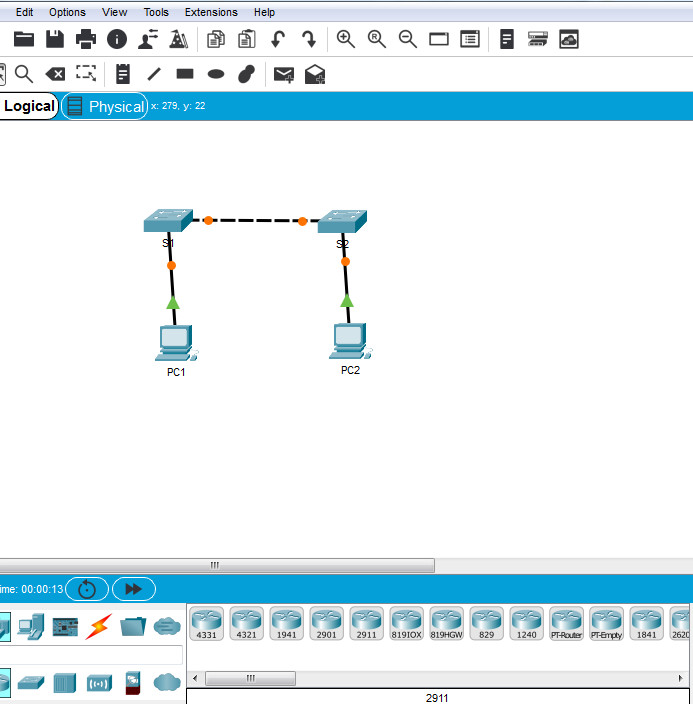
2.5.5 Packet Tracer - Configure Initial Switch Settings
Objectives
- Part 1: Verify the Default Switch Configuration
- Part 2: Create a Basic Switch Configuration
- Part 3: Configure a MOTD Banner
- Part 4: Save Configuration Files to NVRAM
- Part 5: Configure S2
Background
In this activity, you will perform basic switch configurations. You will secure access to the command-line interface (CLI) and console ports using encrypted and plain text passwords. You will also learn how to configure messages for users logging into the switch. These banners are also used to warn unauthorized users that access is prohibited.
Part 1: Verify the Default Switch Configuration
Step 1: Enter privileged mode.
You can access all switch commands from privileged mode. However, because many of the privileged commands configure operating parameters, privileged access should be password-protected to prevent unauthorized use.
The privileged EXEC command set includes those commands contained in user EXEC mode, as well as the configure command through which access to the remaining command modes are gained.
a. Click S1 and then the CLI tab. Press Enter.
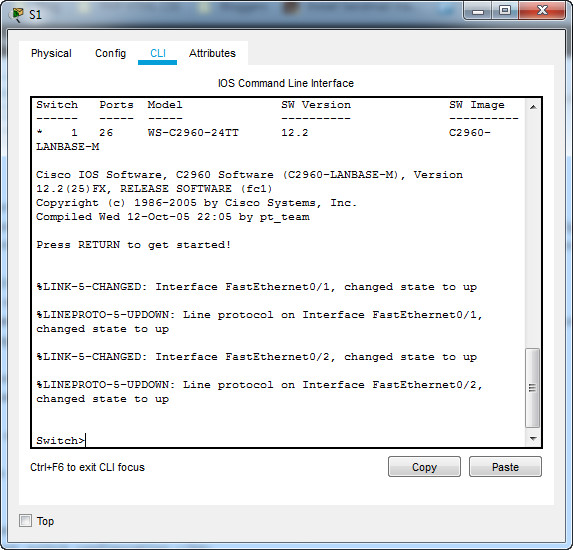
b. Enter privileged EXEC mode by entering the enable command:
Switch> enable
Switch#
Notice that the prompt changed in the configuration to reflect privileged EXEC mode.
Step 2: Examine the current switch configuration.
a. Enter the show running-config command.
Switch# show running-config
Building configuration...

Current configuration : 1086 bytes
!
version 15.0
no service timestamps log datetime msec
no service timestamps debug datetime msec
no service password-encryption
!
hostname Switch
!
!
!
!
!
!
!
spanning-tree mode pvst
spanning-tree extend system-id
!
interface FastEthernet0/1
!
interface FastEthernet0/2
!
interface FastEthernet0/3
!
interface FastEthernet0/4
!
interface FastEthernet0/5
!
interface FastEthernet0/6
!
interface FastEthernet0/7
!
interface FastEthernet0/8
!
interface FastEthernet0/9
!
interface FastEthernet0/10
!
interface FastEthernet0/11
!
interface FastEthernet0/12
!
interface FastEthernet0/13
!
interface FastEthernet0/14
!
interface FastEthernet0/15
!
interface FastEthernet0/16
!
interface FastEthernet0/17
!
interface FastEthernet0/18
!
interface FastEthernet0/19
!
interface FastEthernet0/20
!
interface FastEthernet0/21
!
interface FastEthernet0/22
!
interface FastEthernet0/23
!
interface FastEthernet0/24
!
interface GigabitEthernet0/1
!
interface GigabitEthernet0/2
!
interface Vlan1
 no ip address
 shutdown
!
!
!
!
!
!
line con 0
!
line vty 0 4
 login
line vty 5 15
 login
!
!
!
!
end
b. Answer the following questions:
How many FastEthernet interfaces does the switch have? 24
How many Gigabit Ethernet interfaces does the switch have? 2
What is the range of values shown for the vty lines? 0 - 15
Which command will display the current contents of non-volatile random-access memory (NVRAM)?
show startup-config
Why does the switch respond with startup-config is not present?
It displays this message because the configuration file was not saved to NVRAM. Currently it is only located in RAM.
Part 2: Create a Basic Switch Configuration
Step 1: Assign a name to a switch.
To configure parameters on a switch, you may be required to move between various configuration modes. Notice how the prompt changes as you navigate through the switch.
Switch# configure terminal
Switch(config)# hostname S1
S1(config)# exit
S1#
Step 2: Secure access to the console line.
To secure access to the console line, access config-line mode and set the console password to letmein.
S1(config)# line console 0
S1(config-line)# password letmein
S1(config-line)# login
Why is the login command required?
In order for the password checking process to work, it requires both the login and password commands
Step 3: Verify that console access is secured.
Exit privileged mode to verify that the console port password is in effect.
S1# exit
S1 con0 is now available
Press RETURN to get started.
User Access Verification
Password:
S1>
Note: If the switch did not prompt you for a password, then you did not configure the login parameter in Step 2.
Step 4: Secure privileged mode access.
Set the enable password to c1$c0. This password protects access to privileged mode.
Note: The 0 in c1$c0 is a zero, not a capital O. This password will not grade as correct until after you encrypt it in Step 8.
S1(config)# enable password c1$c0
Step 5: Verify that privileged mode access is secure.
a. Enter the exit command again to log out of the switch.
b. Press Enter and you will now be asked for a password:
User Access Verification
Password:
c. The first password is the console password you configured for line con 0. Enter this password to return to user EXEC mode.
d. Enter the command to access privileged mode.
e. Enter the second password you configured to protect privileged EXEC mode.
f. Verify your configurations by examining the contents of the running-configuration file:
S1# show running-config
Building configuration...

Current configuration : 1131 bytes
!
version 15.0
no service timestamps log datetime msec
no service timestamps debug datetime msec
no service password-encryption
!
hostname S1
!
!
enable password c1$c0
!
!
!
!
!
!
spanning-tree mode pvst
spanning-tree extend system-id
!
interface FastEthernet0/1
!
interface FastEthernet0/2
!
interface FastEthernet0/3
!
interface FastEthernet0/4
!
interface FastEthernet0/5
!
interface FastEthernet0/6
!
interface FastEthernet0/7
!
interface FastEthernet0/8
!
interface FastEthernet0/9
!
interface FastEthernet0/10
!
interface FastEthernet0/11
!
interface FastEthernet0/12
!
interface FastEthernet0/13
!
interface FastEthernet0/14
!
interface FastEthernet0/15
!
interface FastEthernet0/16
!
interface FastEthernet0/17
!
interface FastEthernet0/18
!
interface FastEthernet0/19
!
interface FastEthernet0/20
!
interface FastEthernet0/21
!
interface FastEthernet0/22
!
interface FastEthernet0/23
!
interface FastEthernet0/24
!
interface GigabitEthernet0/1
!
interface GigabitEthernet0/2
!
interface Vlan1
 no ip address
 shutdown
!
!
!
!
!
!
line con 0
 password letmein
 login
!
line vty 0 4
 login
line vty 5 15
 login
!
!
!
!
end
Notice how the console and enable passwords are both in plain text. This could pose a security risk if someone is looking over your shoulder.
Step 6: Configure an encrypted password to secure access to privileged mode.
The enable password should be replaced with the newer encrypted secret password using the enable secret command. Set the enable secret password to itsasecret.
S1(config)# enable secret itsasecret
Note: The enable secret password overrides the enable password. If both are configured on the switch, you must enter the enable secret password to enter privileged EXEC mode.
Step 7: Verify that the enable secret password is added to the configuration file.
a. Enter the show running-config command again to verify the new enable secret password is configured.
Note: You can abbreviate show running-config as
S1# show run
Building configuration...

Current configuration : 1178 bytes
!
version 15.0
no service timestamps log datetime msec
no service timestamps debug datetime msec
no service password-encryption
!
hostname S1
!
!
enable secret 5 $1$mERr$ILwq/b7kc.7X/ejA4Aosn0
enable password c1$c0
!
!
!
!
!
!
spanning-tree mode pvst
spanning-tree extend system-id
!
interface FastEthernet0/1
!
interface FastEthernet0/2
!
interface FastEthernet0/3
!
interface FastEthernet0/4
!
interface FastEthernet0/5
!
interface FastEthernet0/6
!
interface FastEthernet0/7
!
interface FastEthernet0/8
!
interface FastEthernet0/9
!
interface FastEthernet0/10
!
interface FastEthernet0/11
!
interface FastEthernet0/12
!
interface FastEthernet0/13
!
interface FastEthernet0/14
!
interface FastEthernet0/15
!
interface FastEthernet0/16
!
interface FastEthernet0/17
!
interface FastEthernet0/18
!
interface FastEthernet0/19
!
interface FastEthernet0/20
!
interface FastEthernet0/21
!
interface FastEthernet0/22
!
interface FastEthernet0/23
!
interface FastEthernet0/24
!
interface GigabitEthernet0/1
!
interface GigabitEthernet0/2
!
interface Vlan1
 no ip address
 shutdown
!
!
!
!
!
!
line con 0
 password letmein
 login
!
line vty 0 4
 login
line vty 5 15
 login
!
!
!
!
end
b. What is displayed for the enable secret password? $1$mERr$ILwq/b7kc.7X/ejA4Aosn0
c. Why is the enable secret password displayed differently from what we configured?
The enable secret is shown in encrypted form, whereas the enable password is in plain text.
Step 8: Encrypt the enable and console passwords.
As you noticed in Step 7, the enable secret password was encrypted, but the enable and console passwords were still in plain text. We will now encrypt these plain text passwords using the service password-encryption command.
S1(config)# service password-encryption
If you configure any more passwords on the switch, will they be displayed in the configuration file as plain text or in encrypted form? Explain why?
The service password-encryption command encrypts all current and future passwords.
Part 3: Configure a MOTD Banner
Step 1: Configure a message of the day (MOTD) banner.
The Cisco IOS command set includes a feature that allows you to configure messages that anyone logging onto the switch sees. These messages are called message of the day, or MOTD banners. Enclose the banner text in quotations or use a delimiter different from any character appearing in the MOTD string.
S1(config)# banner motd "This is a secure system. Authorized Access Only!"
When will this banner be displayed?
The message will be displayed when someone enters the switch through the console port.
Why should every switch have a MOTD banner?
Every switch should have a banner to warn unauthorized users that access is prohibited but can also be used for sending messages to network personnel/technicians (such as impending system shutdowns or who to contact for access)
Part 4: Save Configuration Files to NVRAM
Step 1: Verify that the configuration is accurate using the show run command.
S1# show running-config
Step 2: Save the configuration file.
You have completed the basic configuration of the switch. Now back up the running configuration file to NVRAM to ensure that the changes made are not lost if the system is rebooted or loses power.
S1# copy running-config startup-config
Destination filename [startup-config]?[Enter]
Building configuration...
[OK]
What is the shortest, abbreviated version of the copy running-config startup-config command? cop r s
Step 3: Examine the startup configuration file.
Which command will display the contents of NVRAM? show startup-config
Are all the changes that were entered recorded in the file? Yes, it is the same as the running configuration.
Part 5: Configure S2
You have completed the configuration on S1. You will now configure S2. If you cannot remember the commands, refer to Parts 1 to 4 for assistance.
Configure S2 with the following parameters:
a. Name device: S2
Switch(config)# hostname S2
b. Protect access to the console using the letmein password.
S2(config)# line console 0
S2(config-line)# password letmein
S2(config-line)# login
c. Configure an enable password of c1$c0 and an enable secret password of itsasecret.
S2(config)# enable password c1$c0
S2(config)# enable secret itsasecret
d. Configure a message to those logging into the switch with the following message:
Authorized access only. Unauthorized access is prohibited and violators will be prosecuted to the full extent of the law.
S2(config)# banner motd "Authorized access only. Unauthorized access is prohibited and violators will be prosecuted to the full extent of the law."
e. Encrypt all plain text passwords.
S2(config)# service password-encryption
f. Ensure that the configuration is correct.
S2# show running-config
g. Save the configuration file to avoid loss if the switch is powered down.
S2# copy running-config startup-config
Destination filename [startup-config]?[Enter]
Building configuration...
[OK]
Device Configs - Final
SWITCH S1
! ==============================================================
!--- 2.5.5 Packet Tracer - Configure Initial Switch Settings
!--- ANSWER SCRIPT FOR SWITCH S1
!--- Usage: copy this whole file and paste it into the S1 terminal (start at the Switch> prompt). Every line beginning with "!" is a comment; IOS ignores it, so pasting a comment by accident is harmless.
! ==============================================================

enable
configure terminal

! --------------------------------------------------------------
!--- Part 2: Create a Basic Switch Configuration.
! --------------------------------------------------------------

!--- Assign a name to the switch.
hostname S1

!--- Secure the console line with the password "letmein" and require login.
line console 0
 password letmein
 login
 exit

!--- Secure privileged mode with the enable password "c1$c0".
enable password c1$c0

!--- Replace it with the stronger encrypted "enable secret" password "itsasecret" (the secret overrides the enable password).
enable secret itsasecret

!--- Encrypt the enable and console plaintext passwords.
service password-encryption

! --------------------------------------------------------------
!--- Part 3: Configure a MOTD Banner.
! --------------------------------------------------------------

!--- Configure a message-of-the-day banner to warn that unauthorized access is prohibited.
banner motd "This is a secure system. Authorized Access Only!"

end

! --------------------------------------------------------------
!--- Part 4: Save the configuration to NVRAM. (Press Enter when prompted for the destination filename.)
! --------------------------------------------------------------
copy running-config startup-config


! ==============================================================
!--- Verification:
!---   show running-config  -> confirm hostname, passwords, banner
!---   show startup-config  -> confirm the config was saved to NVRAM
!--- Note: the enable password c1$c0 only grades as correct once
!--- service password-encryption has encrypted it (Part 2, Step 8).
! ==============================================================
SWITCH S2
! ==============================================================
!--- 2.5.5 Packet Tracer - Configure Initial Switch Settings
!--- ANSWER SCRIPT FOR SWITCH S2
!--- Usage: copy this whole file and paste it into the S2 terminal (start at the Switch> prompt). Every line beginning with "!" is a comment; IOS ignores it, so pasting a comment by accident is harmless.
! ==============================================================

enable
configure terminal

! --------------------------------------------------------------
!--- Part 5: Configure S2.
! --------------------------------------------------------------

!--- a. Name the device S2.
hostname S2

!--- b. Protect access to the console using the letmein password.
line console 0
 password letmein
 login
 exit

!--- c. Configure an enable password of c1$c0.
enable password c1$c0

!--- c. Configure an enable secret password of itsasecret.
enable secret itsasecret

!--- d. Configure a message to those logging into the switch.
banner motd "Authorized access only. Unauthorized access is prohibited and violators will be prosecuted to the full extent of the law."

!--- e. Encrypt all plain text passwords.
service password-encryption

end

! --------------------------------------------------------------
!--- g. Save the configuration to NVRAM. (Press Enter when prompted for the destination filename.)
! --------------------------------------------------------------
copy running-config startup-config


! ==============================================================
!--- Verification:
!---   show running-config  -> f. confirm hostname, encrypted passwords and banner
!---   show startup-config  -> confirm the config was saved to NVRAM
!--- Note: Part 5 uses a different banner from S1. Reusing the S1 text
!--- ("This is a secure system...") makes the S2 banner item fail grading.
! ==============================================================
Download Packet Tracer (.pka) file:


