
10.2.6 Packet Tracer - Use LLDP to Map a Network (Instructor Version)
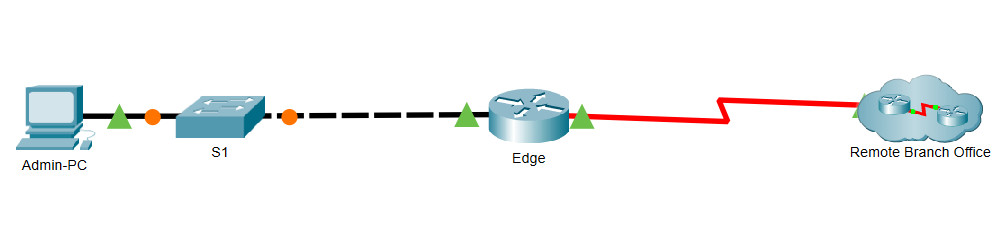
10.2.6 Packet Tracer - Use LLDP to Map a Network
Addressing Table
| Device | Interface | IP Address | Subnet Mask | Local Interface and Connected Neighbor |
|---|---|---|---|---|
| Edge | G0/0 | 192.168.1.1 | 255.255.255.0 | G0/1 - S1 |
| S0/0/0 | 209.165.200.5 | 255.255.255.252 | S0/0/0 - ISP | |
| S1 | SVI | 192.168.1.2 | 255.255.255.0 | |
| RBO-Edge | G0/0 | 209.165.200.10 | 255.255.255.252 | G0/0 - ISP |
| G0/1 | 192.168.3.249 | 255.255.255.252 | G0/0 – RBO-Firewall | |
| RBO-Firewall | G0/0 | 192.168.3.250 | 255.255.255.252 | G0/1 – RBO-Edge |
| G0/1 | 192.168.4.129 | 255.255.255.128 | G0/1 – sw-rbo1 | |
| sw-rbo1 | SVI | 192.168.4.131 | 255.255.255.128 | blank |
| G0/1 | N/A | N/A | G0/1 - RBO-Firewall | |
| G0/2 | N/A | N/A | G0/2 - sw-rbo2 | |
| F0/24 | N/A | N/A | F0/24 – sw-rbo3 | |
| sw-rbo2 | SVI | 192.168.4.132 | 255.255.255.128 | |
| G0/1 | N/A | N/A | G0/1 – sw-rbo3 | |
| G0/2 | N/A | N/A | G0/2 – sw-rbo1 | |
| sw-rbo3 | SVI | 192.168.4.133 | 255.255.255.128 | LLDP not active |
| F0/24 | N/A | N/A | F0/24 – sw-rbo1 | |
| G0/1 | N/A | N/A | G0/1 – sw-rbo2 |
Objectives
Map a network using LLDP and SSH remote access.
Background / Scenario
A senior network administrator requires you to map the Remote Branch Office network and discover information about all of the devices in the network. You must record all of the network device names, IP addresses and subnet masks, and physical interfaces interconnecting the network devices.
To map the network, you will use SSH for remote access and the Link Layer Discovery Protocol (LLDP) to discover information about neighboring network devices. Because LLDP is a Layer 2 protocol, it can be used to discover information about devices that do not have Layer 3 connectivity. You will record the information that you gather to complete the Addressing Table and provide a topology diagram of the Remote Branch Office network.
You will need the IP address for the remote branch office, which is 209.165.200.10. The local and remote administrative usernames and passwords are:
Local Network
Username: admin01
Password: S3cre7P@55
Remote Branch Office Network
Username: RBOadmin
Password: S3cre7P@55
Instructions
Part 1: Use SSH to Remotely Access Network Devices
In Part 1, you will use the Admin-PC to remotely access the Edge gateway router. Next, from the Edge router you will SSH into the Remote RBO Office.
a. On the Admin-PC, open a command prompt.
b. SSH into the gateway router at 192.168.1.1 using the username admin01 and the password S3cre7P@55
PC> ssh -l admin01 192.168.1.1
Open
Password:

Edge#
Note: Notice that you are placed directly into privileged EXEC mode. This is because the admin01 user account is set to privilege level 15.
c. The Edge router was previously configured to use CDP. Switch S1 has already been configured to use LLDP. Issue the show cdp command to verify CDP is currently active. Disable CDP by issuing the following command:
Edge(config)# no cdp run
d. LLDP can be configured to both transmit and receive on a specific interface. Configure Edge so that it receives LLDP messages from S1 but does not send messages to S1 for security purposes Enable LLDP.
Edge(config)# lldp run
Edge(config)# int g0/0
Edge(config-if)# no lldp transmit
Edge(config-if)# exit
e. Use the show lldp neighbors command to verify that Edge is receiving messages from S1.
Edge#show lldp neighbors
Capability codes:
    (R) Router, (B) Bridge, (T) Telephone, (C) DOCSIS Cable Device
    (W) WLAN Access Point, (P) Repeater, (S) Station, (O) Other
Device ID           Local Intf     Hold-time  Capability      Port ID
S1                  Gig0/0         120        B               Gig0/1

Total entries displayed: 1
f. Connect to S1 with SSH from Edge router using the admin01 credentials. Issue the show lldp neighbors command. Notice that S1 did not receive information from Edge.
Edge# ssh -l admin01 192.168.1.2
Password:

S1> show lldp neighbors
S1> exit

g. Exit from the connection with S1 to return to the Edge router CLI. Use the show ip interface brief and show interfaces commands to document the Edge router’s physical interfaces, IP addresses, and subnet masks in the Addressing Table.
Edge# show ip interface brief
Edge# show interfaces

h. From your session with Edge router, connect with SSH to the Remote RBO Office at 209.165.200.10 with the username RBOadmin and the same password used for admin01.
Edge# ssh -l RBOadmin 209.165.200.10
Password:

RBO-Edge#
After connecting to the Remote RBO Office at 209.165.200.10 what piece of previously missing information can now be added to the Addressing Table above?
Part 2: Use LLDP to Discover Neighboring Devices
You are now remotely connected to the RBO-Edge router. Using LLDP, begin looking for connected network devices.
a. Issue the show ip interface brief and show interfaces commands to document the RBO-Edge router’s network interfaces, IP addresses, and subnet masks. Add the missing information to the Addressing Table.
RBO-Edge#show ip interface brief
Interface              IP-Address      OK? Method Status                Protocol
GigabitEthernet0/0     209.165.200.10  YES manual up                    up
GigabitEthernet0/1     192.168.3.249   YES manual up                    up
Serial0/0/0            unassigned      YES unset  administratively down down
Serial0/0/1            unassigned      YES manual down                  down
Vlan1                  unassigned      YES unset  administratively down down

RBO-Edge#show interfaces g0/0
GigabitEthernet0/0 is up, line protocol is up (connected)
  Hardware is CN Gigabit Ethernet, address is 0001.9660.0053 (bia 0001.9660.0053)
  Internet address is 209.165.200.10/30
  MTU 1500 bytes, BW 1000000 Kbit, DLY 10 usec,
     reliability 255/255, txload 1/255, rxload 1/255
  Encapsulation ARPA, loopback not set
  Keepalive set (10 sec)
  Full-duplex, 100Mb/s, media type is RJ45
  output flow-control is unsupported, input flow-control is unsupported
  ARP type: ARPA, ARP Timeout 04:00:00,
  Last input 00:00:08, output 00:00:05, output hang never
  Last clearing of "show interface" counters never
  Input queue: 0/75/0 (size/max/drops); Total output drops: 0
  Queueing strategy: fifo
  Output queue :11/40 (size/max)
  5 minute input rate 19 bits/sec, 0 packets/sec
  5 minute output rate 13 bits/sec, 0 packets/sec
     85 packets input, 3463 bytes, 0 no buffer
     Received 0 broadcasts, 0 runts, 0 giants, 0 throttles
     0 input errors, 0 CRC, 0 frame, 0 overrun, 0 ignored, 0 abort
     0 watchdog, 1017 multicast, 0 pause input
     0 input packets with dribble condition detected
     40 packets output, 1633 bytes, 0 underruns
     0 output errors, 0 collisions, 1 interface resets
     0 unknown protocol drops
     0 babbles, 0 late collision, 0 deferred
     0 lost carrier, 0 no carrier
     0 output buffer failures, 0 output buffers swapped out

RBO-Edge#show interfaces g0/1
GigabitEthernet0/1 is up, line protocol is up (connected)
  Hardware is CN Gigabit Ethernet, address is 0001.9727.a463 (bia 0001.9727.a463)
  Internet address is 192.168.3.249/30
  MTU 1500 bytes, BW 1000000 Kbit, DLY 10 usec,
     reliability 255/255, txload 1/255, rxload 1/255
  Encapsulation ARPA, loopback not set
  Keepalive set (10 sec)
  Full-duplex, 100Mb/s, media type is RJ45
  output flow-control is unsupported, input flow-control is unsupported
  ARP type: ARPA, ARP Timeout 04:00:00,
  Last input 00:00:08, output 00:00:05, output hang never
  Last clearing of "show interface" counters never
  Input queue: 0/75/0 (size/max/drops); Total output drops: 0
  Queueing strategy: fifo
  Output queue :0/40 (size/max)
  5 minute input rate 0 bits/sec, 0 packets/sec
  5 minute output rate 0 bits/sec, 0 packets/sec
     0 packets input, 0 bytes, 0 no buffer
     Received 0 broadcasts, 0 runts, 0 giants, 0 throttles
     0 input errors, 0 CRC, 0 frame, 0 overrun, 0 ignored, 0 abort
     0 watchdog, 1017 multicast, 0 pause input
     0 input packets with dribble condition detected
     0 packets output, 0 bytes, 0 underruns
     0 output errors, 0 collisions, 1 interface resets
     0 unknown protocol drops
     0 babbles, 0 late collision, 0 deferred
     0 lost carrier, 0 no carrier
     0 output buffer failures, 0 output buffers swapped out

RBO-Edge#
b. Security best practice recommends only running LLDP when needed, so LLDP may need to be turned on. Use a show lldp command to test its status.
RBO-Edge# show lldp
% LLDP is not enabled
c. You need to turn on LLDP, but it is a good idea to only send LLDP information to internal network devices and not to external networks. Discover which interface is connected to the internet by issuing the command show ip interface brief. Enable the LLDP protocol and completely disable LLDP on the interface that is connected to the internet.
RBO-Edge# configure terminal
RBO-Edge(config)# lldp run
RBO-Edge(config)# interface g0/0
RBO-Edge(config-if)# no lldp transmit
RBO-Edge(config-if)# no lldp receive
RBO-Edge(config-if)# exit
d. Issue a show lldp neighbors command to find any neighboring network devices.
Note: LLDP will only show connected devices that are also running LLDP.
RBO-Edge# show lldp neighbors
Is there a neighboring network device? What type of device is it? What is its name? On what interface is it connected? Is the device’s IP address listed? Record the information in the Addressing Table.
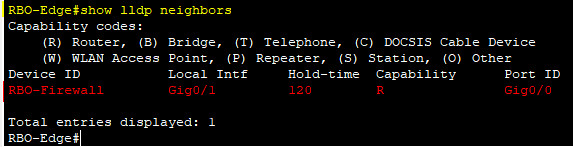
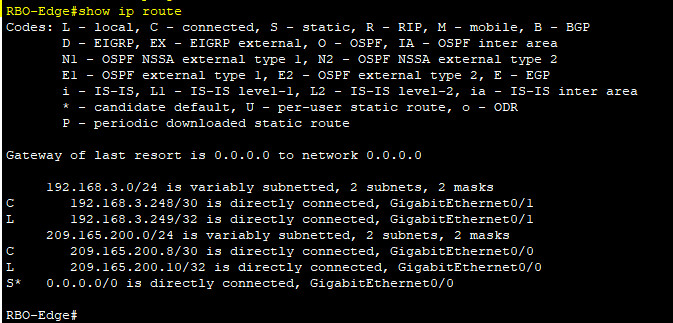
e. Use the show ip route command to determine the address of the device that you found with the show lldp neighbors command. Based on the information provided about the local address in the routing table and the prefix length of the network use that information to determine the neighbor address.
f. To find additional information from the neighboring device, use the show lldp neighbors detail command:
RBO-Edge# show lldp neighbors detail
What other piece of potentially sensitive information is listed?
Note: The current version of Packet Tracer does not provide the Management Address of the neighbor device. In this activity several neighbor device addresses have been provided in the Addressing Table.
g. Connect to the neighbor device with SSH to discover other devices that may be its neighbors.
Note: To connect with SSH use the same Remote RBO Office username and password.
RBO-Edge# ssh -l RBOadmin <the ip address of the neighbor device>
RBO-Edge# ssh -l RBOadmin 192.168.3.250
After successfully connecting with SSH, what does the command prompt show?
h. You are remotely connected to the next neighbor. Use the show lldp neighbors command, and the show lldp neighbors detail command, to discover other connected neighbor devices.
What types of network devices neighbor this device? Record any newly discovered devices in the Addressing Table. Include their hostname, interfaces, and IP addresses.
Add the newly discovered device name next to the SVI entry for address 192.168.4.131.
i. Connect to the SVI for address 192.168.4.131 using SSH and credentials used previously. If prompted for an enable secret password, use the same password as used for RBOAdmin. Use the show lldp neighbors command, and the show lldp neighbors detail command, to discover other connected neighbor devices.
What types of network devices neighbor this device? Record any newly discovered devices in the Addressing Table. Include their hostname, interfaces, and IP addresses.
Place the newly discovered device name next to the SVI entry for address 192.168.4.132.
j. Connect to the SVI for address 192.168.4.133 using SSH and credentials used previously. Issue the command show lldp, you should receive a message:
% LLDP is not enabled
Enable lldp globally as in Step C. There is no need to configure transmit or receive options because they are on by default. Use the show lldp neighbors command, and the show lldp neighbors detail command, to discover other connected neighbor devices.
What types of network devices neighbor this device? Record any newly discovered devices in the Addressing Table. Include their hostname, interfaces, and IP addresses. It may be beneficial to reconnect to the previously discovered devices to display neighbors one more time to complete the entire addressing table now that all devices are configured for LLDP.
k. Draw a topology of the Remote RBO Office network using the information that you have gathered with LLDP.
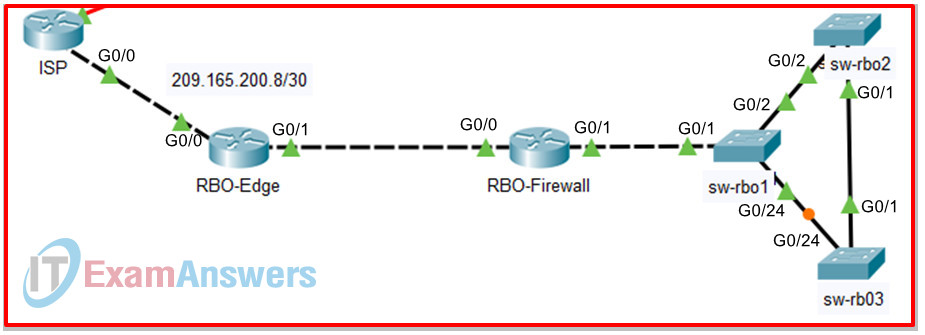
Device Configs - Final
ROUTER Edge
! ==============================================================
!--- 10.2.6 Packet Tracer - Use LLDP to Map a Network
!--- ANSWER SCRIPT FOR ROUTER Edge
!--- Usage: after SSH'ing into Edge from Admin-PC (ssh -l admin01 192.168.1.1 - admin01 is
!--- privilege 15, so you land directly in privileged EXEC), paste this whole file. Every
!--- line beginning with "!" is a comment; IOS ignores it.
!--- Edge already runs CDP; this lab replaces it with LLDP instead, and configures Edge to
!--- only RECEIVE LLDP from S1 (not transmit to it) - S1 already sends LLDP info Edge finds
!--- useful, but there's no security reason for Edge to advertise itself back to S1.
! ==============================================================

configure terminal

! --------------------------------------------------------------
!--- Part 1, Step 3: turn off CDP (this lab standardizes on LLDP instead).
! --------------------------------------------------------------
no cdp run

! --------------------------------------------------------------
!--- Part 1, Step 4: enable LLDP globally, then suppress only the transmit side on the
!--- link to S1 - Edge still receives S1's LLDP advertisements, but doesn't send its own.
! --------------------------------------------------------------
lldp run

interface GigabitEthernet0/0
 no lldp transmit
exit

! ==============================================================
!--- Verification:
!---   Edge# show lldp neighbors -> S1 IS listed (Edge receives from S1)
!---   From Edge: ssh -l admin01 192.168.1.2 (S1), then on S1: show lldp neighbors -> Edge
!---   is NOT listed there (S1 never receives anything from Edge, since transmit is off)
!---   Edge# show ip interface brief / show interfaces -> document Edge's own interfaces:
!---   G0/0 192.168.1.1/24 (to S1), S0/0/0 209.165.200.5/30 (to the ISP cloud)
!--- From here, continue to the Remote RBO Office (ssh -l RBOadmin 209.165.200.10) - see the
!--- companion answer scripts for RBO-Edge and sw-rbo3, and the observation cheat sheet for
!--- the full discovery chain.
! ==============================================================
ROUTER RBO-Edge
! ==============================================================
!--- 10.2.6 Packet Tracer - Use LLDP to Map a Network
!--- ANSWER SCRIPT FOR ROUTER RBO-Edge
!--- Usage: after SSH'ing into RBO-Edge from Edge (ssh -l RBOadmin 209.165200.10), paste
!--- this whole file. Every line beginning with "!" is a comment; IOS ignores it.
!--- Unlike Edge (which only suppresses transmit toward S1), RBO-Edge disables LLDP
!--- COMPLETELY (both transmit AND receive) on its internet-facing interface - this link
!--- faces the ISP cloud directly, so there's no internal neighbor to discover there at all,
!--- and no reason to advertise anything outward either.
! ==============================================================

configure terminal

! --------------------------------------------------------------
!--- Part 2, Step 3: enable LLDP globally, then fully disable it on the ISP-facing
!--- interface (identified via "show ip interface brief" beforehand).
! --------------------------------------------------------------
lldp run

interface GigabitEthernet0/0
 no lldp transmit
 no lldp receive
exit

! ==============================================================
!--- Verification:
!---   RBO-Edge# show lldp neighbors -> RBO-Firewall appears (router, on interface G0/0 -
!---   note this is RBO-Edge's own G0/1 in the Addressing Table's own numbering; nothing
!---   appears for the ISP-facing G0/0 link, as intended)
!---   RBO-Edge# show ip route -> use the local subnet/prefix info here to work out
!---   RBO-Firewall's actual IP (192.168.3.250) before "show lldp neighbors detail" confirms
!---   it directly
!---   RBO-Edge# show lldp neighbors detail -> also reveals RBO-Firewall's IOS version -
!---   flagged in this lab as a potential security concern if learned by a threat actor
!--- Continue to RBO-Firewall: ssh -l RBOadmin 192.168.3.250
! ==============================================================
SWITCH sw-rbo3
! ==============================================================
!--- 10.2.6 Packet Tracer - Use LLDP to Map a Network
!--- ANSWER SCRIPT FOR SWITCH sw-rbo3
!--- Usage: after SSH'ing into sw-rbo3's SVI (192.168.4.133) using the RBOadmin credentials,
!--- paste this whole file. Every line beginning with "!" is a comment; IOS ignores it.
!--- Unlike Edge and RBO-Edge, sw-rbo3 needs no transmit/receive tweaking - just turn LLDP
!--- on globally; both directions are enabled by default on every interface once LLDP itself
!--- is running.
! ==============================================================

enable
configure terminal

! --------------------------------------------------------------
!--- Part 2, Step 10: sw-rbo3 shows "% LLDP is not enabled" beforehand - same fix as the two
!--- routers, minus the interface-level transmit/receive tweaks (not needed here).
! --------------------------------------------------------------
lldp run

end

! ==============================================================
!--- Verification:
!---   sw-rbo3# show lldp neighbors -> sw-rbo1 (on F0/24) and sw-rbo2 (on G0/1) both appear
!---   Revisit sw-rbo1 and sw-rbo2 and re-run "show lldp neighbors" there too - now that
!---   every device in the branch is running LLDP, connections that weren't visible before
!---   (because one side had LLDP off) should complete the full picture in the Addressing
!---   Table.
! ==============================================================


