
10.3.5 Packet Tracer - Troubleshoot Default Gateway Issues Answers
Topology
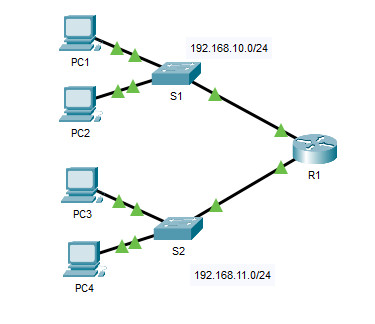
10.3.5 Packet Tracer - Troubleshoot Default Gateway Issues - ILM
Addressing Table
| Device | Interface | IP Address | Subnet Mask | Default Gateway |
|---|---|---|---|---|
| R1 | G0/0 | 192.168.10.1 | 255.255.255.0 | N/A |
| G0/1 | 192.168.11.1 | 255.255.255.0 | N/A | |
| S1 | VLAN 1 | 192.168.10.2 | 255.255.255.0 | 192.168.10.1 |
| S2 | VLAN 1 | 192.168.11.2 | 255.255.255.0 | 192.168.11.1 |
| PC1 | NIC | 192.168.10.10 | 255.255.255.0 | 192.168.10.1 |
| PC2 | NIC | 192.168.10.11 | 255.255.255.0 | 192.168.10.1 |
| PC3 | NIC | 192.168.11.10 | 255.255.255.0 | 192.168.11.1 |
| PC4 | NIC | 192.168.11.11 | 255.255.255.0 | 192.168.11.1 |
Objectives
- Part 1: Verify Network Documentation and Isolate Problems
- Part 2: Implement, Verify, and Document Solutions
Background
For a device to communicate across multiple networks, it must be configured with an IP address, subnet mask, and a default gateway. The default gateway is used when the host wants to send a packet to a device on another network. The default gateway address is generally the address of the router interface which is attached to the local network that the host is connected to. In this activity, you will finish documenting the network. You will then verify the network documentation by testing end-to-end connectivity and troubleshooting issues. The troubleshooting method you will use consists of the following steps:
a. Verify the network documentation and use tests to isolate problems.
b. Determine an appropriate solution for a given problem.
c. Implement the solution.
d. Test to verify the problem is resolved.
e. Document the solution.
Throughout your CCNA studies, you will encounter different descriptions of the troubleshooting method, as well as different ways to test and document issues and solutions. This is intentional. There is no set standard or template for troubleshooting. Each organization develops unique processes and documentation standards (even if that process is “we don’t have one”). However, all effective troubleshooting methodologies generally include the steps above.
Note: If you are proficient with default gateway configurations, this activity might seem more involved than it should be. You can, most likely, quickly discover and solve all the connectivity issues faster than following these procedures. However, as you proceed in your studies, the networks and problems you encounter will become increasingly more complex. In such situations, the only effective way to isolate and solve issues is to use a methodical approach such as the one used in this activity.
Contents
- Part 1: Verify Network Documentation and Isolate Problems
- Quick Reference: Issues and Fixes
- Part 1, Step 2: Determine the cause of each problem (a, b, c, d)
- Part 2: Implement, Verify, and Document Solutions (Fix a, Fix b, Fix c, Fix d)
- Final Verification and Summary of Issues
- Device Configs - Final
Instructions
Part 1: Verify Network Documentation and Isolate Problems
In Part 1 of this activity, complete the documentation and perform connectivity tests to discover issues. In addition, you will determine an appropriate solution for implementation in Part 2.
Step 1: Verify the network documentation and isolate any problems.
a. Before you can effectively test a network, you must have complete documentation. Notice in the Addressing Table that some information is missing. Complete the Addressing Table by filling in the missing default gateway information for the switches and the PCs.
b. Test connectivity to devices on the same network. By isolating and correcting any local access issues, you can better test remote connectivity with the confidence that local connectivity is operational.
A verification plan can be as simple as a list of connectivity tests. Use the following tests to verify local connectivity and isolate any access issues. The first issue is already documented, but you must implement and verify the solution during Part 2.
On each PC, open Desktop > Command Prompt, check the addressing with ipconfig /all, and ping every device on the same LAN:
Testing and Verification Documentation
| Test | Successful? | Issues | Solution | Verified |
|---|---|---|---|---|
| PC1 to PC2 | No | IP address on PC1 | Change PC1 IP address | ✔ |
| PC1 to S1 | No | IP address on PC1 | Change PC1 IP address | ✔ |
| PC1 to R1 | No | IP address on PC1 | Change PC1 IP address | ✔ |
| PC3 to PC4 | Yes | None | - | - |
| PC3 to S2 | No | S2 has no IP address on VLAN 1 | Configure 192.168.11.2/24 on S2 VLAN 1 | ✔ |
| PC3 to R1 | Yes | None | - | - |
| PC2 to PC4 (remote) | No | Wrong default gateway on PC4 | Change the PC4 default gateway to 192.168.11.1 | ✔ |
| PC3 to S1 (remote) | No | S1 has no default gateway | Configure ip default-gateway 192.168.10.1 on S1 | ✔ |
| PC1 to PC4 (remote) | No | IP address on PC1 and wrong default gateway on PC4 | Fixes a and c; tested last (Part 2, Step 3b) | ✔ |
Note: The table is an example; you must create your own document. You can use paper and pencil to draw a table, or you can use a text editor or spreadsheet. Consult your instructor if you need further guidance.
c. Test connectivity to remote devices (such as from PC1 to PC4) and document any problems. This is frequently referred to as end-to-end connectivity. This means that all devices in a network have the full connectivity allowed by the network policy.
Note: Remote connectivity testing may not be possible yet, because you must first resolve local connectivity issues. After you have solved those issues, return to this step and test connectivity between networks.
From PC2 (its addressing is correct) and PC3, test the remote LAN:
Quick Reference: Issues and Fixes
| Issue | Symptom | Command that reveals the cause | Cause | Fix |
|---|---|---|---|---|
| a | PC1 cannot ping PC2, S1 or R1. | PC1: ipconfig |
PC1 has an IP address outside 192.168.10.0/24. | Set PC1 to 192.168.10.10/24 |
| b | No device can ping S2. | S2: show ip interface brief |
S2 VLAN 1 has no IP address. | ip address 192.168.11.2 255.255.255.0 on S2 VLAN 1 |
| c | Remote hosts cannot ping PC4; local hosts can. | PC4: ipconfig |
PC4 has the wrong default gateway. | Set the PC4 gateway to 192.168.11.1 |
| d | Remote hosts cannot ping S1; local hosts can. | S1: show running-config | include default-gateway |
S1 has no default gateway. | ip default-gateway 192.168.10.1 on S1 |
Note: PCs are checked and fixed in Desktop > Command Prompt / IP Configuration. The switches are reached by clicking the switch and opening the CLI tab (console access, no Telnet needed).
Step 2: Determine an appropriate solution for the problem.
a. Using your knowledge of the way networks operate and your device configuration skills, search for the cause of the problem. For example, S1 is not the cause of the connectivity issue between PC1 and PC2. The link lights are green and no configuration on S1 would cause traffic to not pass between PC1 and PC2. So the problem must be with PC1, PC2, or both.
b. Verify the device addressing to ensure it matches the network documentation. For example, the IP address for PC1 is incorrect as verified with the ipconfig command.
C:\> ipconfig

FastEthernet0 Connection:(default port)

   Connection-specific DNS Suffix..:
   Link-local IPv6 Address.........: FE80::20D:BDFF:FE84:B6D1
   IPv6 Address....................: ::
   IPv4 Address....................: 192.168.11.10
   Subnet Mask.....................: 255.255.255.0
   Default Gateway.................: ::
                                     192.168.10.1
c. Suggest a solution that you think will resolve the problem and document it. For example, change the IP address for PC1 to match the documentation.
Note: Often there is more than one solution. However, it is a troubleshooting best practice to implement and verify one solution at a time. Implementing more than one solution could introduce additional issues in a more complex scenario.
Issue a: PC1 has the wrong IP address
PC1 cannot ping PC2 because PC1 has an IP address that does not belong to the network PC1 is attached to.
Issue b: S2 has no IP address
Devices cannot ping S2 and S2 cannot ping any device because S2 is missing an IP address.
S2# show ip interface brief
Interface              IP-Address      OK? Method Status                Protocol
FastEthernet0/1        unassigned      YES manual up                    up
FastEthernet0/2        unassigned      YES manual up                    up
FastEthernet0/3        unassigned      YES manual up                    up
FastEthernet0/4        unassigned      YES manual down                  down
FastEthernet0/5        unassigned      YES manual down                  down
FastEthernet0/6        unassigned      YES manual down                  down
FastEthernet0/7        unassigned      YES manual down                  down
FastEthernet0/8        unassigned      YES manual down                  down
FastEthernet0/9        unassigned      YES manual down                  down
FastEthernet0/10       unassigned      YES manual down                  down
FastEthernet0/11       unassigned      YES manual down                  down
FastEthernet0/12       unassigned      YES manual down                  down
FastEthernet0/13       unassigned      YES manual down                  down
FastEthernet0/14       unassigned      YES manual down                  down
FastEthernet0/15       unassigned      YES manual down                  down
FastEthernet0/16       unassigned      YES manual down                  down
FastEthernet0/17       unassigned      YES manual down                  down
FastEthernet0/18       unassigned      YES manual down                  down
FastEthernet0/19       unassigned      YES manual down                  down
FastEthernet0/20       unassigned      YES manual down                  down
FastEthernet0/21       unassigned      YES manual down                  down
FastEthernet0/22       unassigned      YES manual down                  down
FastEthernet0/23       unassigned      YES manual down                  down
FastEthernet0/24       unassigned      YES manual down                  down
GigabitEthernet0/1     unassigned      YES manual down                  down
GigabitEthernet0/2     unassigned      YES manual down                  down
Vlan1 unassigned YES manual up upS2# show running-config | include default-gateway
ip default-gateway 192.168.11.1Issue c: PC4 has the wrong default gateway
Remote devices cannot ping PC4 because PC4 has the wrong default gateway configured.
C:\> ipconfig

FastEthernet0 Connection:(default port)

   Connection-specific DNS Suffix..:
   Link-local IPv6 Address.........: FE80::201:64FF:FE94:E76B
   IPv6 Address....................: ::
   IPv4 Address....................: 192.168.11.11
   Subnet Mask.....................: 255.255.255.0
   Default Gateway.................: ::
                                     192.168.1.1
Issue d: S1 has no default gateway
Remote devices cannot ping S1 because S1 is missing a default gateway configuration.
S1# show running-config | include default-gateway
S1#
S1# ping 192.168.11.10

Type escape sequence to abort.
Sending 5, 100-byte ICMP Echos to 192.168.11.10, timeout is 2 seconds:
.....
Success rate is 0 percent (0/5)[alert-info]Key concept: what the default gateway on a switch is for
A Layer 2 switch forwards the frames of the PCs using MAC addresses only, so its ip default-gateway setting does not affect PC traffic. The gateway is used only for traffic that the switch itself sends: replies to pings, Telnet/SSH sessions, and management traffic toward another network. This is why issue d does not stop PC1 and PC2 from reaching LAN 2. It only appears when a host on the other LAN (PC3) tries to reach S1. The same applies to PC4 in issue c: a wrong gateway does not affect local traffic, only traffic to other networks.[/alert-info]
Part 2: Implement, Verify, and Document Solutions
In Part 2 of this activity, you will implement the solutions you identified in Part 1. You will then verify the solution worked. You may need to return to Part 1 to finish isolating all the problems.
Step 1: Implement solutions to connectivity problems.
Refer to your documentation in Part 1. Choose the first issue and implement your suggested solution. For example, correct the IP address on PC1.
Note: Apply and test one fix at a time, in the order a, b, c, d. Each fix below is followed by the test that proves it.
Fix a: PC1 - correct the IP address
On PC1, click Desktop > IP Configuration and set IPv4 Address 192.168.10.10, Subnet Mask 255.255.255.0, Default Gateway 192.168.10.1.
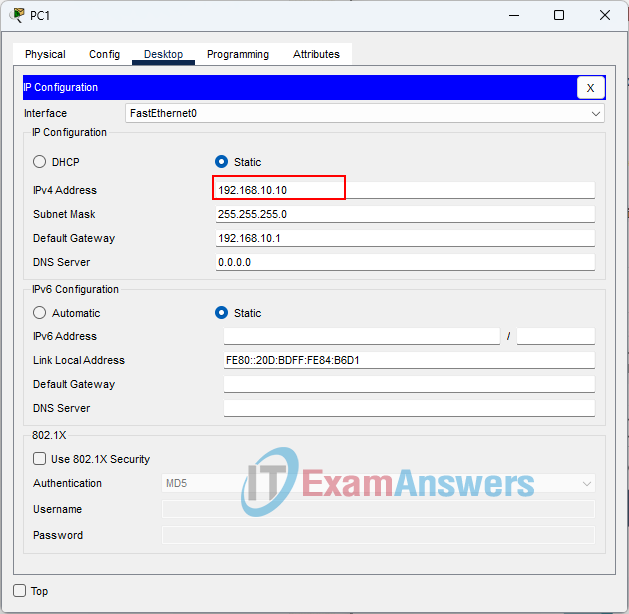
C:\> ipconfig

FastEthernet0 Connection:(default port)

   Connection-specific DNS Suffix..:
   Link-local IPv6 Address.........: FE80::20D:BDFF:FE84:B6D1
   IPv6 Address....................: ::
   IPv4 Address....................: 192.168.10.10
   Subnet Mask.....................: 255.255.255.0
   Default Gateway.................: ::
                                     192.168.10.1
Fix b: S2 - configure the VLAN 1 IP address
S2(config)# interface vlan 1
S2(config-if)# ip address 192.168.11.2 255.255.255.0
S2(config-if)# no shutdown
S2# show ip interface brief
Interface              IP-Address      OK? Method Status                Protocol
FastEthernet0/1        unassigned      YES manual up                    up
FastEthernet0/2        unassigned      YES manual up                    up
FastEthernet0/3        unassigned      YES manual up                    up
FastEthernet0/4        unassigned      YES manual down                  down
FastEthernet0/5        unassigned      YES manual down                  down
FastEthernet0/6        unassigned      YES manual down                  down
FastEthernet0/7        unassigned      YES manual down                  down
FastEthernet0/8        unassigned      YES manual down                  down
FastEthernet0/9        unassigned      YES manual down                  down
FastEthernet0/10       unassigned      YES manual down                  down
FastEthernet0/11       unassigned      YES manual down                  down
FastEthernet0/12       unassigned      YES manual down                  down
FastEthernet0/13       unassigned      YES manual down                  down
FastEthernet0/14       unassigned      YES manual down                  down
FastEthernet0/15       unassigned      YES manual down                  down
FastEthernet0/16       unassigned      YES manual down                  down
FastEthernet0/17       unassigned      YES manual down                  down
FastEthernet0/18       unassigned      YES manual down                  down
FastEthernet0/19       unassigned      YES manual down                  down
FastEthernet0/20       unassigned      YES manual down                  down
FastEthernet0/21       unassigned      YES manual down                  down
FastEthernet0/22       unassigned      YES manual down                  down
FastEthernet0/23       unassigned      YES manual down                  down
FastEthernet0/24       unassigned      YES manual down                  down
GigabitEthernet0/1     unassigned      YES manual down                  down
GigabitEthernet0/2     unassigned      YES manual down                  down
Vlan1 192.168.11.2 YES manual up upC:\> ping 192.168.11.2
Pinging 192.168.11.2 with 32 bytes of data:
Request timed out.
Reply from 192.168.11.2: bytes=32 time<1ms TTL=255
Reply from 192.168.11.2: bytes=32 time<1ms TTL=255
Reply from 192.168.11.2: bytes=32 time<1ms TTL=255
Ping statistics for 192.168.11.2:
Packets: Sent = 4, Received = 3, Lost = 1 (25% loss),
Approximate round trip times in milli-seconds:
Minimum = 0ms, Maximum = 0ms, Average = 0msFix c: PC4 - correct the default gateway
On PC4, click Desktop > IP Configuration and set the Default Gateway to 192.168.11.1.
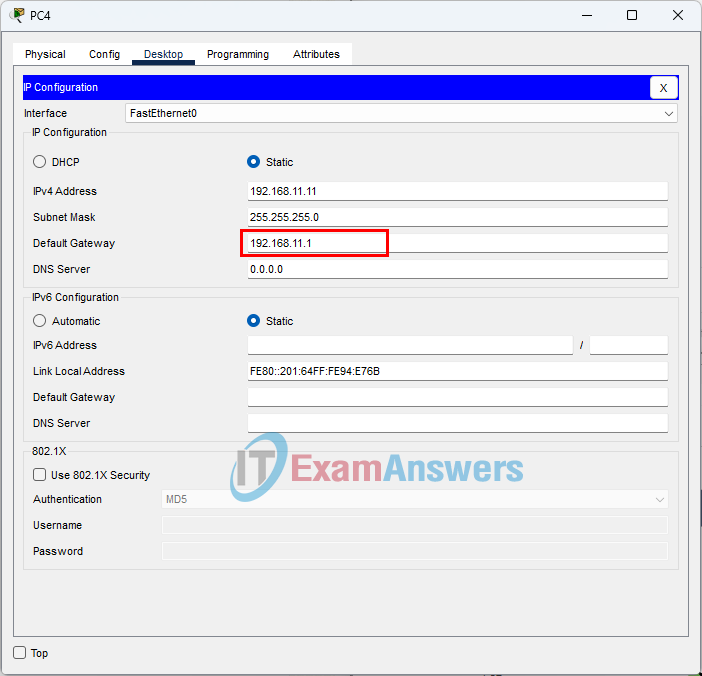
C:\> ipconfig

FastEthernet0 Connection:(default port)

   Connection-specific DNS Suffix..:
   Link-local IPv6 Address.........: FE80::201:64FF:FE94:E76B
   IPv6 Address....................: ::
   IPv4 Address....................: 192.168.11.11
   Subnet Mask.....................: 255.255.255.0
   Default Gateway.................: ::
                                     192.168.11.1
C:\> ping 192.168.10.11

Pinging 192.168.10.11 with 32 bytes of data:

Reply from 192.168.10.11: bytes=32 time<1ms TTL=127
Reply from 192.168.10.11: bytes=32 time<1ms TTL=127
Reply from 192.168.10.11: bytes=32 time<1ms TTL=127
Reply from 192.168.10.11: bytes=32 time<1ms TTL=127

Ping statistics for 192.168.10.11:
    Packets: Sent = 4, Received = 4, Lost = 0 (0% loss),
Approximate round trip times in milli-seconds:
Minimum = 0ms, Maximum = 0ms, Average = 0msFix d: S1 - configure the default gateway
S1(config)# ip default-gateway 192.168.10.1
S1# show running-config | include default-gateway
ip default-gateway 192.168.10.1S1# ping 192.168.11.10
Type escape sequence to abort.
Sending 5, 100-byte ICMP Echos to 192.168.11.10, timeout is 2 seconds:
.!!!!
Success rate is 80 percent (4/5), round-trip min/avg/max = 0/0/0 msC:\> ping 192.168.10.2
Pinging 192.168.10.2 with 32 bytes of data:
Reply from 192.168.10.2: bytes=32 time<1ms TTL=254
Reply from 192.168.10.2: bytes=32 time<1ms TTL=254
Reply from 192.168.10.2: bytes=32 time<1ms TTL=254
Reply from 192.168.10.2: bytes=32 time<1ms TTL=254
Ping statistics for 192.168.10.2:
Packets: Sent = 4, Received = 4, Lost = 0 (0% loss),
Approximate round trip times in milli-seconds:
Minimum = 0ms, Maximum = 0ms, Average = 0msStep 2: Verify that the problem is now resolved.
a. Verify your solution has solved the problem by performing the test you used to identify the problem. For example, can PC1 now ping PC2?
C:\> ping 192.168.10.11

Pinging 192.168.10.11 with 32 bytes of data:

Reply from 192.168.10.11: bytes=32 time=9ms TTL=128
Reply from 192.168.10.11: bytes=32 time<1ms TTL=128
Reply from 192.168.10.11: bytes=32 time<1ms TTL=128
Reply from 192.168.10.11: bytes=32 time<1ms TTL=128

Ping statistics for 192.168.10.11:
    Packets: Sent = 4, Received = 4, Lost = 0 (0% loss),
Approximate round trip times in milli-seconds:
    Minimum = 0ms, Maximum = 9ms, Average = 2ms
b. If the problem is resolved, indicate so in your documentation. For example, in the table above, a simple checkmark would suffice in the “Verified” column.
Step 3: Verify that all issues are resolved.
a. If you still have an outstanding issue with a solution that has not yet been implemented, return to Part 2, Step 1.
b. If all your current issues are resolved, have you also resolved any remote connectivity issues (such as can PC1 ping PC4)? If the answer is no, return to Part 1, Step 1c to test remote connectivity.
Final Verification
After all four fixes, PC1 can reach PC4 on the remote LAN:
C:\> ping 192.168.11.11

Pinging 192.168.11.11 with 32 bytes of data:

Reply from 192.168.11.11: bytes=32 time=7ms TTL=127
Reply from 192.168.11.11: bytes=32 time<1ms TTL=127
Reply from 192.168.11.11: bytes=32 time<1ms TTL=127
Reply from 192.168.11.11: bytes=32 time<1ms TTL=127

Ping statistics for 192.168.11.11:
    Packets: Sent = 4, Received = 4, Lost = 0 (0% loss),
Approximate round trip times in milli-seconds:
Minimum = 0ms, Maximum = 7ms, Average = 1msSummary of Issues
a. PC1 cannot ping PC2 because PC1 has an IP address that does not belong to the network PC1 is attached to. (Issue a | Fix a)
b. Devices cannot ping S2 and S2 cannot ping any device because S2 is missing an IP address. (Issue b | Fix b)
c. Remote devices cannot ping PC4 because PC4 has the wrong default gateway configured. (Issue c | Fix c)
d. Remote devices cannot ping S1 because S1 is missing a default gateway configuration. (Issue d | Fix d)
Device Configs - Final
SWITCH S1
! ==============================================================
!--- 10.3.5 Packet Tracer - Troubleshoot Default Gateway Issues
!--- ANSWER SCRIPT FOR SWITCH S1
!--- Usage: copy this whole file and paste it into the S1 terminal (start at the S1> prompt). This is a troubleshooting activity: the script contains only the fix for the problem found on S1. Every line beginning with "!" is a comment; IOS ignores it, so pasting a comment by accident is harmless.
! ==============================================================

enable
configure terminal

! --------------------------------------------------------------
!--- Part 2: Implement, Verify, and Document Solutions.
! --------------------------------------------------------------

!--- Issue d: remote devices cannot ping S1 because S1 is missing a default gateway. Use the R1 G0/0 address.
ip default-gateway 192.168.10.1

end

! --------------------------------------------------------------
!--- Save the configuration to NVRAM. (Press Enter when prompted for the destination filename.)
! --------------------------------------------------------------
copy running-config startup-config


! ==============================================================
!--- Verification:
!---   show running-config   -> the line "ip default-gateway 192.168.10.1" is present
!---   ping 192.168.10.1     -> S1 reaches its default gateway (R1 G0/0)
!---   ping 192.168.11.10    -> S1 reaches PC3 on the remote network
!--- Note: PC1 (wrong IP address) and PC4 (wrong default gateway) are fixed on the PCs, not with IOS commands: Desktop > IP Configuration.
! ==============================================================
SWITCH S2
! ==============================================================
!--- 10.3.5 Packet Tracer - Troubleshoot Default Gateway Issues
!--- ANSWER SCRIPT FOR SWITCH S2
!--- Usage: copy this whole file and paste it into the S2 terminal (start at the S2> prompt). This is a troubleshooting activity: the script contains only the fix for the problem found on S2. Every line beginning with "!" is a comment; IOS ignores it, so pasting a comment by accident is harmless.
! ==============================================================

enable
configure terminal

! --------------------------------------------------------------
!--- Part 2: Implement, Verify, and Document Solutions.
! --------------------------------------------------------------

!--- Issue b: devices cannot ping S2 and S2 cannot ping any device because S2 is missing an IP address. Address and activate VLAN 1.
interface vlan 1
 ip address 192.168.11.2 255.255.255.0
 no shutdown
 exit

end

! --------------------------------------------------------------
!--- Save the configuration to NVRAM. (Press Enter when prompted for the destination filename.)
! --------------------------------------------------------------
copy running-config startup-config


! ==============================================================
!--- Verification:
!---   show ip interface brief  -> Vlan1 is up/up with 192.168.11.2
!---   ping 192.168.11.1        -> S2 reaches its default gateway (R1 G0/1)
!---   ping 192.168.10.10       -> S2 reaches PC1 on the remote network
!--- Note: S2 already has ip default-gateway 192.168.11.1; only the VLAN 1 address is missing.
! ==============================================================
PC1
PC4
Download Packet Tracer (.pka) file:


