
3.3.12 Packet Tracer - VLAN Configuration Answers
Topology
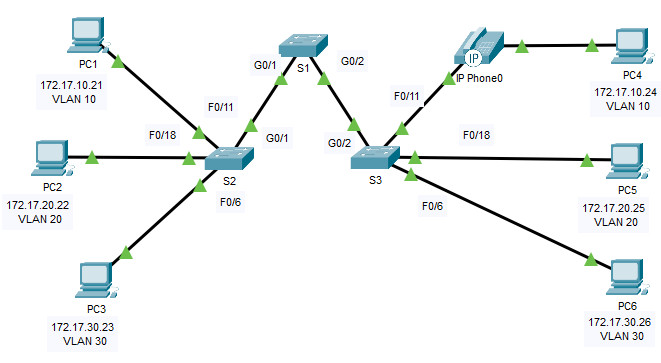
Addressing Table
| Device | Interface | IP Address | Subnet Mask | VLAN |
|---|---|---|---|---|
| PC1 | NIC | 172.17.10.21 | 255.255.255.0 | 10 |
| PC2 | NIC | 172.17.20.22 | 255.255.255.0 | 20 |
| PC3 | NIC | 172.17.30.23 | 255.255.255.0 | 30 |
| PC4 | NIC | 172.17.10.24 | 255.255.255.0 | 10 |
| PC5 | NIC | 172.17.20.25 | 255.255.255.0 | 20 |
| PC6 | NIC | 172.17.30.26 | 255.255.255.0 | 30 |
Objectives
- Part 1: Verify the Default VLAN Configuration
- Part 2: Configure VLANs
- Part 3: Assign VLANs to Ports
Background
VLANs are helpful in the administration of logical groups, allowing members of a group to be easily moved, changed, or added. This activity focuses on creating and naming VLANs, and assigning access ports to specific VLANs.
Instructions
Part 1: Verify the Default VLAN Configuration
Step 1: Display the current VLANs.
On S1, issue the command that displays all VLANs configured. By default, all interfaces are assigned to VLAN 1.
S1# show vlan brief

VLAN Name                             Status    Ports
---- -------------------------------- --------- -------------------------------
1    default                          active    Fa0/1, Fa0/2, Fa0/3, Fa0/4
                                                Fa0/5, Fa0/6, Fa0/7, Fa0/8
                                                Fa0/9, Fa0/10, Fa0/11, Fa0/12
                                                Fa0/13, Fa0/14, Fa0/15, Fa0/16
                                                Fa0/17, Fa0/18, Fa0/19, Fa0/20
                                                Fa0/21, Fa0/22, Fa0/23, Fa0/24
                                                Gig0/1, Gig0/2
1002 fddi-default                     active
1003 token-ring-default               active
1004 fddinet-default                  active
1005 trnet-default                    active
S1#
Step 2: Verify connectivity between PCs on the same network.
Notice that each PC can ping the other PC that shares the same subnet.
- PC1 can ping PC4
- PC2 can ping PC5
- PC3 can ping PC6
Pings to hosts on other networks fail.
What benefits can VLANs provide to the network?
The primary benefits of using VLANs are as follows: security, cost reduction, higher performance, broadcast storm mitigation, improved IT staff efficiency, and simpler project and application management.
Part 2: Configure VLANs
Step 1: Create and name VLANs on S1.
a. Create the following VLANs. Names are case-sensitive and must match the requirement exactly:
- VLAN 10: Faculty/Staff
S1(config)# vlan 10
S1(config-vlan)# name Faculty/Staff
b. Create the remaining VLANs.
- VLAN 20: Students
S1(config)# vlan 20
S1(config-vlan)# name Students
- VLAN 30: Guest(Default)
S1(config)# vlan 30
S1(config-vlan)# name Guest(Default)
- VLAN 99: Management&Native
S1(config)# vlan 99
S1(config-vlan)# name Management&Native
- VLAN 150: VOICE
S1(config)# vlan 150
S1(config-vlan)# name VOICE
Step 2: Verify the VLAN configuration.
Which command will only display the VLAN name, status, and associated ports on a switch?
show vlan brief
S1# show vlan brief

VLAN Name                             Status    Ports
---- -------------------------------- --------- -------------------------------
1    default                          active    Fa0/1, Fa0/2, Fa0/3, Fa0/4
                                                Fa0/5, Fa0/6, Fa0/7, Fa0/8
                                                Fa0/9, Fa0/10, Fa0/11, Fa0/12
                                                Fa0/13, Fa0/14, Fa0/15, Fa0/16
                                                Fa0/17, Fa0/18, Fa0/19, Fa0/20
                                                Fa0/21, Fa0/22, Fa0/23, Fa0/24
                                                Gig0/1, Gig0/2
10   Faculty/Staff                    active
20   Students                         active
30   Guest(Default)                   active
99   Management&Native                active
150  VOICE                            active
1002 fddi-default                     active
1003 token-ring-default               active
1004 fddinet-default                  active
1005 trnet-default                    active
Step 3: Create the VLANs on S2 and S3.
Use the same commands from Step 1 to create and name the same VLANs on S2 and S3.
S2(config)# vlan 10
S2(config-vlan)# name Faculty/Staff
S2(config-vlan)# vlan 20
S2(config-vlan)# name Students
S2(config-vlan)# vlan 30
S2(config-vlan)# name Guest(Default)
S2(config-vlan)# vlan 99
S2(config-vlan)# name Management&Native
S2(config-vlan)# vlan 150
S2(config-vlan)# name VOICE
S3(config)# vlan 10
S3(config-vlan)# name Faculty/Staff
S3(config-vlan)# vlan 20
S3(config-vlan)# name Students
S3(config-vlan)# vlan 30
S3(config-vlan)# name Guest(Default)
S3(config-vlan)# vlan 99
S3(config-vlan)# name Management&Native
S3(config-vlan)# vlan 150
S3(config-vlan)# name VOICE
Step 4: Verify the VLAN configuration.
S2# show vlan brief
S3# show vlan brief
Part 3: Assign VLANs to Ports
Step 1: Assign VLANs to the active ports on S2.
a. Configure the interfaces as access ports and assign the VLANs as follows:
- VLAN 10: FastEthernet 0/11
S2(config)# interface fastethernet 0/11
S2(config-if)# switchport mode access
S2(config-if)# switchport access vlan 10
b. Assign the remaining ports to the appropriate VLAN.
- VLAN 20: FastEthernet 0/18
S2(config)# interface fastethernet 0/18
S2(config-if)# switchport mode access
S2(config-if)# switchport access vlan 20
- VLAN 30: FastEthernet 0/6
S2(config)# interface fastethernet 0/6
S2(config-if)# switchport mode access
S2(config-if)# switchport access vlan 30
Step 2: Assign VLANs to the active ports on S3.
S3 uses the same VLAN access port assignments as S2. Configure the interfaces as access ports and assign the VLANs as follows:
- VLAN 10: FastEthernet 0/11
S3(config)# interface fastethernet 0/11
S3(config-if)# switchport mode access
S3(config-if)# switchport access vlan 10
- VLAN 20: FastEthernet 0/18
S3(config)# interface fastethernet 0/18
S3(config-if)# switchport mode access
S3(config-if)# switchport access vlan 20
- VLAN 30: FastEthernet 0/6
S3(config)# interface fastethernet 0/6
S3(config-if)# switchport mode access
S3(config-if)# switchport access vlan 30
Step 3: Assign the VOICE VLAN to FastEthernet 0/11 on S3.
As shown in the topology, the S3 FastEthernet 0/11 interface connects to a Cisco IP Phone and PC4. The IP phone contains an integrated three-port 10/100 switch. One port on the phone is labeled Switch and connects to F0/11. Another port on the phone is labeled PC and connects to PC4. The IP phone also has an internal port that connects to the IP phone functions.
The S3 F0/11 interface must be configured to support user traffic to PC4 using VLAN 10 and voice traffic to the IP phone using VLAN 150. The interface must also enable QoS and trust the Class of Service (CoS) values assigned by the IP phone. IP voice traffic requires a minimum amount of throughput to support acceptable voice communication quality. This command helps the switchport to provide this minimum amount of throughput.
S3(config)# interface fastethernet 0/11
S3(config-if)# mls qos trust cos
S3(config-if)# switchport voice vlan 150
Step 4: Verify loss of connectivity.
Previously, PCs that shared the same network could ping each other successfully.
Study the output from the following command on S2 and answer the following questions based on your knowledge of communication between VLANs. Pay close attention to the Gig0/1 port assignment.
S2# show vlan brief

VLAN Name                             Status    Ports
---- -------------------------------- --------- -------------------------------
1    default                          active    Fa0/1, Fa0/2, Fa0/3, Fa0/4
                                                Fa0/5, Fa0/7, Fa0/8, Fa0/9
                                                Fa0/10, Fa0/12, Fa0/13, Fa0/14
                                                Fa0/15, Fa0/16, Fa0/17, Fa0/19
                                                Fa0/20, Fa0/21, Fa0/22, Fa0/23
                                                Fa0/24, Gig0/1, Gig0/2
10   Faculty/Staff                    active    Fa0/11
20   Students                         active    Fa0/18
30   Guest(Default)                   active    Fa0/6
99   Management&Native                active
150  VOICE                            active
Try pinging between PC1 and PC4.
Although the access ports are assigned to the appropriate VLANs, were the pings successful? Explain.
No, the pings failed because the ports between the switches are in VLAN 1 and PC1 and PC4 are in VLAN 10.
What could be done to resolve this issue?
Configure the ports between the switches as trunk ports.
Device Configs - Final
SWITCH S1
! ==============================================================
!--- 3.3.12 Packet Tracer - VLAN Configuration
!--- ANSWER SCRIPT FOR SWITCH S1
!--- Usage: copy this whole file and paste it into the S1 terminal (start at the S1> prompt). Every line beginning with "!" is a comment; IOS ignores it, so pasting a comment by accident is harmless.
! ==============================================================

enable
configure terminal

! --------------------------------------------------------------
!--- Part 2: Configure VLANs.
! --------------------------------------------------------------

!--- Create and name the VLANs. Names are case-sensitive and must match exactly.
vlan 10
 name Faculty/Staff
 exit
vlan 20
 name Students
 exit
vlan 30
 name Guest(Default)
 exit
vlan 99
 name Management&Native
 exit
vlan 150
 name VOICE
 exit

end

! --------------------------------------------------------------
!--- Save the configuration to NVRAM. (Press Enter when prompted for the destination filename.)
! --------------------------------------------------------------
copy running-config startup-config


! ==============================================================
!--- Verification:
!---   show vlan brief  -> VLANs 10, 20, 30, 99 and 150 with the correct names
!--- Note: S1 has no access ports to assign in this activity; it only needs the VLANs.
! ==============================================================
SWITCH S2
! ==============================================================
!--- 3.3.12 Packet Tracer - VLAN Configuration
!--- ANSWER SCRIPT FOR SWITCH S2
!--- Usage: copy this whole file and paste it into the S2 terminal (start at the S2> prompt). Every line beginning with "!" is a comment; IOS ignores it, so pasting a comment by accident is harmless.
! ==============================================================

enable
configure terminal

! --------------------------------------------------------------
!--- Part 2: Configure VLANs.
! --------------------------------------------------------------

!--- Create and name the VLANs. Names are case-sensitive and must match exactly.
vlan 10
 name Faculty/Staff
 exit
vlan 20
 name Students
 exit
vlan 30
 name Guest(Default)
 exit
vlan 99
 name Management&Native
 exit
vlan 150
 name VOICE
 exit

! --------------------------------------------------------------
!--- Part 3: Assign VLANs to Ports.
! --------------------------------------------------------------

!--- Configure the active ports as access ports: F0/11 - VLAN 10, F0/18 - VLAN 20, F0/6 - VLAN 30.
interface fastethernet 0/11
 switchport mode access
 switchport access vlan 10
 exit
interface fastethernet 0/18
 switchport mode access
 switchport access vlan 20
 exit
interface fastethernet 0/6
 switchport mode access
 switchport access vlan 30
 exit

end

! --------------------------------------------------------------
!--- Save the configuration to NVRAM. (Press Enter when prompted for the destination filename.)
! --------------------------------------------------------------
copy running-config startup-config


! ==============================================================
!--- Verification:
!---   show vlan brief  -> Fa0/11 in VLAN 10, Fa0/18 in VLAN 20, Fa0/6 in VLAN 30
!--- Note: PC1 still cannot ping PC4. The links between the switches (Gig0/1, Gig0/2)
!--- are still access ports in VLAN 1; they must be configured as trunks (next lab).
! ==============================================================
SWITCH S3
! ==============================================================
!--- 3.3.12 Packet Tracer - VLAN Configuration
!--- ANSWER SCRIPT FOR SWITCH S3
!--- Usage: copy this whole file and paste it into the S3 terminal (start at the S3> prompt). Every line beginning with "!" is a comment; IOS ignores it, so pasting a comment by accident is harmless.
! ==============================================================

enable
configure terminal

! --------------------------------------------------------------
!--- Part 2: Configure VLANs.
! --------------------------------------------------------------

!--- Create and name the VLANs. Names are case-sensitive and must match exactly.
vlan 10
 name Faculty/Staff
 exit
vlan 20
 name Students
 exit
vlan 30
 name Guest(Default)
 exit
vlan 99
 name Management&Native
 exit
vlan 150
 name VOICE
 exit

! --------------------------------------------------------------
!--- Part 3: Assign VLANs to Ports.
! --------------------------------------------------------------

!--- Configure the active ports as access ports: F0/11 - VLAN 10, F0/18 - VLAN 20, F0/6 - VLAN 30.
interface fastethernet 0/11
 switchport mode access
 switchport access vlan 10
 exit
interface fastethernet 0/18
 switchport mode access
 switchport access vlan 20
 exit
interface fastethernet 0/6
 switchport mode access
 switchport access vlan 30
 exit

!--- Step 3: F0/11 also carries the IP phone. Trust the CoS values marked by the phone (QoS) and add voice VLAN 150; PC4 data stays in VLAN 10.
interface fastethernet 0/11
 mls qos trust cos
 switchport voice vlan 150
 exit

end

! --------------------------------------------------------------
!--- Save the configuration to NVRAM. (Press Enter when prompted for the destination filename.)
! --------------------------------------------------------------
copy running-config startup-config


! ==============================================================
!--- Verification:
!---   show vlan brief                               -> Fa0/11 in VLAN 10, Fa0/18 in VLAN 20, Fa0/6 in VLAN 30
!---   show interfaces fastethernet 0/11 switchport  -> access VLAN 10, voice VLAN 150
! ==============================================================


