
Lab - Implement DHCPv4 (Instructor Version)
Topology

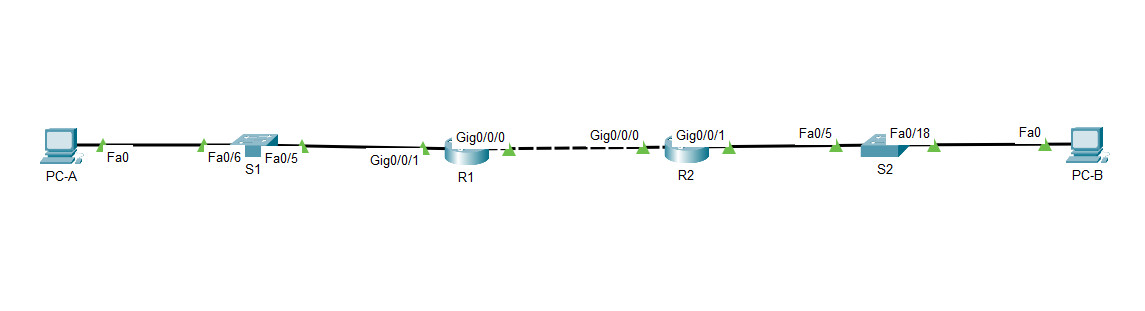
Packet Tracer Topology
Addressing Table
| Device | Interface | IP Address | Subnet Mask | Default Gateway |
|---|---|---|---|---|
| R1 | G0/0/0 | 10.0.0.1 | 255.255.255.252 | N/A |
| G0/0/1 | N/A | N/A | ||
| G0/0/1.100 | 192.168.1.1 | 255.255.255.192 | ||
| G0/0/1.200 | 192.168.1.65 | 255.255.255.224 | ||
| G0/0/1.1000 | N/A | N/A | ||
| R2 | G0/0/0 | 10.0.0.2 | 255.255.255.252 | N/A |
| G0/0/1 | 192.168.1.97 | 255.255.255.240 | ||
| S1 | VLAN 200 | 192.168.1.66 | 255.255.255.224 | 192.168.1.65 |
| S2 | VLAN 1 | 192.168.1.98 | 255.255.255.240 | 192.168.1.97 |
| PC-A | NIC | DHCP | DHCP | DHCP |
| PC-B | NIC | DHCP | DHCP | DHCP |
VLAN Table
| VLAN | Name | Interface Assigned |
|---|---|---|
| 1 | N/A | S2: F0/18 |
| 100 | Clients | S1: F0/6 |
| 200 | Management | S1: VLAN 200 |
| 999 | Parking_Lot | S1: F0/1-4, F0/7-24, G0/1-2 |
| 1000 | Native | N/A |
Objectives
- Part 1: Build the Network and Configure Basic Device Settings
- Part 2: Configure and verify two DHCPv4 Servers on R1
- Part 3: Configure and verify a DHCP Relay on R2
Background / Scenario
The Dynamic Host Configuration Protocol (DHCP) is a network protocol that lets network administrators manage and automate the assignment of IP addresses. Without DHCP for IPv4, the administrator must manually assign and configure IP addresses, preferred DNS servers, and default gateways. As the network grows in size, this becomes an administrative problem when devices are moved from one internal network to another.
In this scenario, the company has grown in size, and the network administrators can no longer assign IP addresses to devices manually. Your job is to configure the R1 router to assign IPv4 addresses on two different subnets.
Note: The routers used with CCNA hands-on labs are Cisco 4221 with Cisco IOS XE Release 16.9.4 (universalk9 image). The switches used in the labs are Cisco Catalyst 2960s with Cisco IOS Release 15.2(2) (lanbasek9 image). Other routers, switches, and Cisco IOS versions can be used. Depending on the model and Cisco IOS version, the commands available and the output produced might vary from what is shown in the labs. Refer to the Router Interface Summary Table at the end of the lab for the correct interface identifiers.
Note: Ensure that the routers and switches have been erased and have no startup configurations. If you are unsure contact your instructor.
Instructor Note: Refer to the Instructor Lab Manual for the procedures to initialize and reload devices
Required Resources
- 2 Routers (Cisco 4221 with Cisco IOS XE Release 16.9.4 universal image or comparable)
- 2 Switches (Cisco 2960 with Cisco IOS Release 15.2(2) lanbasek9 image or comparable)
- 2 PCs (Windows with a terminal emulation program, such as Tera Term)
- Console cables to configure the Cisco IOS devices via the console ports
- Ethernet cables as shown in the topology
Instructions
Part 1: Build the Network and Configure Basic Device Settings
In Part 1, you will set up the network topology and configure basic settings on the PC hosts and switches.
Step 1: Establish an addressing scheme
Subnet the network 192.168.1.0/24 to meet the following requirements:
a. One subnet, “Subnet A”, supporting 58 hosts (the client VLAN at R1).
Subnet A:
To support 58 hosts, we need 6 host bits (26 - 2 = 62 usable hosts).
The prefix will be /26 (32 - 6 = 26).
Subnet A: 192.168.1.0/26 (Range: .1 - .63)
Record the first IP address in the Addressing Table for R1 G0/0/1.100. Record the second IP address in the Address Table for S1 VLAN 200 and enter the associated default gateway.
- R1 G0/0/1.100: 192.168.1.1/26
- S1 VLAN 200: 192.168.1.66/27
b. One subnet, “Subnet B”, supporting 28 hosts (the management VLAN at R1).
Subnet B:
Following Subnet A (ends at .63), the next network address is .64.
To support 28 hosts, we need 5 host bits (25 - 2 = 30 usable hosts).
The prefix will be /27 (32 - 5 = 27).
Subnet B: 192.168.1.64/27 (Range: .65 - .95)
Record the first IP address in the Addressing Table for R1 G0/0/1.200.
- R1 G0/0/1.200: 192.168.1.65/27
c. One subnet, “Subnet C”, supporting 12 hosts (the client network at R2).
Subnet C:
Following Subnet B (ends at .95), the next network address is .96.
To support 12 hosts, we need 4 host bits (24 - 2 = 14 usable hosts).
The prefix will be /28 (32 - 4 = 28).
Subnet C: 192.168.1.96/28 (Range: .97 - .111)
Record the first IP address in the Addressing Table for R2 G0/0/1. Record the second IP address in the Address Table for S2 VLAN 1 and enter the associated default gateway.
- R2 G0/0/1: 192.168.1.97/28
- S2 VLAN 1: 192.168.1.98/28

Step 2: Cable the network as shown in the topology.
Attach the devices as shown in the topology diagram, and cable as necessary.
Step 3: Configure basic settings for each router.
a. Assign a device name to the router.
router(config)# hostname R1

router(config)# hostname R2
b. Disable DNS lookup to prevent the router from attempting to translate incorrectly entered commands as though they were host names.
R1(config)# no ip domain-lookup

R2(config)# no ip domain-lookup
c. Assign class as the privileged EXEC encrypted password.
R1(config)# enable secret class

R2(config)# enable secret class
d. Assign cisco as the console password and enable login.
R1(config)# line console 0
R1(config-line)# password cisco
R1(config-line)# login

R2(config)# line console 0
R2(config-line)# password cisco
R2(config-line)# login
e. Assign cisco as the VTY password and enable login.
R1(config)# line vty 0 4
R1(config-line)# password cisco
R1(config-line)# login

R2(config)# line vty 0 4
R2(config-line)# password cisco
R2(config-line)# login
f. Encrypt the plaintext passwords.
R1(config)# service password-encryption

R2(config)# service password-encryption
g. Create a banner that warns anyone accessing the device that unauthorized access is prohibited.
R1(config)# banner motd $ Authorized Users Only! $

R2(config)# banner motd $ Authorized Users Only! $
h. Save the running configuration to the startup configuration file.
R1# copy running-config startup-config

R2# copy running-config startup-config
i. Set the clock on the router to today’s time and date.
R1# clock set 15:30:00 27 Aug 2019

R2# clock set 15:30:00 27 Aug 2019
Note: Use the question mark (?) to help with the correct sequence of parameters needed to execute this command.
Step 4: Configure Inter-VLAN Routing on R1
a. Activate interface G0/0/1 on the router.
R1(config)# interface g0/0/1
R1(config-if)# no shutdown
R1(config-if)# exit
b. Configure sub-interfaces for each VLAN as required by the IP addressing table. All sub-interfaces use 802.1Q encapsulation and are assigned the first usable address from the IP address pool you have calculated. Ensure the sub-interface for the native VLAN does not have an IP address assigned. Include a description for each sub-interface.
R1(config)# interface g0/0/1.100
R1(config-subif)# description Client Network
R1(config-subif)# encapsulation dot1q 100
R1(config-subif)# ip address 192.168.1.1 255.255.255.192

R1(config-subif)# interface g0/0/1.200
R1(config-subif)# encapsulation dot1q 200
R1(config-subif)# description Management Network
R1(config-subif)# ip address 192.168.1.65 255.255.255.224

R1(config-subif)# interface g0/0/1.1000
R1(config-subif)# encapsulation dot1q 1000 native
R1(config-subif)# description Native VLAN
c. Verify the sub-interfaces are operational.
R1# show ip interface brief
Interface              IP-Address      OK? Method Status                Protocol
GigabitEthernet0/0/0   unassigned      YES unset  administratively down down
GigabitEthernet0/0/1   unassigned      YES unset  up                    up
Gi0/0/1.100            192.168.1.1     YES manual up                    up
Gi0/0/1.200            192.168.1.65    YES manual up                    up
Gi0/0/1.1000           unassigned      YES unset  up                    up
Step 5: Configure G0/0/1 on R2, then G0/0/0 and static routing for both routers
a. Configure G0/0/1 on R2 with the first IP address of Subnet C you calculated earlier.
R2(config)# interface g0/0/1
R2(config-if)# ip address 192.168.1.97 255.255.255.240
R2(config-if)# no shutdown
R2(config-if)# exit
b. Configure interface G0/0/0 for each router based on the IP Addressing table above.
R1(config)# interface g0/0/0
R1(config-if)# ip address 10.0.0.1 255.255.255.252
R1(config-if)# no shutdown

R2(config)# interface g0/0/0
R2(config-if)# ip address 10.0.0.2 255.255.255.252
R2(config-if)# no shutdown
c. Configure a default route on each router pointed to the IP address of G0/0/0 on the other router.
R1(config)# ip route 0.0.0.0 0.0.0.0 10.0.0.2

R2(config)# ip route 0.0.0.0 0.0.0.0 10.0.0.1
d. Verify static routing is working by pinging R2’s G0/0/1 address from R1.
R1# ping 192.168.1.97
e. Save the running configuration to the startup configuration file.
R1# copy running-config startup-config
Step 6: Configure basic settings for each switch.
a. Assign a device name to the switch.
switch(config)# hostname S1

switch(config)# hostname S2
b. Disable DNS lookup to prevent the router from attempting to translate incorrectly entered commands as though they were host names.
S1(config)# no ip domain-lookup

S2(config)# no ip domain-lookup
c. Assign class as the privileged EXEC encrypted password.
S1(config)# enable secret class

S2(config)# enable secret class
d. Assign cisco as the console password and enable login.
S1(config)# line console 0
S1(config-line)# password cisco
S1(config-line)# login

S2(config)# line console 0
S2(config-line)# password cisco
S2(config-line)# login
e. Assign cisco as the VTY password and enable login.
S1(config)# line vty 0 4
S1(config-line)# password cisco
S1(config-line)# login

S2(config)# line vty 0 4
S2(config-line)# password cisco
S2(config-line)# login
f. Encrypt the plaintext passwords.
S1(config)# service password-encryption

S2(config)# service password-encryption
g. Create a banner that warns anyone accessing the device that unauthorized access is prohibited.
S1(config)# banner motd $ Authorized Users Only! $

S2(config)# banner motd $ Authorized Users Only! $
h. Save the running configuration to the startup configuration file.
S1(config)# end
S1# copy running-config startup-config

S2(config)# end
S2# copy running-config startup-config
i. Set the clock on the switch to today’s time and date.
S1# clock set 15:30:00 27 Aug 2019

S2# clock set 15:30:00 27 Aug 2019
Note: Use the question mark (?) to help with the correct sequence of parameters needed to execute this command.
j. Copy the running configuration to the startup configuration.
Step 7: Create VLANs on S1.
Note: S2 is only configured with basic settings.
a. Create and name the required VLANs on switch 1 from the table above.
S1(config)# vlan 100
S1(config-vlan)# name Clients
S1(config-vlan)# vlan 200
S1(config-vlan)# name Management
S1(config-vlan)# vlan 999
S1(config-vlan)# name Parking_Lot
S1(config-vlan)# vlan 1000
S1(config-vlan)# name Native
S1(config-vlan)# exit
b. Configure and activate the management interface on S1 (VLAN 200) using the second IP address from the subnet calculated earlier. Additionally, set the default gateway on S1.
S1(config)# interface vlan 200
S1(config-if)# ip address 192.168.1.66 255.255.255.224
S1(config-if)# no shutdown
S1(config-if)# exit
S1(config)# ip default-gateway 192.168.1.65
c. Configure and activate the management interface on S2 (VLAN 1) using the second IP address from the subnet calculated earlier. Additionally, set the default gateway on S2
S2(config)# interface vlan 1
S2(config-if)# ip address 192.168.1.98 255.255.255.240
S2(config-if)# no shutdown
S2(config-if)# exit
S2(config)# ip default-gateway 192.168.1.97
d. Assign all unused ports on S1 to the Parking_Lot VLAN, configure them for static access mode, and administratively deactivate them. On S2, administratively deactivate all the unused ports.
Note: The interface range command is helpful to accomplish this task with as few commands as necessary.
S1(config)# interface range f0/1 - 4, f0/7 - 24, g0/1 - 2
S1(config-if-range)# switchport mode access
S1(config-if-range)# switchport access vlan 999
S1(config-if-range)# shutdown
S1(config-if-range)# exit

S2(config)# interface range f0/1 - 4, f0/6 - 17, f0/19 - 24, g0/1 - 2
S2(config-if-range)# switchport mode access
S2(config-if-range)# shutdown
S2(config-if-range)# exit
Step 8: Assign VLANs to the correct switch interfaces.
a. Assign used ports to the appropriate VLAN (specified in the VLAN table above) and configure them for static access mode.
S1(config)# interface f0/6
S1(config-if)# switchport mode access
S1(config-if)# switchport access vlan 100
b. Verify that the VLANs are assigned to the correct interfaces.
S1# show vlan brief

VLAN Name                             Status    Ports
---- -------------------------------- --------- -------------------------------
1    default                          active    Fa0/5
100  Clients                          active    Fa0/6
200  Management                       active
999  Parking_Lot                      active    Fa0/1, Fa0/2, Fa0/3, Fa0/4
                                                Fa0/7, Fa0/8, Fa0/9, Fa0/10
                                                Fa0/11, Fa0/12, Fa0/13, Fa0/14
                                                Fa0/15, Fa0/16, Fa0/17, Fa0/18
                                                Fa0/19, Fa0/20, Fa0/21, Fa0/22
                                                Fa0/23, Fa0/24, Gi0/1, Gi0/2
1000 Native                           active
1002 fddi-default                     act/unsup
1003 token-ring-default               act/unsup
1004 fddinet-default                  act/unsup
1005 trnet-default                    act/unsup
Why is interface F0/5 listed under VLAN 1?
Port 5 is in the default VLAN and has not been configured as an 802.1Q trunk.
Step 9: Manually configure S1’s interface F0/5 as an 802.1Q trunk.
a. Change the switchport mode on the interface to force trunking.
S1(config)# interface f0/5
S1(config-if)# switchport mode trunk
b. As a part of the trunk configuration, set the native VLAN to 1000.
S1(config-if-range)# switchport trunk native vlan 1000
c. As another part of trunk configuration, specify that VLANs 100, 200, and 1000 are allowed to cross the trunk.
S1(config-if-range)# switchport trunk allowed vlan 100,200,1000
d. Save the running configuration to the startup configuration file.
S1(config)# exit
S1# copy running-config startup-config
e. Verify trunking status.
S1# show interfaces trunk

Port        Mode             Encapsulation  Status        Native vlan
Fa0/5       on               802.1q         trunking      1000

Port        Vlans allowed on trunk
Fa0/5       100,200,1000

Port        Vlans allowed and active in management domain
Fa0/5       100,200,1000

Port        Vlans in spanning tree forwarding state and not pruned
Fa0/5       100,200,1000
At this point, what IP address would the PC’s have if they were connected to the network using DHCP?
They would self-configure with an Automatic Private IP Address (APIPA) address in the 169.254.x.x range.
Part 2: Configure and verify two DHCPv4 Servers on R1
In Part 2, you will configure and verify a DHCPv4 Server on R1. The DHCPv4 server will service two subnets, Subnet A and Subnet C.
Step 1: Configure R1 with DHCPv4 pools for the two supported subnets. Only the DHCP Pool for subnet A is given below
a. Exclude the first five useable addresses from each address pool.
R1(config)# ip dhcp excluded-address 192.168.1.1 192.168.1.5
b. Create the DHCP pool (Use a unique name for each pool).
R1(config)# ip dhcp pool R1_Client_LAN
c. Specify the network that this DHCP server is supporting.
R1(dhcp-config)# network 192.168.1.0 255.255.255.192
d. Configure the domain name as ccna-lab.com
R1(dhcp-config)# domain-name ccna-lab.com
e. Configure the appropriate default gateway for each DHCP pool.
R1(dhcp-config)# default-router 192.168.1.1
f. Configure the lease time for 2 days 12 hours and 30 minutes.
R1(dhcp-config)# lease 2 12 30
g. Next, configure the second DHCPv4 Pool using the pool name R2_Client_LAN and the calculated network, default-router and use the same domain name and lease time from the previous DHCP pool.
R1(config)# ip dhcp excluded-address 192.168.1.97 192.168.1.101
R1(config)# ip dhcp pool R2_Client_LAN
R1(dhcp-config)# network 192.168.1.96 255.255.255.240
R1(dhcp-config)# default-router 192.168.1.97
R1(dhcp-config)# domain-name ccna-lab.com
R1(dhcp-config)# lease 2 12 30
Step 2: Save your configuration
Save the running configuration to the startup configuration file.
R1# copy running-config startup-config
Step 3: Verify the DHCPv4 Server configuration
a. Issue the command show ip dhcp pool to examine the pool details.
b. Issue the command show ip dhcp bindings to examine established DHCP address assignments.
c. Issue the command show ip dhcp server statistics to examine DHCP messages.
Step 4: Attempt to acquire an IP address from DHCP on PC-A
a. Open a command prompt on PC-A and issue the command ipconfig /renew.
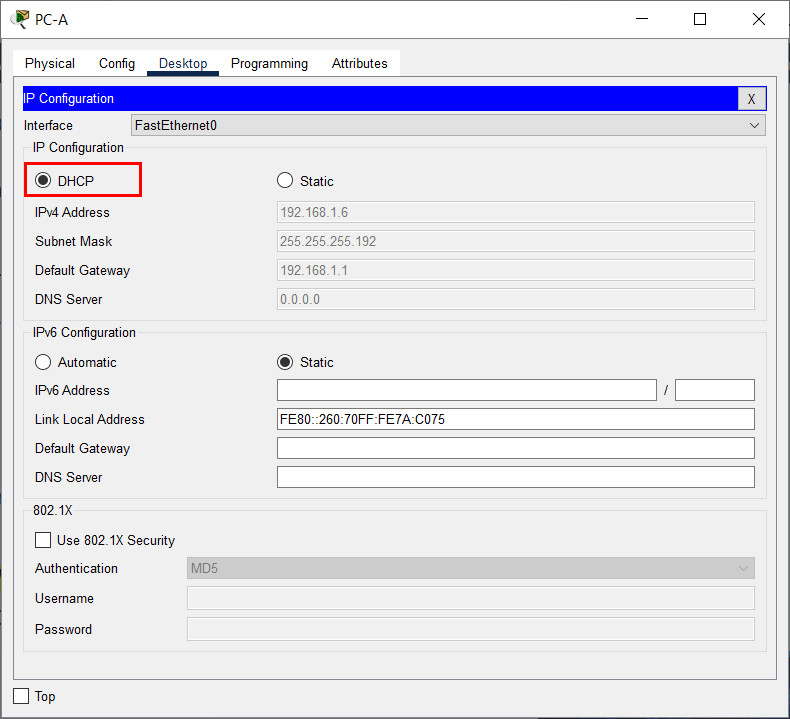
b. Once the renewal process is complete, issue the command ipconfig to view the new IP information.
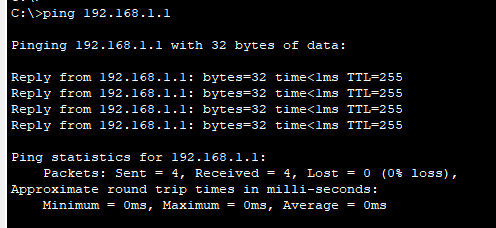
c. Test connectivity by pinging R1’s G0/0/1 interface IP address.
Part 3: Configure and verify a DHCP Relay on R2
In Part 3, you will configure R2 to relay DHCP requests from the local area network on interface G0/0/1 to the DHCP server (R1).
Step 1: Configure R2 as a DHCP relay agent for the LAN on G0/0/1
a. Configure the ip helper-address command on G0/0/1 specifying R1’s G0/0/0 IP address.
R2(config)# interface g0/0/1
R2(config-if)# ip helper-address 10.0.0.1
b. Save your configuration.
R2(config-if)# end
R2# wr
Step 2: Attempt to acquire an IP address from DHCP on PC-B
a. Open a command prompt on PC-B and issue the command ipconfig /renew.
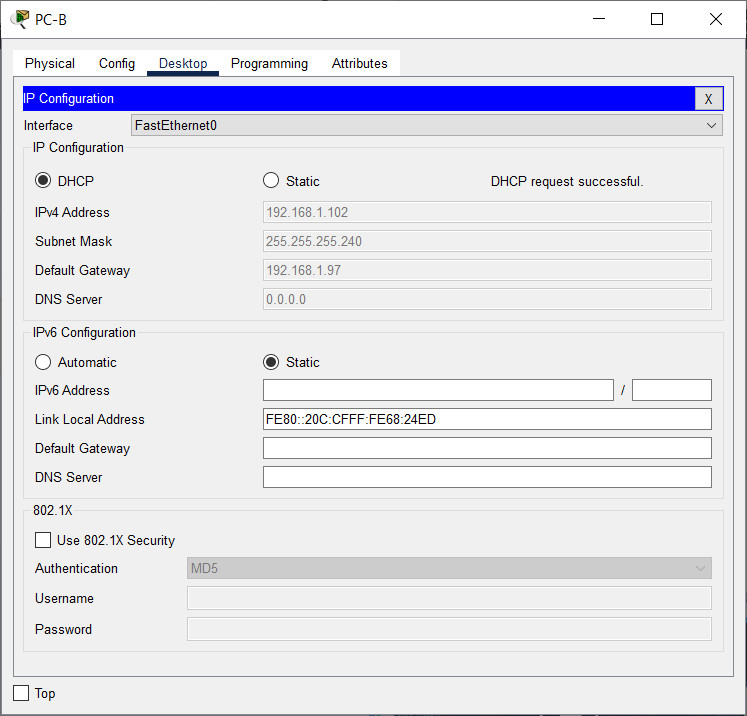
b. Once the renewal process is complete, issue the command ipconfig to view the new IP information.
c. Test connectivity by pinging R1’s G0/0/1 interface IP address.
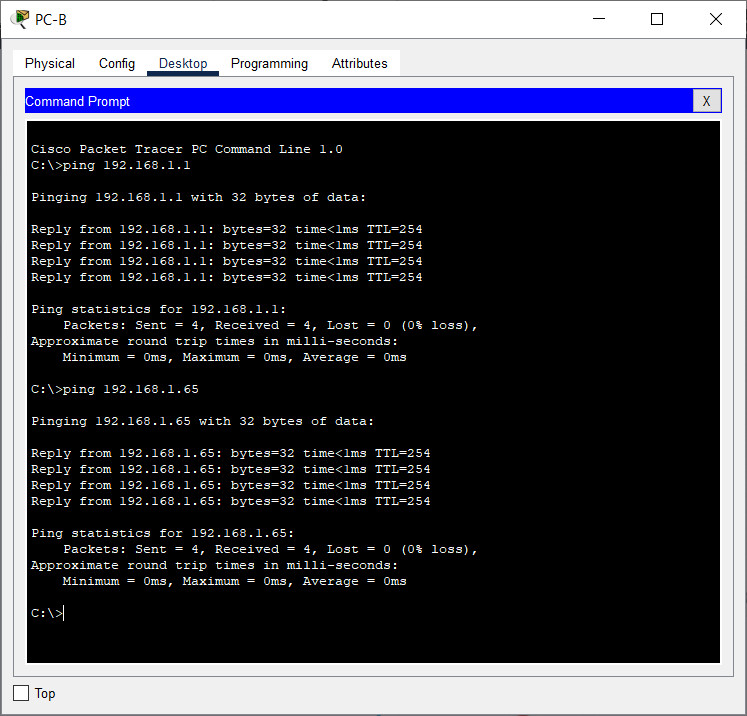
d. Issue the show ip dhcp binding on R1 to verify DHCP bindings.
e. Issue the show ip dhcp server statistics on R1 and R2 to verify DHCP messages.
Device Configs - Final
Switch S1
! ==============================================================
!--- 7.4.2 Lab - Implement DHCPv4
!--- ANSWER SCRIPT FOR SWITCH S1
!--- Usage: copy this whole file and paste it into the SWITCH S1 terminal (start at the Switch> prompt). Every line beginning with "!" is a comment; IOS ignores it, so pasting a comment by accident is harmless.
! ==============================================================

enable
configure terminal

! --------------------------------------------------------------
!--- Part 1: Configure Basic Device Settings
! --------------------------------------------------------------

!--- Assign a device name.
hostname S1

!--- Disable DNS lookup to prevent the switch from trying to translate incorrectly entered commands as though they were host names.
no ip domain-lookup

!--- Assign "class" as the privileged EXEC encrypted password.
enable secret class

!--- Assign "cisco" as the console password and enable login.
line console 0
 password cisco
 login
 exit

!--- Assign "cisco" as the VTY password and enable login.
line vty 0 4
 password cisco
 login
 exit

!--- Encrypt the plaintext passwords.
service password-encryption

!--- Create a banner that warns anyone accessing the device that unauthorized access is prohibited.
banner motd $ Authorized Users Only! $

! --------------------------------------------------------------
!--- Part 1 (cont.): VLANs, management interface, ports
! --------------------------------------------------------------

!--- Create and name the required VLANs from the VLAN Table.
vlan 100
 name Clients
vlan 200
 name Management
vlan 999
 name Parking_Lot
vlan 1000
 name Native
 exit

!--- Configure the management interface (VLAN 200) and set the default gateway.
interface vlan 200
 ip address 192.168.1.66 255.255.255.224
 no shutdown
 exit
ip default-gateway 192.168.1.65

!--- Assign all unused ports to the Parking_Lot VLAN, set static access mode, and shut them down.
!--- Per VLAN Table, S1 unused = F0/1-4, F0/7-24, G0/1-2 (F0/5 = trunk, F0/6 = PC-A).
interface range f0/1 - 4, f0/7 - 24, g0/1 - 2
 switchport mode access
 switchport access vlan 999
 shutdown
 exit

!--- Assign the used access port: F0/6 (PC-A) to VLAN 100.
interface f0/6
 switchport mode access
 switchport access vlan 100
 exit

!--- Configure F0/5 (uplink to R1) as an 802.1Q trunk: native VLAN 1000, allow only VLANs 100, 200, 1000.
interface f0/5
 switchport mode trunk
 switchport trunk native vlan 1000
 switchport trunk allowed vlan 100,200,1000
 exit

end

! --------------------------------------------------------------
!--- Set the clock (EXEC-mode command - adjust to the real date/time).
! --------------------------------------------------------------
clock set 15:30:00 27 Aug 2019

! --------------------------------------------------------------
!--- Save the running configuration to the startup configuration file. (Press Enter when prompted for the destination filename.)
! --------------------------------------------------------------
copy running-config startup-config


! ==============================================================
!--- Verification commands:
!---   show vlan brief          -> F0/6 in 100, F0/1-4/7-24 in 999
!---   show interfaces trunk    -> Fa0/5 trunking, native 1000
!---   ping 192.168.1.65        -> reach R1 sub-interface (gateway)
! ==============================================================
Switch S2
! ==============================================================
!--- 7.4.2 Lab - Implement DHCPv4
!--- ANSWER SCRIPT FOR SWITCH S2
!--- Usage: copy this whole file and paste it into the SWITCH S2 terminal (start at the Switch> prompt). Every line beginning with "!" is a comment; IOS ignores it, so pasting a comment by accident is harmless.
! ==============================================================

enable
configure terminal

! --------------------------------------------------------------
!--- Part 1: Configure Basic Device Settings
! --------------------------------------------------------------

!--- Assign a device name.
hostname S2

!--- Disable DNS lookup to prevent the switch from trying to translate incorrectly entered commands as though they were host names.
no ip domain-lookup

!--- Assign "class" as the privileged EXEC encrypted password.
enable secret class

!--- Assign "cisco" as the console password and enable login.
line console 0
 password cisco
 login
 exit

!--- Assign "cisco" as the VTY password and enable login.
line vty 0 4
 password cisco
 login
 exit

!--- Encrypt the plaintext passwords.
service password-encryption

!--- Create a banner that warns anyone accessing the device that unauthorized access is prohibited.
banner motd $ Authorized Users Only! $

! --------------------------------------------------------------
!--- Part 1 (cont.): Management interface and unused ports
! --------------------------------------------------------------

!--- S2 uses only the default VLAN 1. Configure the management interface (VLAN 1) and set the default gateway.
interface vlan 1
 ip address 192.168.1.98 255.255.255.240
 no shutdown
 exit
ip default-gateway 192.168.1.97

!--- On S2, administratively deactivate all unused ports (no Parking_Lot VLAN here - just shut them down).
!--- F0/5 (uplink to R2) and F0/18 (PC-B) stay active in VLAN 1, so they are excluded from this range.
interface range f0/1 - 4, f0/6 - 17, f0/19 - 24, g0/1 - 2
 switchport mode access
 shutdown
 exit

end

! --------------------------------------------------------------
!--- Set the clock (EXEC-mode command - adjust to the real date/time).
! --------------------------------------------------------------
clock set 15:30:00 27 Aug 2019

! --------------------------------------------------------------
!--- Save the running configuration to the startup configuration file. (Press Enter when prompted for the destination filename.)
! --------------------------------------------------------------
copy running-config startup-config


! ==============================================================
!--- Verification commands:
!---   show ip interface brief  -> VLAN 1 up, unused ports down
!---   ping 192.168.1.97        -> reach R2 G0/0/1 (gateway)
! ==============================================================
Router R1
! ==============================================================
!--- 7.4.2 Lab - Implement DHCPv4
!--- ANSWER SCRIPT FOR ROUTER R1
!--- Usage: copy this whole file and paste it into the ROUTER R1 terminal (start at the Router> prompt). Every line beginning with "!" is a comment; IOS ignores it, so pasting a comment by accident is harmless.
! ==============================================================

enable
configure terminal

! --------------------------------------------------------------
!--- Part 1: Configure Basic Device Settings
! --------------------------------------------------------------

!--- Assign a device name.
hostname R1

!--- Disable DNS lookup to prevent the router from trying to translate incorrectly entered commands as though they were host names.
no ip domain-lookup

!--- Assign "class" as the privileged EXEC encrypted password.
enable secret class

!--- Assign "cisco" as the console password and enable login.
line console 0
 password cisco
 login
 exit

!--- Assign "cisco" as the VTY password and enable login.
line vty 0 4
 password cisco
 login
 exit

!--- Encrypt the plaintext passwords.
service password-encryption

!--- Create a banner that warns anyone accessing the device that unauthorized access is prohibited.
banner motd $ Authorized Users Only! $

! --------------------------------------------------------------
!--- Part 1 (cont.): Configure Inter-VLAN Routing on R1
! --------------------------------------------------------------

!--- Activate the physical interface G0/0/1 (the trunk to S1).
interface g0/0/1
 no shutdown
 exit

!--- Configure 802.1Q sub-interfaces, one per VLAN, each with the first usable address of its subnet. The native-VLAN sub-interface carries no IP.
!--- Subnet A (client VLAN 100): 192.168.1.0/26.
interface g0/0/1.100
 description Client Network
 encapsulation dot1q 100
 ip address 192.168.1.1 255.255.255.192

!--- Subnet B (management VLAN 200): 192.168.1.64/27.
interface g0/0/1.200
 description Management Network
 encapsulation dot1q 200
 ip address 192.168.1.65 255.255.255.224

!--- Native VLAN 1000: no IP address.
interface g0/0/1.1000
 description Native VLAN
 encapsulation dot1q 1000 native
 exit

! --------------------------------------------------------------
!--- Part 1 (cont.): Router-to-router link and default route
! --------------------------------------------------------------

!--- Configure G0/0/0 (link to R2) per the Addressing Table.
interface g0/0/0
 ip address 10.0.0.1 255.255.255.252
 no shutdown
 exit

!--- Default route pointing to R2's G0/0/0.
ip route 0.0.0.0 0.0.0.0 10.0.0.2

! --------------------------------------------------------------
!--- Part 2: Configure two DHCPv4 Servers on R1
! --------------------------------------------------------------

!--- Pool A serves Subnet A (R1 client LAN). Exclude the first five usable addresses first.
ip dhcp excluded-address 192.168.1.1 192.168.1.5
ip dhcp pool R1_Client_LAN
 network 192.168.1.0 255.255.255.192
 domain-name ccna-lab.com
 default-router 192.168.1.1
 lease 2 12 30
 exit

!--- Pool C serves Subnet C (R2 client LAN, reached via DHCP relay). Exclude the first five usable addresses first.
ip dhcp excluded-address 192.168.1.97 192.168.1.101
ip dhcp pool R2_Client_LAN
 network 192.168.1.96 255.255.255.240
 default-router 192.168.1.97
 domain-name ccna-lab.com
 lease 2 12 30
 exit

end

! --------------------------------------------------------------
!--- Set the clock (EXEC-mode command - adjust to the real date/time).
! --------------------------------------------------------------
clock set 15:30:00 27 Aug 2019

! --------------------------------------------------------------
!--- Save the running configuration to the startup configuration file. (Press Enter when prompted for the destination filename.)
! --------------------------------------------------------------
copy running-config startup-config


! ==============================================================
!--- Verification commands:
!---   show ip interface brief       -> sub-interfaces up/up
!---   show ip route                 -> default route via 10.0.0.2
!---   ping 192.168.1.97             -> reach R2 G0/0/1 over the link
!---   show ip dhcp pool             -> both pools present
!---   show ip dhcp binding          -> leases handed out
!---   show ip dhcp server statistics -> DHCP message counters
! ==============================================================
Router R2
! ==============================================================
!--- 7.4.2 Lab - Implement DHCPv4
!--- ANSWER SCRIPT FOR ROUTER R2
!--- Usage: copy this whole file and paste it into the ROUTER R2 terminal (start at the Router> prompt). Every line beginning with "!" is a comment; IOS ignores it, so pasting a comment by accident is harmless.
! ==============================================================

enable
configure terminal

! --------------------------------------------------------------
!--- Part 1: Configure Basic Device Settings
! --------------------------------------------------------------

!--- Assign a device name.
hostname R2

!--- Disable DNS lookup to prevent the router from trying to translate incorrectly entered commands as though they were host names.
no ip domain-lookup

!--- Assign "class" as the privileged EXEC encrypted password.
enable secret class

!--- Assign "cisco" as the console password and enable login.
line console 0
 password cisco
 login
 exit

!--- Assign "cisco" as the VTY password and enable login.
line vty 0 4
 password cisco
 login
 exit

!--- Encrypt the plaintext passwords.
service password-encryption

!--- Create a banner that warns anyone accessing the device that unauthorized access is prohibited.
banner motd $ Authorized Users Only! $

! --------------------------------------------------------------
!--- Part 1 (cont.): Interfaces and default route
! --------------------------------------------------------------

!--- Configure G0/0/1 (R2 client LAN) with the first address of Subnet C.
interface g0/0/1
 ip address 192.168.1.97 255.255.255.240
 no shutdown
 exit

!--- Configure G0/0/0 (link to R1) per the Addressing Table.
interface g0/0/0
 ip address 10.0.0.2 255.255.255.252
 no shutdown
 exit

!--- Default route pointing to R1's G0/0/0.
ip route 0.0.0.0 0.0.0.0 10.0.0.1

! --------------------------------------------------------------
!--- Part 3: Configure R2 as a DHCP Relay agent
! --------------------------------------------------------------

!--- Relay DHCP requests from the G0/0/1 LAN to the DHCP server (R1's G0/0/0 address).
interface g0/0/1
 ip helper-address 10.0.0.1
 exit

end

! --------------------------------------------------------------
!--- Set the clock (EXEC-mode command - adjust to the real date/time).
! --------------------------------------------------------------
clock set 15:30:00 27 Aug 2019

! --------------------------------------------------------------
!--- Save the running configuration to the startup configuration file. (Press Enter when prompted for the destination filename.)
! --------------------------------------------------------------
copy running-config startup-config


! ==============================================================
!--- Verification commands:
!---   show ip route                 -> default route via 10.0.0.1
!---   ping 10.0.0.1                 -> reach R1 over the link
!---   show ip dhcp server statistics -> relay message counters
! ==============================================================


