
11.10.2 Lab - Design and Implement a VLSM Addressing Scheme
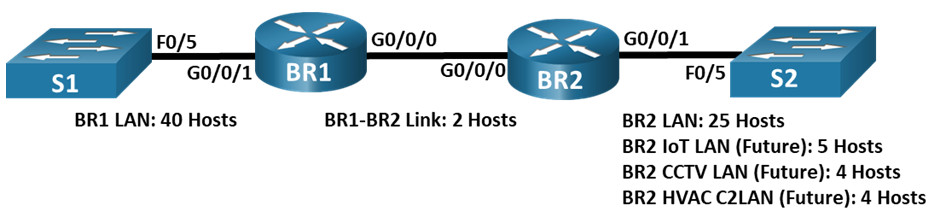
Topology
Objectives
- Part 1: Examine Network Requirements
- Part 2: Design the VLSM Address Scheme
- Part 3: Cable and Configure the IPv4 Network
Background / Scenario
Variable Length Subnet Mask (VLSM) was designed to avoid wasting IP addresses. With VLSM, a network is subnetted and then re-subnetted. This process can be repeated multiple times to create subnets of various sizes based on the number of hosts required in each subnet. Effective use of VLSM requires address planning.
In this lab, use the 192.168.33.128/25 network address to develop an address scheme for the network displayed in the topology diagram. VLSM is used to meet the IPv4 addressing requirements. After you have designed the VLSM address scheme, you will configure the interfaces on the routers with the appropriate IP address information. The future LANS at BR2 will need to have addresses allocated, but no interfaces will be configured at this time.
Note: The routers used with CCNA hands-on labs are Cisco 4221 with Cisco IOS XE Release 16.9.4 (universalk9 image). The switches used in the labs are Cisco Catalyst 2960s with Cisco IOS Release 15.2(2) (lanbasek9 image). Other routers, switches, and Cisco IOS versions can be used. Depending on the model and Cisco IOS version, the commands available and the output produced might vary from what is shown in the labs. Refer to the Router Interface Summary Table at the end of the lab for the correct interface identifiers.
Note: Make sure that the routers have been erased and have no startup configurations. If you are unsure, contact your instructor.
Instructor Note: Refer to the Instructor Lab Manual for the procedures to initialize and reload devices.
This lab can be performed in multiple sessions if time is an issue. Parts 1 and 2 are paper based and can be assigned as homework. Part 3 is Hands-on and requires lab equipment.
Required Resources
- 2 Routers (Cisco 4221 with Cisco IOS XE Release 16.9.4 universal image or comparable)
- 2 Switches (Cisco 2960 with Cisco IOS Release 15.2(2) lanbasek9 image or comparable)
- 1 PCs (Windows with terminal emulation program, such as Tera Term)
- Console cables to configure the Cisco IOS devices via the console ports
- Ethernet and serial cables as shown in the topology
- Windows Calculator (optional)
Instructions
Part 1: Examine Network Requirements
In Part 1, you will examine the network requirements to develop a VLSM address scheme for the network displayed in the topology diagram using the 192.168.33.128/25 network address.
Step 1: Determine how many host addresses and subnets are available.
How many host addresses are available in a /25 network?
126
What is the total number of host addresses needed in the topology diagram?
80
How many subnets are needed in the network topology?
6
Step 2: Determine the largest subnet.
What is the subnet description (e.g. BR1 LAN or BR1-BR2 link)?
BR1 LAN
How many IP addresses are required in the largest subnet?
40
What subnet mask can support that many host addresses?
/26 or 255.255.255.192
How many total host addresses can that subnet mask support?
62
Can you subnet the 192.168.33.128/25 network address to support this subnet?
yes
What are the network addresses that would result from this subnetting?
192.168.33.128/26 and 192.168.33.192/26
Use the first network address for this subnet.
Step 3: Determine the second largest subnet.
What is the subnet description?
BR2 LAN
How many IP addresses are required for the second largest subnet?
25
What subnet mask can support that many host addresses?
/27 or 255.255.255.224
How many total host addresses can that subnet mask support?
30
Can you subnet the remaining subnet again and still support this subnet?
yes
What are the network addresses that would result from this subnetting?
192.168.33.192/27 and 192.168.33.224/27
Use the first network address for this subnet.
Step 4: Determine the third largest subnet.
What is the subnet description?
BR2 IoT LAN
How many IP addresses are required for the next largest subnet?
5
What subnet mask can support that many host addresses?
/29 or 255.255.255.248
How many total host addresses can that subnet mask support?
6
Can you subnet the remaining subnet again and still support this subnet?
yes
What are the network addresses that would result from this subnetting?
192.168.33.224/29, 192.168.33.232/29, 192.168.33.240/29, and 192.168.33.248/29
Use the first network address for this subnet.
Use the second network address for the CCTV LAN.
Use the third network address for the HVAC C2 LAN.
Step 5: Determine the fourth largest subnet.
What is the subnet description?
BR1-BR2 Link
How many IP addresses are required for the next largest subnet?
2
What subnet mask can support that many host addresses?
/30 or 255.255.255.252
How many total host addresses can that subnet mask support?
2
Can you subnet the remaining subnet again and still support this subnet?
yes
What are the network addresses that would result from this subnetting?
192.168.33.248/30 and 192.168.33.252/30
Use the first network address for this subnet.
Part 2: Design the VLSM Address Scheme
Step 1: Calculate the subnet information.
Use the information that you obtained in Part 1 to fill in the following table.
VLSM Design Answer (192.168.33.128/25 → 80 hosts, 6 subnets)
| Subnet Description | Number of Hosts Needed | Network Address /CIDR | First Host Address | Broadcast Address |
|---|---|---|---|---|
| BR1 LAN | 40 | 192.168.33.128/26 | 192.168.33.129 | 192.168.33.191 |
| BR2 LAN | 25 | 192.168.33.192/27 | 192.168.33.193 | 192.168.33.223 |
| BR2 IoT LAN | 5 | 192.168.33.224/29 | 192.168.33.225 | 192.168.33.231 |
| BR2 CCTV LAN | 4 | 192.168.33.232/29 | 192.168.33.233 | 192.168.33.239 |
| BR2 HVAC C2LAN | 4 | 192.168.33.240/29 | 192.168.33.241 | 192.168.33.247 |
| BR1-BR2 Link | 2 | 192.168.33.248/30 | 192.168.33.249 | 192.168.33.251 |
Step 2: Complete the device interface address table.
Assign the first host address in the subnet to the Ethernet interfaces. BR1 should be assigned the first host address in the BR1-BR2 Link.
| Device | Interface | IP Address | Subnet Mask | Device Interface |
|---|---|---|---|---|
| BR1 | G0/0/0 | 192.168.33.249 | 255.255.255.252 | BR1-BR2 Link |
| G0/0/1 | 192.168.33.129 | 255.255.255.192 | 40 Host LAN | |
| BR2 | G0/0/0 | 192.168.33.250 | 255.255.255.252 | BR1-BR2 Link |
| G0/0/1 | 192.168.33.193 | 255.255.255.224 | 25 Host LAN |
Part 3: Cable and Configure the IPv4 Network
In Part 3, you will cable the network to match the topology and configure the three routers using the VLSM address scheme that you developed in Part 2.
Step 1: Cable the network as shown in the topology.
Step 2: Configure basic settings on each router.
a. Assign the device name to the routers.
router(config)# hostname BR1
router(config)# hostname BR2
b. Disable DNS lookup to prevent the routers from attempting to translate incorrectly entered commands as though they were hostnames.
BR1(config)# no ip domain lookup
BR2(config)# no ip domain lookup
c. Assign class as the privileged EXEC encrypted password for both routers.
BR1(config)# enable secret class
BR2(config)# enable secret class
d. Assign cisco as the console password and enable login for the routers.
BR1(config)# line con 0
BR1(config-line)# password cisco
BR1(config-line)# login

BR2(config)# line con 0
BR2(config-line)# password cisco
BR2(config)# login
e. Assign cisco as the VTY password and enable login for the routers.
BR1(config)# line vty 0 4
BR1(config-line)# password cisco
BR1(config-line)# login

BR2(config)# line vty 0 4
BR2(config-line)# password cisco
BR2(config-line)# login
f. Encrypt the plaintext passwords for the routers.
BR1(config)# service password-encryption
BR2(config)# service password-encryption
g. Create a banner that will warn anyone accessing the device that unauthorized access is prohibited on both routers.
BR1(config)# banner motd $ Unauthorized Access is Prohibited $
BR2(config)# banner motd $ Unauthorized Access is Prohibited $
Step 3: Configure the interfaces on each router.
a. Assign an IP address and subnet mask to each interface using the table that you completed in Part 2.
BR1(config)# interface g0/0/0
BR1(config-if)# ip address 192.168.33.249 255.255.255.252
BR1(config-if)# interface g0/0/1
BR1(config-if)# ip address 192.168.33.129 255.255.255.192

BR2(config)# interface g0/0/0
BR2(config-if)# ip address 192.168.33.250 255.255.255.252
BR2(config-if)# interface g0/0/1
BR2(config-if)# ip address 192.168.33.192 255.255.255.224
b. Configure an interface description for each interface.
BR1(config)# interface g0/0/0
BR1(config-if)# description BR1-BR2 Link
BR1(config-if)# interface g0/0/1
BR1(config-if)# description Connected to S1

BR2(config-if)# interface g0/0/0
BR2(config-if)# description BR1-BR2 Link
BR2(config-if)# interface g0/0/1
BR2(config-if)# description Connected to S2
c. Activate the interfaces.
BR1(config)# interface g0/0/0
BR1(config-if)# no shutdown
BR1(config-if)# interface g0/0/1
BR1(config-if)# no shutdown

BR2(config)# interface g0/0/0
BR2(config-if)# no shutdown
BR2(config-if)# interface g0/0/1
BR2(config-if)# no shutdown
Step 4: Save the configuration on all devices.
BR1# copy running-config startup-config
BR2# copy running-config startup-config
Step 5: Test Connectivity.
a. From BR1, ping BR2’s G0/0/0 interface.
b. From BR2, ping BR1’s G0/0/0 interface.
c. Troubleshoot connectivity issues if pings were not successful.
Note: Pings to the GigabitEthernet LAN interfaces on other routers will not be successful. A routing protocol needs to be in place for other devices to be aware of those subnets. The GigabitEthernet interfaces also need to be in an up/up state before a routing protocol can add the subnets to the routing table. The focus of this lab is on VLSM and configuring the interfaces.
Reflection Question
Can you think of a shortcut for calculating the network addresses of consecutive /30 subnets?
Answers may vary. A /30 network has 4 address spaces: the network address, 2 host addresses, and a broadcast address. Another technique for obtaining the next /30 network address would be to take the network address of the previous /30 network and add 4 to the last octet.
Router Interface Summary Table
| Router Model | Ethernet Interface #1 | Ethernet Interface #2 | Serial Interface #1 | Serial Interface #2 |
|---|---|---|---|---|
| 1800 | Fast Ethernet 0/0 (F0/0) | Fast Ethernet 0/1 (F0/1) | Serial 0/0/0 (S0/0/0) | Serial 0/0/1 (S0/0/1) |
| 1900 | Gigabit Ethernet 0/0 (G0/0) | Gigabit Ethernet 0/1 (G0/1) | Serial 0/0/0 (S0/0/0) | Serial 0/0/1 (S0/0/1) |
| 2801 | Fast Ethernet 0/0 (F0/0) | Fast Ethernet 0/1 (F0/1) | Serial 0/1/0 (S0/1/0) | Serial 0/1/1 (S0/1/1) |
| 2811 | Fast Ethernet 0/0 (F0/0) | Fast Ethernet 0/1 (F0/1) | Serial 0/0/0 (S0/0/0) | Serial 0/0/1 (S0/0/1) |
| 2900 | Gigabit Ethernet 0/0 (G0/0) | Gigabit Ethernet 0/1 (G0/1) | Serial 0/0/0 (S0/0/0) | Serial 0/0/1 (S0/0/1) |
| 4221 | Gigabit Ethernet 0/0/0 (G0/0/0) | Gigabit Ethernet 0/0/1 (G0/0/1) | Serial 0/1/0 (S0/1/0) | Serial 0/1/1 (S0/1/1) |
| 4300 | Gigabit Ethernet 0/0/0 (G0/0/0) | Gigabit Ethernet 0/0/1 (G0/0/1) | Serial 0/1/0 (S0/1/0) | Serial 0/1/1 (S0/1/1) |
Note: To find out how the router is configured, look at the interfaces to identify the type of router and how many interfaces the router has. There is no way to effectively list all the combinations of configurations for each router class. This table includes identifiers for the possible combinations of Ethernet and Serial interfaces in the device. The table does not include any other type of interface, even though a specific router may contain one. An example of this might be an ISDN BRI interface. The string in parenthesis is the legal abbreviation that can be used in Cisco IOS commands to represent the interface.
Device Configs - Final
ROUTER BR1
! ==============================================================
!--- 11.10.2 Lab - Design and Implement a VLSM Addressing Scheme
!--- ANSWER SCRIPT FOR ROUTER BR1
!--- Usage: copy this whole file and paste it into the BR1 terminal (start at the Router> prompt). Every line beginning with "!" is a comment; IOS ignores it, so pasting a comment by accident is harmless.
! ==============================================================

enable
configure terminal

! --------------------------------------------------------------
!--- Part 3, Step 2: Configure basic settings
! --------------------------------------------------------------

!--- Assign the device name.
hostname BR1

!--- Disable DNS lookup to prevent the router from trying to translate incorrectly entered commands as though they were host names.
no ip domain-lookup

!--- Assign "class" as the privileged EXEC encrypted password.
enable secret class

!--- Assign "cisco" as the console password and enable login.
line console 0
 password cisco
 login
 exit

!--- Assign "cisco" as the VTY password and enable login.
line vty 0 4
 password cisco
 login
 exit

!--- Encrypt the plaintext passwords.
service password-encryption

!--- Create a banner that warns anyone accessing the device that unauthorized access is prohibited.
banner motd $ Unauthorized Access is Prohibited $

! --------------------------------------------------------------
!--- Part 3, Step 3: Configure the interfaces per the VLSM scheme
! --------------------------------------------------------------

!--- G0/0/0 - BR1-BR2 Link.
interface g0/0/0
 description BR1-BR2 Link
 ip address 192.168.33.249 255.255.255.252
 no shutdown
 exit

!--- G0/0/1 - Connected to S1.
interface g0/0/1
 description Connected to S1
 ip address 192.168.33.129 255.255.255.192
 no shutdown
 exit

end

! --------------------------------------------------------------
!--- Save the running configuration to the startup configuration file. (Press Enter when prompted.)
! --------------------------------------------------------------
copy running-config startup-config


! ==============================================================
!--- Verification:
!---   show ip interface brief  -> G0/0/0 and G0/0/1 up/up
!---   show ip route            -> two directly connected subnets
!---   ping 192.168.33.250   -> reach the other router over the /30 link
!--- NOTE: pinging the far router's LAN interface will FAIL - no routing
!--- protocol is configured. This lab focuses on VLSM and interfaces only.
! ==============================================================
ROUTER BR2
! ==============================================================
!--- 11.10.2 Lab - Design and Implement a VLSM Addressing Scheme
!--- ANSWER SCRIPT FOR ROUTER BR2
!--- Usage: copy this whole file and paste it into the BR2 terminal (start at the Router> prompt). Every line beginning with "!" is a comment; IOS ignores it, so pasting a comment by accident is harmless.
! ==============================================================

enable
configure terminal

! --------------------------------------------------------------
!--- Part 3, Step 2: Configure basic settings
! --------------------------------------------------------------

!--- Assign the device name.
hostname BR2

!--- Disable DNS lookup to prevent the router from trying to translate incorrectly entered commands as though they were host names.
no ip domain-lookup

!--- Assign "class" as the privileged EXEC encrypted password.
enable secret class

!--- Assign "cisco" as the console password and enable login.
line console 0
 password cisco
 login
 exit

!--- Assign "cisco" as the VTY password and enable login.
line vty 0 4
 password cisco
 login
 exit

!--- Encrypt the plaintext passwords.
service password-encryption

!--- Create a banner that warns anyone accessing the device that unauthorized access is prohibited.
banner motd $ Unauthorized Access is Prohibited $

! --------------------------------------------------------------
!--- Part 3, Step 3: Configure the interfaces per the VLSM scheme
! --------------------------------------------------------------

!--- G0/0/0 - BR1-BR2 Link.
interface g0/0/0
 description BR1-BR2 Link
 ip address 192.168.33.250 255.255.255.252
 no shutdown
 exit

!--- G0/0/1 - Connected to S2.
interface g0/0/1
 description Connected to S2
 ip address 192.168.33.193 255.255.255.224
 no shutdown
 exit

end

! --------------------------------------------------------------
!--- Save the running configuration to the startup configuration file. (Press Enter when prompted.)
! --------------------------------------------------------------
copy running-config startup-config


! ==============================================================
!--- Verification:
!---   show ip interface brief  -> G0/0/0 and G0/0/1 up/up
!---   show ip route            -> two directly connected subnets
!---   ping 192.168.33.249   -> reach the other router over the /30 link
!--- NOTE: pinging the far router's LAN interface will FAIL - no routing
!--- protocol is configured. This lab focuses on VLSM and interfaces only.
! ==============================================================
Download Packet Tracer (.pka) file


