
4.1.4 Packet Tracer - ACL Demonstration Answers
Topology
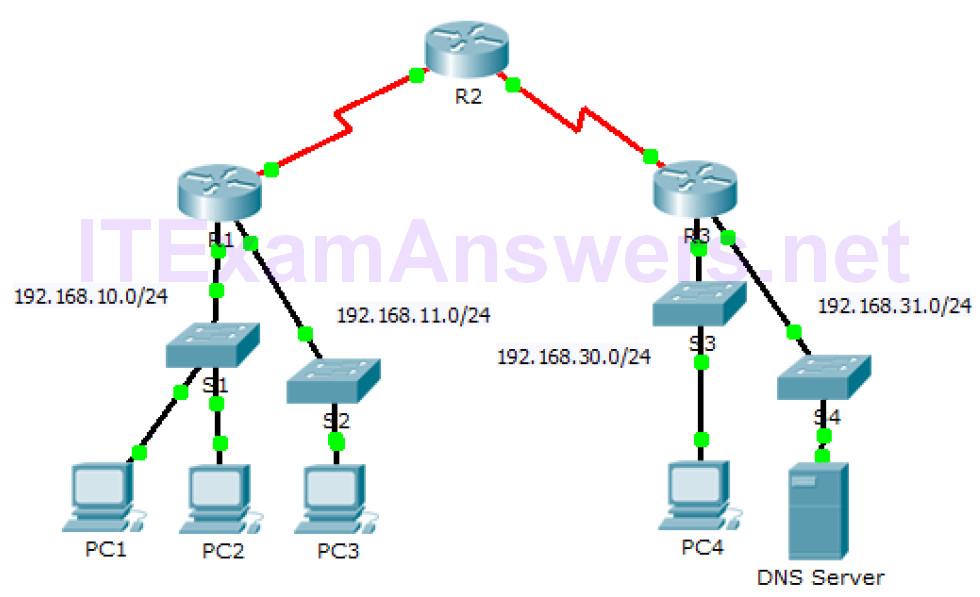
Objectives
- Part 1: Verify Local Connectivity and Test Access Control List
- Part 2: Remove the ACL and Repeat the Test
Background
In this activity, you will observe how an access control list (ACL) can be used to prevent a ping from reaching hosts on remote networks. After removing the ACL from the configuration, the pings will be successful.
Addressing Table
| Device | Interface | IP Address / Prefix |
|---|---|---|
| R1 | G0/0 | 192.168.10.1/24 |
| G0/1 | 192.168.11.1/24 | |
| S0/0/0 | 10.10.1.1/30 | |
| R2 | S0/0/0 | 10.10.1.2/30 |
| S0/0/1 | 10.10.1.5/30 | |
| R3 | G0/0 | 192.168.30.1/24 |
| G0/1 | 192.168.31.1/24 | |
| S0/0/1 | 10.10.1.6/30 | |
| PC1 | NIC | 192.168.10.10/24 |
| PC2 | NIC | 192.168.10.11/24 |
| PC3 | NIC | 192.168.11.10/24 |
| PC4 | NIC | 192.168.30.12/24 |
| DNS Server | NIC | 192.168.31.12/24 |
Instructions
Part 1: Verify Local Connectivity and Test Access Control List
Step 1: Ping devices on the local network to verify connectivity.
a. From the command prompt of PC1, ping PC2.
C:\> ping 192.168.10.11
b. From the command prompt of PC1, ping PC3.
C:\> ping 192.168.11.10
Why were the pings successful?
Because Layers 1 through 3 are fully functional and there is no policy currently filtering ICMP messages between the two local networks.
Step 2: Ping devices on remote networks to test ACL functionality.
a. From the command prompt of PC1, ping PC4.
C:\> ping 192.168.30.12

Pinging 192.168.30.12 with 32 bytes of data:

Reply from 192.168.10.1: Destination host unreachable.
Reply from 192.168.10.1: Destination host unreachable.
Reply from 192.168.10.1: Destination host unreachable.
Reply from 192.168.10.1: Destination host unreachable.

Ping statistics for 192.168.30.12:
    Packets: Sent = 4, Received = 0, Lost = 4 (100% loss),
b. From the command prompt of PC1, ping the DNS Server.
C:\> ping 192.168.31.12

Pinging 192.168.31.12 with 32 bytes of data:

Reply from 192.168.10.1: Destination host unreachable.
Reply from 192.168.10.1: Destination host unreachable.
Reply from 192.168.10.1: Destination host unreachable.
Reply from 192.168.10.1: Destination host unreachable.

Ping statistics for 192.168.31.12:
    Packets: Sent = 4, Received = 0, Lost = 4 (100% loss),
Why did the pings fail? (Hint: Use simulation mode or view the router configurations to investigate.)
The pings fail because R1 is configured with an ACL that denies any ping packets from exiting the Serial 0/0/0 interface. R1 (192.168.10.1) drops the packets and replies with Destination host unreachable.
Part 2: Remove the ACL and Repeat the Test
Step 1: Use show commands to investigate the ACL configuration.
a. Navigate to R1 CLI. Use the show run and show access-lists commands to view the currently configured ACLs. To quickly view the current ACLs, use show access-lists. Enter the show access-lists command, followed by a space and a question mark (?) to view the available options:
R1# show access-lists ?
  <1-199> ACL number
  WORD ACL name
  <cr>
If you know the ACL number or name, you can filter the show output further. However, R1 only has one ACL; therefore, the show access-lists command will suffice.
R1# show access-lists
Standard IP access list 11
    10 deny 192.168.10.0 0.0.0.255
    20 permit any
The first line of the ACL blocks any packets that originate in the 192.168.10.0/24 network, which includes Internet Control Message Protocol (ICMP) echoes (ping requests). The second line of the ACL allows all other ip traffic from any source to traverse the router.
b. For an ACL to impact router operation, it must be applied to an interface in a specific direction. In this scenario, the ACL is used to filter traffic exiting an interface. Therefore, all traffic leaving the specified interface of R1 will be inspected against ACL 11.
Although you can view IP information with the show ip interface command, it may be more efficient in some situations to simply use the show run command. To obtain a complete list of interfaces that the ACL may be applied to, and the list of all ACLs that are configured, use the following command:
R1# show running-config | include interface|access
interface GigabitEthernet0/0
interface GigabitEthernet0/1
interface Serial0/0/0
 ip access-group 11 out
interface Serial0/0/1
interface Vlan1
access-list 11 deny 192.168.10.0 0.0.0.255
access-list 11 permit any
The second pipe symbol ‘|’ creates an OR condition that matches ‘interface’ OR ‘access’. It is important that no spaces are included in the OR condition. Use one or both of these commands to find information about the ACL.
To which interface and in what direction is the ACL applied?
Serial 0/0/0, outgoing traffic.
Step 2: Remove access list 11 from the configuration.
You can remove ACLs from the configuration by issuing the no access-list access-list-number command. The no access-list command when used without arguments deletes all ACLs configured on the router. The no access-list access-list-number command removes only a specific ACL. Removing an ACL from a router does not remove the ACL from the interface. The command that applies the ACL to the interface must be removed separately.
a. Under the Serial0/0/0 interface, remove access-list 11, which was previously applied to the interface as an outgoing filter:
R1(config)# interface serial 0/0/0
R1(config-if)# no ip access-group 11 out
b. In global configuration mode, remove the ACL by entering the following command:
R1(config)# no access-list 11
c. Verify that PC1 can now ping the DNS Server and PC4.
C:\> ping 192.168.31.12
C:\> ping 192.168.30.12
Device Configs - Final
ROUTER R1
! ==============================================================
!--- 4.1.4 Packet Tracer - ACL Demonstration
!--- ANSWER SCRIPT FOR ROUTER R1
!--- Usage: open the R1 CLI tab and paste this whole file at the R1> prompt. Every line beginning with "!" is a comment; IOS ignores it, so pasting a comment by accident is harmless.
! ==============================================================

enable
configure terminal

! --------------------------------------------------------------
!--- Part 2: Remove the ACL and Repeat the Test.
! --------------------------------------------------------------

!--- a. Remove ACL 11 from Serial0/0/0, where it was applied as an outgoing filter.
interface serial 0/0/0
 no ip access-group 11 out
 exit

!--- b. Remove ACL 11 in global configuration mode.
no access-list 11

end

! --------------------------------------------------------------
!--- Save the configuration to NVRAM. (Press Enter when prompted for the destination filename.)
! --------------------------------------------------------------
copy running-config startup-config


! ==============================================================
!--- Verification:
!---   show access-lists                          -> no output (ACL 11 is gone)
!---   show running-config | include access-group -> no ip access-group line on Serial0/0/0
!---   ping 192.168.30.12 / 192.168.31.12 (PC1)   -> PC4 and the DNS Server reply
!--- Note: removing an ACL does not remove it from the interface, so both commands are needed.
! ==============================================================


