
9.2.2 Packet Tracer - Configure OSPF Advanced Features (Answers)
Topology
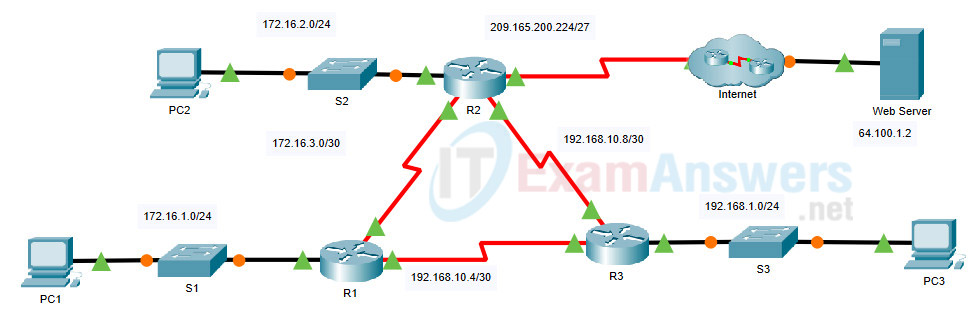
Addressing Table
| Device | Interface | IPv4 Address | Subnet Mask | Default Gateway |
|---|---|---|---|---|
| R1 | G0/0 | 172.16.1.1 | 255.255.255.0 | N/A |
| S0/0/0 | 172.16.3.1 | 255.255.255.252 | N/A | |
| S0/0/1 | 192.168.10.5 | 255.255.255.252 | N/A | |
| R2 | G0/0 | 172.16.2.1 | 255.255.255.0 | N/A |
| S0/0/0 | 172.16.3.2 | 255.255.255.252 | N/A | |
| S0/0/1 | 192.168.10.9 | 255.255.255.252 | N/A | |
| S0/1/0 | 209.165.200.225 | 255.255.255.224 | N/A | |
| R3 | G0/0 | 192.168.1.1 | 255.255.255.0 | N/A |
| S0/0/0 | 192.168.10.6 | 255.255.255.252 | N/A | |
| S0/0/1 | 192.168.10.10 | 255.255.255.252 | N/A | |
| PC1 | NIC | 172.16.1.2 | 255.255.255.0 | 172.16.1.1 |
| PC2 | NIC | 172.16.2.2 | 255.255.255.0 | 172.16.2.1 |
| PC3 | NIC | 192.168.1.2 | 255.255.255.0 | 192.168.1.1 |
Objectives
- Part 1: Modify OSPF Default Settings
- Part 2: Verify Connectivity
Scenario
In this activity, OSPF is already configured and all end devices currently have full connectivity. You will modify the default OSPF routing configurations by changing the hello and dead timers and adjusting the bandwidth of a link. Then you will verify that full connectivity is restored for all end devices.
Instructions
Part 1: Modify OSPF Default Settings
Step 1: Test connectivity between all end devices.
Before modifying the OSPF settings, verify that all PCs can ping the web server and each other.
Step 2: Adjust the hello and dead timers between R1 and R2.
a. Enter the following commands on R1.
R1(config)# interface s0/0/0
R1(config-if)# ip ospf hello-interval 15
R1(config-if)# ip ospf dead-interval 60
b. After a short period of time, the OSPF connection with R2 will fail. Both sides of the connection need to have the same timers for the adjacency to be maintained. Adjust the timers on R2.
Step 3: Adjust the bandwidth setting on R1.
a. Trace the path between PC1 and the web server located at 64.100.1.2. Notice that the path from PC1 to 64.100.1.2 is routed through R2. OSPF prefers the lower cost path.
b. On the R1 Serial 0/0/0 interface, set the bandwidth to 64 Kb/s. This does not change the actual port speed, only the metric that the OSPF process on R1 will use to calculate best routes.
R1(config-if)# bandwidth 64
c. Trace the path between PC1 and the web server located at 64.100.1.2. Notice that the path from PC1 to 64.100.1.2 is redirected through R3. OSPF prefers the lower cost path.
Part 2: Verify Connectivity
Verify all PCs can ping the web server and each other.
Device Configs - Final
Router R1
! ==============================================================
!--- 9.2.2 Packet Tracer - Configure OSPF Advanced Features
!--- ANSWER SCRIPT FOR ROUTER R1
!--- Usage: copy this whole file and paste it into the R1 terminal (start at the R1> prompt). Every line beginning with "!" is a comment; IOS ignores it, so pasting a comment by accident is harmless.
!--- Scope: OSPF is already fully configured and working on all three
!--- routers per the activity's own Scenario note - this script only
!--- tweaks the R1-R2 serial link's OSPF timers and cost metric.
! ==============================================================

enable
configure terminal

! --------------------------------------------------------------
!--- Part 1, Step 2: Adjust the OSPF hello/dead timers on the link to R2.
!--- Both ends must match, or the adjacency drops once R1's values
!--- differ from R2's remaining defaults (hello 10 / dead 40).
! --------------------------------------------------------------

interface Serial0/0/0

!--- Longer hello interval - fewer keepalives, slower failure detection.
 ip ospf hello-interval 15

!--- Dead interval kept at 4x hello (IOS convention), just scaled up.
 ip ospf dead-interval 60

! --------------------------------------------------------------
!--- Part 1, Step 3: Lower the link's OSPF cost by inflating its
!--- bandwidth statement, so R1 stops preferring the path through R2
!--- to reach the Internet/web server.
! --------------------------------------------------------------

!--- This only changes the OSPF cost metric (cost = reference-bw /
!--- bandwidth); it does not touch the interface's real clock rate.
 bandwidth 64
 exit

end

! --------------------------------------------------------------
!--- Save the configuration to NVRAM. (Press Enter when prompted for the destination filename.)
! --------------------------------------------------------------
copy running-config startup-config


! ==============================================================
!--- Verification:
!---   show ip ospf interface serial0/0/0  -> Hello 15, Dead 60, BW 64 Kbit
!---   show ip ospf neighbor               -> adjacency with R2 stays FULL (only after R2 is updated to match)
!---   traceroute 64.100.1.2 (from PC1)    -> path now goes via R3 instead of R2
!--- Note: until R2's timers are updated to match (this script's
!--- companion R2 script), the R1-R2 adjacency will drop after roughly
!--- one dead-interval (60 sec) because R2 is still sending Hellos
!--- every 10 sec / expecting a reply within 40 sec.
! ==============================================================
Router R2
! ==============================================================
!--- 9.2.2 Packet Tracer - Configure OSPF Advanced Features
!--- ANSWER SCRIPT FOR ROUTER R2
!--- Usage: copy this whole file and paste it into the R2 terminal (start at the R2> prompt). Every line beginning with "!" is a comment; IOS ignores it, so pasting a comment by accident is harmless.
!--- Scope: OSPF is already fully configured and working on all three
!--- routers per the activity's own Scenario note - this script only
!--- matches R1's new OSPF timers on the shared serial link.
! ==============================================================

enable
configure terminal

! --------------------------------------------------------------
!--- Part 1, Step 2b: Match R1's hello/dead timers on the same link.
!--- OSPF requires the hello and dead intervals to be identical on
!--- both ends of a link, or the adjacency won't come up (or will drop
!--- if it was already up).
! --------------------------------------------------------------

interface Serial0/0/0
 ip ospf hello-interval 15
 ip ospf dead-interval 60
 exit

!--- No bandwidth change here - only R1's path preference away from R2
!--- is being adjusted in this activity, so R2 keeps its default
!--- bandwidth statement on this interface.

end

! --------------------------------------------------------------
!--- Save the configuration to NVRAM. (Press Enter when prompted for the destination filename.)
! --------------------------------------------------------------
copy running-config startup-config


! ==============================================================
!--- Verification:
!---   show ip ospf interface serial0/0/0  -> Hello 15, Dead 60 (matches R1)
!---   show ip ospf neighbor               -> adjacency with R1 stays FULL
!---   ping / traceroute from PC1, PC2, PC3 to 64.100.1.2  -> all still succeed
! ==============================================================

