
Topology
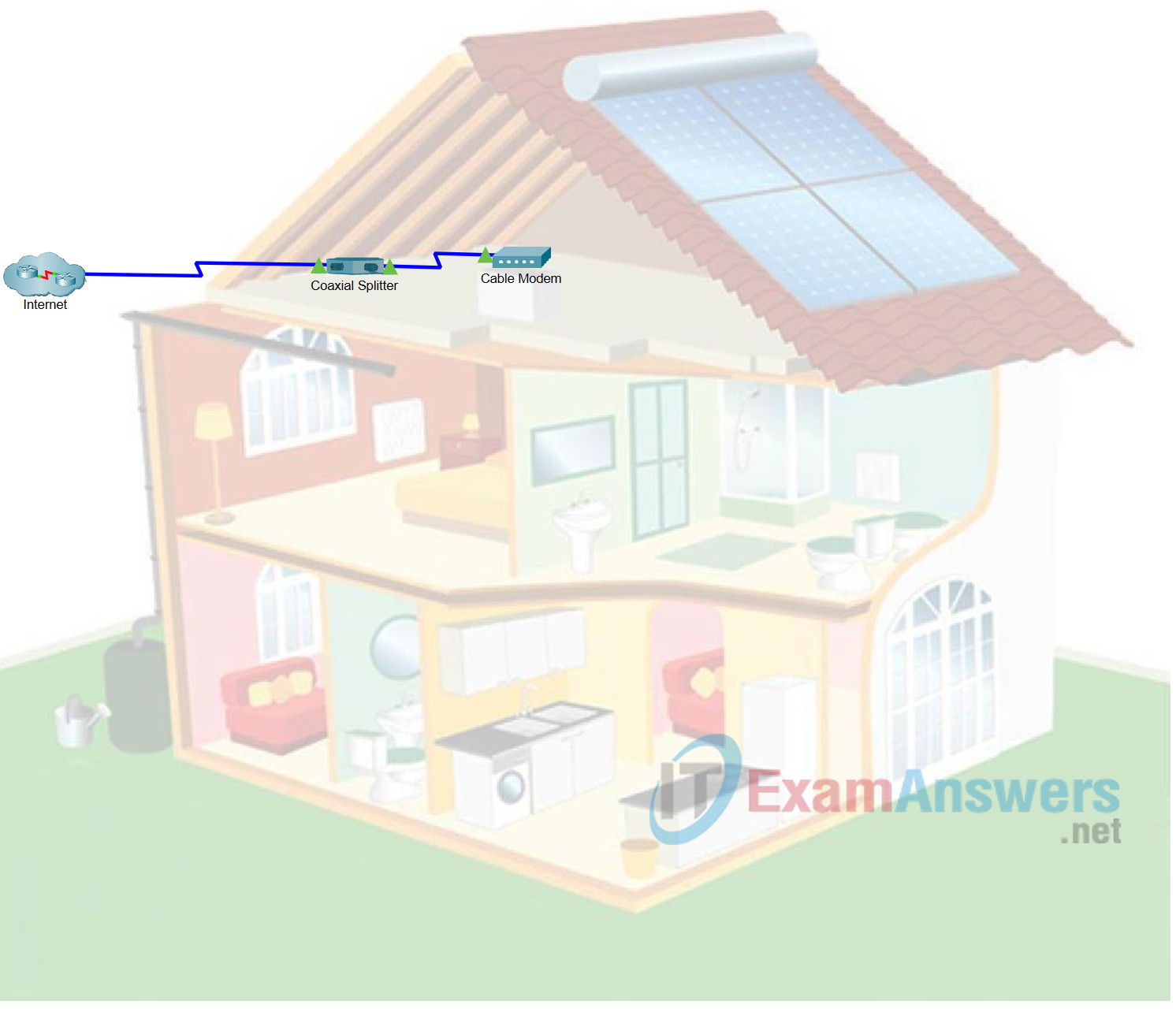
Objectives
- Part 1: Connect a Home Gateway to the Network
- Part 2: Add End User Devices to the Network
- Part 3: Connect IoT Devices to the Network
- Part 4: Add Bluetooth Devices
Background / Scenario
In this activity, you will add a home gateway and several IoT devices to an existing home network and monitor those devices through the home gateway.
Note: This activity is scored. Be sure you change the Display Name when directed to do so or the scoring will not be accurate. Click Check Results at any time to view your progress.
Instructions
Part 1: Connect a Home Gateway to the Network
Step 1: Add a Home Gateway.
a. In the Device-Type Selectionbox, click Network Devices, and then Wireless Devices.
b. Click Home Gateway, and then click in the Logicalworkspace to add the device.
c. Click Home Gateway0, and then the Configtab. Change the Display Name to Home Gateway.
Step 2: Connect the Home Gateway to the cable modem.
a. In the Device-Type Selectionbox, click Connections, and then Copper Straight-Through cable.
b. Click the Cable Modemand connect one end of the cable to Port 1.
c. Click the Home Gatewayand connect the other end of the cable to the Internet port.
Part 2: Add End User Devices to the Network
Step 1: Add a wireless tablet to the workspace.
a. In the Device-Type Selectionbox, click End Devices, and then Tablet. Add the Tablet to the workspace.
b. Click Tablet PC0, and then the Configtab. Change the Display Name to Tablet.
Step 2: Connect the tablet to the Home Gateway network.
Notice that the Tablet is already connected to the cellular network. The blue wireless signal is connected to the Internet cloud where the cellular provider is located.
a. To connect Tabletto the home wireless network, click the Wireless0 Interface on the left panel in the Config tab.
b. Change the SSID from Defaultto HomeGateway. The Tablet will connect to the home Wi-Fi network. It may take a minute or two for IP addressing to change to an address from the 192.168.25.x network. You can click Fast Forward Time (Alt+D) to speed up the process.
c. Notice now that Tablethas two wireless connections: cellular and Wi-Fi. This is common for cellular enabled tablets and smartphones.
Step 3: Access the home gateway from the tablet.
From the Tablet, click the Desktop tab > IoT Monitor. Note the IoT Server Address is the IP address of the Home Gateway, and admin is used for both the username and password. Click Login.
Note: This verifies you can access the Home Gateway IoT Server. Note that no devices appear in the Home Gateway IoT Server - Devices list yet.
Part 3: Connect IoT Devices to the Network
In this part, you will add three new IoT devices to the network and register them to the Home Gateway server.
Step 1: Add IoT device to the wired network.
In this step, you will connect a new IoT device to the wired network.
a. In the Device-Type Selectionbox, click End Devices > Home, and then click the Lamp and add it to the workspace.
b. Click the Lamp device, and then click Advancedto reveal more tabs.
c. Click I/O Configto change the Network Adapter to PT-IOT-NM-1CFE.
d. Click the Configtab and rename the device as Lamp.
e. In the left panel, click FastEthernet0, and then select the DHCPradio button so that the lamp will receive an IPv4 address from the Home Gateway.
f. Click Connections> Copper Straight-Thru and connect the Fastethernet0 port of the Lamp to one of the available Ethernet ports on Home Gateway.
Step 2: Add IoT devices to HomeGateway wireless network.
In this step, you will connect two new IoT devices to the wireless network.
a. In the Device-Type Selectionbox, click End Devices > Home. Add a Fan and a Door to the workspace.
b. Change the display name of the fan to Fan.
c. Change the display name of the door to Door.
d. In the Wireless0configuration for each device, notice that the SSID is already set to HomeGateway and that each device received an IP address from the 192.168.25.x network. You may need to click Fast Forward Time to speed up the process.
Step 3: Configure IoT devices to register with the Home Gateway server.
For each of the three IoT devices, click the Config tab, then Settings in the left panel, if necessary. Scroll down to the IoT Server options list and click Home Gateway.
Step 4: Verify that the devices are now registered with the Home Gateway server.
From the Tablet, click the Desktop tab > IoT Monitor, and then click Login. You should see entries for all three of the new IoT devices. Expand the entries to see details for the devices. Try controlling the devices and look at the results in the workspace.
Note: It may take a minute or two for the three devices to register with the server and be listed in the IoT Monitor.
Part 4: Add Bluetooth Devices
In this part, you will add a Bluetooth speaker to the wireless network. You will connect a portable music player to the speaker.
Step 1: Add a Bluetooth speaker to the wireless network.
a. In the Device-Type Selectionbox, click End Devices > Home. Add a Bluetooth Speaker device to the workspace.
b. Notice the speaker automatically connected to the Home Gateway. After a few minutes, the speaker will be configured with an IP address from the 192.168.25.x network.
c. Change the Display Name of the speaker to Speaker.
d. In the Configtab for the speaker, click Bluetooth in the left panel, and then turn Port Status to On.
Step 2: Add a portable media player to the wireless network
a. In the Device-Type Selectionbox, click End Devices > Home. Add a Portable Music Player to the workspace.
b. Notice the music player automatically connected to the Home Gateway. After a few minutes, it will be configured with an IP address from the 192.168.25.x network.
c. Change the Display Name to Music Player.
Step 3: Pair the music player to Speaker.
a. Turn Bluetooth Port Statusto On.
b. Click Discoverunder Discoverable Devices, click Speaker, click Pair, and then click Yes.
c. Hold down the Alt key and click Music Player. (Hint: Make sure the speakers for your physical computer are on.)
Step 4: Explore the network.
Feel free to add more wired and wireless devices to the network. For IoT devices, hold down the Alt key and click the devices to interact with them. With the Alt key depressed, you can turn on the Music Player, open the Door, and turn on the Lamp and Fan. Don't forget that you can also control the IoT devices from the IoT Monitor app on the Smartphone or Tablet.

