
5.2.2 Packet Tracer - Configure EtherChannel (Answers)
Topology
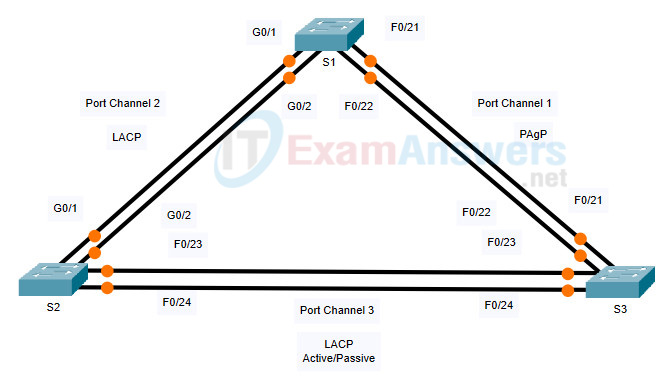
5.2.2 Packet Tracer - Configure EtherChannel
Objectives
- Part 1: Configure Basic Switch Settings
- Part 2: Configure an EtherChannel with Cisco PAgP
- Part 3: Configure an 802.3ad LACP EtherChannel
- Part 4: Configure a Redundant EtherChannel Link
Background
Three switches have just been installed. There are redundant uplinks between the switches. As configured, only one of these links can be used; otherwise, a bridging loop might occur. However, using only one link utilizes only half of the available bandwidth. EtherChannel allows up to eight redundant links to be bundled together into one logical link. In this lab, you will configure Port Aggregation Protocol (PAgP), a Cisco EtherChannel protocol, and Link Aggregation Control Protocol (LACP), an IEEE 802.3ad open standard version of EtherChannel.
Before beginning the configuration, review the EtherChannel Configuration Guidelines and Restrictions listed at the end of this activity.
Port Channel Table
| Channel Group | Ports | Protocol |
|---|---|---|
| 1 | S1 F0/21. F0/22
S3 F0/21, F0/22 |
PAgP |
| 2 | S1 G0/1, G0/2
S2 G0/1, G0/2 |
LACP |
| 3 | S2 F0/23, F0/24
S3 F0/23, F0/24 |
Negotiated LACP |
Instructions
Part 1: Configure Basic Switch Settings
a. Assign each switch a hostname according to the topology diagram.
b. Before beginning the link aggregation between switches, verify the existing configuration of the ports that connect the switches to ensure that the ports will successfully join the EtherChannels. Commands that provide information about the state of the switch ports include:
S1# show interfaces | include Ethernet
S1# show interface status
S1# show interfaces trunk
c. Configure all ports that are required for the EtherChannels as static trunk ports.
Note: If the ports are configured with DTP dynamic auto mode, and you do not set the mode of the ports to trunk, the links do not form trunks and remain access ports. The default mode on a 2960 switch is for DTP to be enabled and set to dynamic auto. DTP can be disabled on interfaces with the switchport nonegotiate command.
Part 2: Configure an EtherChannel with Cisco PAgP
Note: When configuring EtherChannels, it is recommended to shut down the physical ports being grouped on both devices before configuring them into channel groups. Otherwise, EtherChannel Misconfig Guard may place these ports into err-disabled state. The ports and port channels can be re-enabled after EtherChannel is configured.
Step 1: Configure Port Channel 1.
a. The first EtherChannel that is created for this activity aggregates ports F0/21 and F0/22 between S1 and S3. Configure the ports on both switches as static trunk ports.
b. Use the show interfaces trunk command to ensure that you have an active trunk link for those two links, and the native VLAN on both links is the same.
S1# show interfaces trunk

Port        Mode         Encapsulation  Status        Native vlan
F0/21      on           802.1q         trunking      1
F0/22      on           802.1q         trunking      1
G0/1       on           802.1q         trunking      1
G0/2       on           802.1q         trunking      1

<output omitted>
c. On S1 and S3, add ports F0/21 and F0/22 to Port Channel 1 with the channel-group 1 mode desirable command. The mode desirable option enables the switch to actively negotiate to form a PAgP link.
Note: Interfaces must be shutdown before adding them to the channel group.
S1(config)# interface range f0/21 - 22
S1(config-if-range)# shutdown
S1(config-if-range)# channel-group 1 mode desirable
S1(config-if-range)# no shutdown

S3(config)# interface range f0/21 - 22
S3(config-if-range)# shutdown
S3(config-if-range)# channel-group 1 mode desirable
S3(config-if-range)# no shutdown
The message “Creating a port-channel interface Port-channel 1” should appear on both switches when the channel-group is configured. This interface designation will appear as Po1 in command output.
d. Configure the logical interface to become a trunk by first entering the interface port-channel number command and then the switchport mode trunk command. Add this configuration to both switches.
S1(config)# interface port-channel 1
S1(config-if)# switchport mode trunk

S3(config)# interface port-channel 1
S3(config-if)# switchport mode trunk
Step 2: Verify Port Channel 1 status.
a. Issue the show etherchannel summary command on S1 and S3 to verify that EtherChannel is working on both switches. This command displays the type of EtherChannel, the ports utilized, and the port states. Command output is shown for S1.
S1# show etherchannel summary
Flags:  D - down        P - in port-channel
        I - stand-alone s - suspended
        H - Hot-standby (LACP only)
        R - Layer3      S - Layer2
        U - in use      f - failed to allocate aggregator
        u - unsuitable for bundling
        w - waiting to be aggregated
        d - default port

Number of channel-groups in use: 1
Number of aggregators:           1

Group  Port-channel  Protocol    Ports
------+-------------+-----------+----------------------------------------
1      Po1(SU)         PAgP      F0/21(P)   F0/22(P)
b. If the EtherChannel does not come up, shut down the physical interfaces on both ends of the EtherChannel and then bring them back up again. The show interfaces trunk and show spanning-tree commands should show the port channel as one logical link.
Part 3: Configure an 802.3ad LACP EtherChannel
Step 1: Configure Port Channel 2.
a. In 2000, the IEEE released 802.3ad, which is an open standard version of EtherChannel. It is commonly referred to as LACP. Using the previous commands, configure the link between S1 and S2, using ports G0/1 and G0/2, as an LACP EtherChannel. You must use a different port channel number on S1 than 1, because you already used that in the previous step. To configure port channel 2 as LACP, use the interface configuration mode channel-group 2 mode active Active mode indicates that the switch actively tries to negotiate that link as LACP, as opposed to PAgP. The configuration of S1 is shown below.
S1(config)# interface range g0/1 - 2
S1(config-if-range)# shutdown
S1(config-if-range)# channel-group 2 mode active
S1(config-if-range)# no shutdown
S1(config-if-range)# interface port-channel 2
S1(config-if)# switchport mode trunk

S2(config)# interface range g0/1 - 2
S2(config-if-range)# shutdown
S2(config-if-range)# channel-group 2 mode active
S2(config-if-range)# no shutdown
S2(config-if-range)# interface port-channel 2
S2(config-if)# switchport mode trunk
Step 2: Verify Port Channel 2 status.
Use the show commands from Part 1 Step 2 to verify the status of Port Channel 2. Look for the protocol used by each port.
S1# show etherchannel summary
Flags:  D - down        P - in port-channel
        I - stand-alone s - suspended
        H - Hot-standby (LACP only)
        R - Layer3      S - Layer2
        U - in use      f - failed to allocate aggregator
        u - unsuitable for bundling
        w - waiting to be aggregated
        d - default port


Number of channel-groups in use: 2
Number of aggregators:           2

Group  Port-channel  Protocol    Ports
------+-------------+-----------+----------------------------------------------

1      Po1(SU)           PAgP   Fa0/21(P) Fa0/22(P)
2      Po2(SU)           LACP   Gig0/1(P) Gig0/2(P)
Part 4: Configure a Redundant EtherChannel Link
Step 1: Configure Port Channel 3.
There are various options for the channel-group number mode command:
S2(config)# interface range f0/23 - 24
S2(config-if-range)# channel-group 3 mode ?
  active     Enable LACP unconditionally
  auto       Enable PAgP only if a PAgP device is detected
  desirable  Enable PAgP unconditionally
  on         Enable Etherchannel only
  passive    Enable LACP only if a LACP device is detected
a. On switch S2, add ports F0/23 and F0/24 to Port Channel 3 with the channel-group 3 mode passive The passive option indicates that you want the switch to use LACP only if another LACP device is detected. Statically configure Port Channel 3 as a trunk interface.
S2(config)# interface range f0/23 - 24
S2(config-if-range)# shutdown
S2(config-if-range)# channel-group 3 mode passive
S2(config-if-range)# no shutdown
S2(config-if-range)# interface port-channel 3
S2(config-if)# switchport mode trunk
b. On S3, add ports F0/23 and F0/24 to Port Channel 3 with the channel-group 3 mode active The active option indicates that you want the switch to use LACP unconditionally. Statically configure Port Channel 3 as a trunk interface.
Step 2: Verify Port Channel 3 status.
a. Use the show commands from Part 1 Step 2 to verify the status of Port Channel 3. Look for the protocol used by each port.
S2# show etherchannel summary
<output omitted>
Number of channel-groups in use: 2
Number of aggregators:           2
Group  Port-channel  Protocol    Ports
------+-------------+-----------+----------------------------------------
2      Po2(SU)           LACP   Gig0/1(P) Gig0/2(P)
3      Po3(SU)           LACP   Fa0/23(P) Fa0/24(P)
b. Creating EtherChannel links does not prevent Spanning Tree from detecting switching loops. View the spanning tree status of the active ports on S1.
S1# show spanning-tree active
VLAN0001
  Spanning tree enabled protocol ieee
  Root ID    Priority    32769
             Address     0001.436E.8494
             Cost        9
             Port        27(Port-channel1)
             Hello Time  2 sec  Max Age 20 sec  Forward Delay 15 sec

  Bridge ID  Priority    32769  (priority 32768 sys-id-ext 1)
             Address     000A.F313.2395
             Hello Time  2 sec  Max Age 20 sec  Forward Delay 15 sec
             Aging Time  20

Interface        Role Sts Cost      Prio.Nbr Type
---------------- ---- --- --------- -------- --------------------------------
Po1              Root FWD 9         128.27   Shr
Po2              Altn BLK 3         128.28   Shr
Port Channel 2 is not operative because Spanning Tree Protocol placed some ports into blocking mode. Unfortunately, those ports were the Gigabit ports. In this topology, you can restore these ports by configuring S1 to be primary root for VLAN 1. You could also set the priority to 24576.
S1(config)# spanning-tree vlan 1 root primary
or
S1(config)# spanning-tree vlan 1 priority 24576
You may have to wait for STP to recalculate the tree topology. Press fast-forward if necessary. Use the show spanning-tree active command to verify that the Gigabit ports are now in the forwarding state.
EtherChannel Configuration Guidelines and Restrictions
EtherChannel has some specific guidelines that must be followed in order to avoid configuration problems.
1. All Ethernet interfaces support EtherChannel up to a maximum of eight interfaces with no requirement that the interfaces be on the same interface module.
2. All interfaces within an EtherChannel must operate at the same speed and duplex.
3. EtherChannel links can function as either single VLAN access ports or as trunk links between switches.
4. All interfaces in a Layer 2 EtherChannel must be members of the same VLAN or be configured as trunks.
5. If configured as trunk links, Layer 2 EtherChannel must have the same native VLAN and have the same VLANs allowed on both switches connected to the trunk.
6. When configuring EtherChannel links, all interfaces should be shutdown prior to beginning the EtherChannel configuration. When configuration is complete, the links can be re-enabled.
7. After configuring the EtherChannel, verify that all interfaces are in the up/up state.
8. It is possible to configure an EtherChannel as static, or for it to use either PAgP or LACP to negotiate the EtherChannel connection. The determination of how an EtherChannel is setup is the value of the channel-group number mode command. Valid values are:
active : LACP is enabled unconditionally
passive : LACP is enabled only if another LACP-capable device is connected.
desirable : PAgP is enabled unconditionally
auto : PAgP is enabled only if another PAgP-capable device is connected.
on : EtherChannel is enabled, but without either LACP or PAgP.
9. LAN ports can form an EtherChannel using PAgP if the modes are compatible. Compatible PAgP modes are:
desirable => desirable
desirable => auto
If both interfaces are in auto mode, an Etherchannel cannot form.
10. LAN ports can form an EtherChannel using LACP if the modes are compatible. Compatible LACP modes are:
active => active
active => passive
If both interfaces are in passive mode, an EtherChannel cannot form using LACP.
11. Channel-group numbers are local to the individual switch. Although this activity uses the same Channel-group number on either end of the EtherChannel connection, it is not a requirement. Channel-group 1 (interface po1) on one switch can form an EtherChannel with Channel-group 5 (interface po5) on another switch.
Device Configs - Final
SWITCH S1
! ==============================================================
!--- 5.2.2 Packet Tracer - Configure EtherChannel
!--- ANSWER SCRIPT FOR SWITCH S1
!--- Usage: copy this whole file and paste it into the S1 terminal (start at the S1> prompt). Every line beginning with "!" is a comment; IOS ignores it, so pasting a comment by accident is harmless.
! ==============================================================

enable
configure terminal

! --------------------------------------------------------------
!--- Part 1: Basic settings and static trunk ports.
! --------------------------------------------------------------

!--- Assign the hostname shown in the topology diagram.
hostname S1

!--- F0/21-22 (to S3, Port Channel 1) and G0/1-2 (to S2, Port Channel 2)
!--- must be static trunks before they join an EtherChannel, so the
!--- links don't fall back to DTP dynamic auto / access mode.
interface range FastEthernet0/21 - 22
 switchport mode trunk
 exit
interface range GigabitEthernet0/1 - 2
 switchport mode trunk
 exit

! --------------------------------------------------------------
!--- Part 2: Configure Port Channel 1 (PAgP) to S3.
! --------------------------------------------------------------

!--- Shut the ports down first - EtherChannel Misconfig Guard can
!--- err-disable them if they're bundled while still up. "desirable"
!--- has S1 actively negotiate PAgP (S3 also uses desirable).
interface range FastEthernet0/21 - 22
 shutdown
 channel-group 1 mode desirable
 no shutdown
 exit

!--- Trunk the logical Port-channel 1 interface itself.
interface port-channel 1
 switchport mode trunk
 exit

! --------------------------------------------------------------
!--- Part 3: Configure Port Channel 2 (LACP) to S2.
! --------------------------------------------------------------

!--- "active" has S1 actively negotiate 802.3ad LACP (S2 also uses active).
interface range GigabitEthernet0/1 - 2
 shutdown
 channel-group 2 mode active
 no shutdown
 exit

!--- Trunk the logical Port-channel 2 interface itself.
interface port-channel 2
 switchport mode trunk
 exit

! --------------------------------------------------------------
!--- Part 4: Force the redundant Gigabit link (Port Channel 2) out of
!--- STP blocking. With three switches in a triangle, VLAN 1 spanning
!--- tree blocks one whole port-channel to stay loop-free - by default
!--- that ends up being Po2. Making S1 the root bridge restores it.
! --------------------------------------------------------------

spanning-tree vlan 1 root primary

end

! --------------------------------------------------------------
!--- Save the configuration to NVRAM. (Press Enter when prompted for the destination filename.)
! --------------------------------------------------------------
copy running-config startup-config


! ==============================================================
!--- Verification:
!---   show etherchannel summary  -> Po1(SU) PAgP Fa0/21(P) Fa0/22(P); Po2(SU) LACP Gi0/1(P) Gi0/2(P)
!---   show interfaces trunk      -> Po1 and Po2 both trunking, native VLAN 1
!---   show spanning-tree active  -> Po1 and Po2 both FWD (neither Altn/BLK) once root primary takes effect
!--- Note: the lab's own sample "Answer Script" writes the range as
!--- "f0/21 – 22" with an en dash (–) instead of a hyphen (-); IOS
!--- rejects that character in an interface range, so this script uses
!--- a plain hyphen throughout.
! ==============================================================
SWITCH S2
! ==============================================================
!--- 5.2.2 Packet Tracer - Configure EtherChannel
!--- ANSWER SCRIPT FOR SWITCH S2
!--- Usage: copy this whole file and paste it into the S2 terminal (start at the S2> prompt). Every line beginning with "!" is a comment; IOS ignores it, so pasting a comment by accident is harmless.
! ==============================================================

enable
configure terminal

! --------------------------------------------------------------
!--- Part 1: Basic settings and static trunk ports.
! --------------------------------------------------------------

!--- Assign the hostname shown in the topology diagram.
hostname S2

!--- G0/1-2 (to S1, Port Channel 2) and F0/23-24 (to S3, Port Channel 3)
!--- must be static trunks before they join an EtherChannel.
interface range GigabitEthernet0/1 - 2
 switchport mode trunk
 exit
interface range FastEthernet0/23 - 24
 switchport mode trunk
 exit

! --------------------------------------------------------------
!--- Part 3: Configure Port Channel 2 (LACP) to S1.
! --------------------------------------------------------------

!--- Shut the ports down first so EtherChannel Misconfig Guard doesn't
!--- err-disable them. "active" mirrors S1's own "active" setting.
interface range GigabitEthernet0/1 - 2
 shutdown
 channel-group 2 mode active
 no shutdown
 exit

!--- Trunk the logical Port-channel 2 interface itself.
interface port-channel 2
 switchport mode trunk
 exit

! --------------------------------------------------------------
!--- Part 4: Configure Port Channel 3 (LACP, negotiated) to S3.
! --------------------------------------------------------------

!--- "passive" has S2 only run LACP if S3 initiates it - S3 will be
!--- configured with "active", so the pairing forms an EtherChannel.
interface range FastEthernet0/23 - 24
 shutdown
 channel-group 3 mode passive
 no shutdown
 exit

!--- Trunk the logical Port-channel 3 interface itself.
interface port-channel 3
 switchport mode trunk
 exit

end

! --------------------------------------------------------------
!--- Save the configuration to NVRAM. (Press Enter when prompted for the destination filename.)
! --------------------------------------------------------------
copy running-config startup-config


! ==============================================================
!--- Verification:
!---   show etherchannel summary  -> Po2(SU) LACP Gi0/1(P) Gi0/2(P); Po3(SU) LACP Fa0/23(P) Fa0/24(P)
!---   show interfaces trunk      -> Po2 and Po3 both trunking, native VLAN 1
!--- Note: passive<->passive never forms an EtherChannel (per the lab's
!--- own Guidelines #10) - S2 must stay on "passive" here specifically
!--- because S3 is configured with "active", not the other way around.
! ==============================================================
SWITCH S3
! ==============================================================
!--- 5.2.2 Packet Tracer - Configure EtherChannel
!--- ANSWER SCRIPT FOR SWITCH S3
!--- Usage: copy this whole file and paste it into the S3 terminal (start at the S3> prompt). Every line beginning with "!" is a comment; IOS ignores it, so pasting a comment by accident is harmless.
! ==============================================================

enable
configure terminal

! --------------------------------------------------------------
!--- Part 1: Basic settings and static trunk ports.
! --------------------------------------------------------------

!--- Assign the hostname shown in the topology diagram.
hostname S3

!--- F0/21-22 (to S1, Port Channel 1) and F0/23-24 (to S2, Port Channel 3)
!--- must be static trunks before they join an EtherChannel.
interface range FastEthernet0/21 - 22
 switchport mode trunk
 exit
interface range FastEthernet0/23 - 24
 switchport mode trunk
 exit

! --------------------------------------------------------------
!--- Part 2: Configure Port Channel 1 (PAgP) to S1.
! --------------------------------------------------------------

!--- Shut the ports down first so EtherChannel Misconfig Guard doesn't
!--- err-disable them. "desirable" mirrors S1's own "desirable" setting.
interface range FastEthernet0/21 - 22
 shutdown
 channel-group 1 mode desirable
 no shutdown
 exit

!--- Trunk the logical Port-channel 1 interface itself.
interface port-channel 1
 switchport mode trunk
 exit

! --------------------------------------------------------------
!--- Part 4: Configure Port Channel 3 (LACP, negotiated) to S2.
! --------------------------------------------------------------

!--- "active" has S3 unconditionally run LACP - S2 is configured with
!--- "passive", so the pairing forms an EtherChannel.
interface range FastEthernet0/23 - 24
 shutdown
 channel-group 3 mode active
 no shutdown
 exit

!--- Trunk the logical Port-channel 3 interface itself.
interface port-channel 3
 switchport mode trunk
 exit

end

! --------------------------------------------------------------
!--- Save the configuration to NVRAM. (Press Enter when prompted for the destination filename.)
! --------------------------------------------------------------
copy running-config startup-config


! ==============================================================
!--- Verification:
!---   show etherchannel summary  -> Po1(SU) PAgP Fa0/21(P) Fa0/22(P); Po3(SU) LACP Fa0/23(P) Fa0/24(P)
!---   show interfaces trunk      -> Po1 and Po3 both trunking, native VLAN 1
!--- Note: the lab's own sample "Answer Script" writes the range as
!--- "f0/21 – 22" with an en dash (–) instead of a hyphen (-); IOS
!--- rejects that character in an interface range, so this script uses
!--- a plain hyphen throughout.
! ==============================================================

