
Packet Tracer - Configuring IPv4 Static and Default Routes
(Instructor Version)
Instructor Note: Red font color or Gray highlights indicate text that appears in the instructor copy only.
Topology
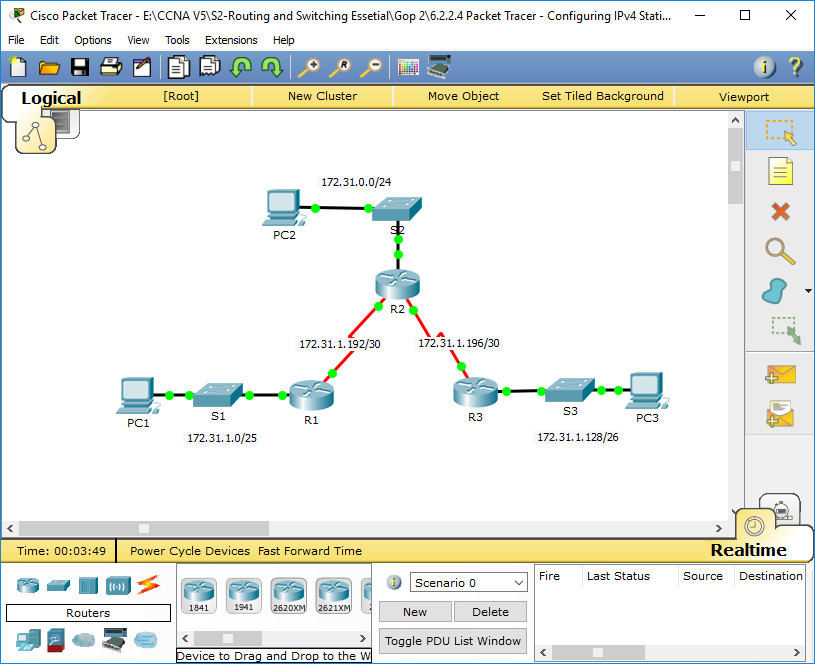
Addressing Table
| Device | Interface | IPv4 Address | Subnet Mask | Default Gateway |
|---|---|---|---|---|
| R1 | G0/0 | 172.31.1.1 | 255.255.255.128 | N/A |
| S0/0/0 | 172.31.1.194 | 255.255.255.252 | N/A | |
| R2 | G0/0 | 172.31.0.1 | 255.255.255.0 | N/A |
| S0/0/0 | 172.31.1.193 | 255.255.255.252 | N/A | |
| S0/0/1 | 172.31.1.197 | 255.255.255.252 | N/A | |
| R3 | G0/0 | 172.31.1.129 | 255.255.255.192 | N/A |
| S0/0/1 | 172.31.1.198 | 255.255.255.252 | N/A | |
| PC1 | NIC | 172.31.1.126 | 255.255.255.128 | 172.31.1.1 |
| PC2 | NIC | 172.31.0.254 | 255.255.255.0 | 172.31.0.1 |
| PC3 | NIC | 172.31.1.190 | 255.255.255.192 | 172.31.1.129 |
Objectives
- Part 1: Examine the Network and Evaluate the Need for Static Routing
- Part 2: Configure Static and Default Routes
- Part 3: Verify Connectivity
Background
In this activity, you will configure static and default routes. A static route is a route that is entered manually by the network administrator to create a reliable and safe route. There are four different static routes that are used in this activity: a recursive static route, a directly attached static route, a fully specified static route, and a default route.
Part 1: Examine the Network and Evaluate the Need for Static Routing
a. Looking at the topology diagram, how many networks are there in total?
5
b. How many networks are directly connected to R1, R2, and R3?
R1 has 2, R2 has 3, and R3 has 2.
c. How many static routes are required by each router to reach networks that are not directly connected?
R1 needs 3 static routes, R2 needs 2 static routes, and R3 needs 3 static routes.
d. Test connectivity to the R2 and R3 LANs by pinging PC2 and PC3 from PC1.
Why were you unsuccessful?
Because there are no routes to these networks on R1.
Part 2: Configure Static and Default Routes
Step 1: Configure recursive static routes on R1.
a. What is a recursive static route?
A recursive static route relies on the next hop router in order for packets to be sent to its destination. A recursive static route requires two routing table lookups.
b. Why does a recursive static route require two routing table lookups?
It must first look in the routing table for the destination network and then look up the exit interface/direction of the network for the next hop router.
c. Configure a recursive static route to every network not directly connected to R1, including the WAN link between R2 and R3.
R1(config)# ip route 172.31.0.0 255.255.255.0 172.31.1.193
R1(config)# ip route 172.31.1.196 255.255.255.252 172.31.1.193
R1(config)# ip route 172.31.1.128 255.255.255.192 172.31.1.193
d. Test connectivity to the R2 LAN and ping the IP addresses of PC2 and PC3.
Why were you unsuccessful?
R1 has a route to the R2 and R3 LANs, but R2 and R3 do not have routes to R1.
Step 2: Configure directly attached static routes on R2.
a. How does a directly attached static route differ from a recursive static route?
A directly attached static route relies on its exit interface in order for packets to be sent to its destination, while a recursive static route uses the IP address of the next hop router.
b. Configure a directly attached static route from R2 to every network not directly connected.
R2(config)# ip route 172.31.1.0 255.255.255.128 Serial0/0/0
R2(config)# ip route 172.31.1.128 255.255.255.192 Serial0/0/1
c. Which command only displays directly connected networks?
show ip route connectedd. Which command only displays the static routes listed in the routing table?
show ip route statice. When viewing the entire routing table, how can you distinguish between a directly attached static route and a directly connected network?
The static route has an S and a directly connected network has a C.
Step 3: Configure a default route on R3.
a. How does a default route differ from a regular static route?
A default route, also known as the gateway of last resort, is the network route used by a router when no other known route exists for a destination network. A static route is used to route traffic to a specific network.
b. Configure a default route on R3 so that every network not directly connected is reachable.
R3(config)# ip route 0.0.0.0 0.0.0.0 Serial0/0/1c. How is a default route displayed in the routing table?
S* 0.0.0.0/0
Step 4: Document the commands for fully specified routes.
Note: Packet Tracer does not currently support configuring fully specified static routes. Therefore, in this step, document the configuration for fully specified routes.
a. Explain a fully specified route.
A fully specified route is a static route that is configured with an exit interface and the next hop address.
b. Which command provides a fully specified static route from R3 to the R2 LAN?
R3(config)# ip route 172.31.0.0 255.255.255.0 Serial0/0/1 172.31.1.197c. Write a fully specified route from R3 to the network between R2 and R1. Do not configure the route; just calculate it.
R3(config)# ip route 172.31.1.192 255.255.255.252 Serial0/0/1 172.31.1.197d. Write a fully specified static route from R3 to the R1 LAN. Do not configure the route; just calculate it.
R3(config)# ip route 172.31.1.0 255.255.255.128 Serial0/0/1 172.31.1.197Step 5: Verify static route configurations.
Use the appropriate show commands to verify correct configurations.
Which show commands can you use to verify that the static routes are configured correctly?
show ip route, show ip route static, and the show ip route network commands
Part 3: Verify Connectivity
Every device should now be able to ping every other device. If not, review your static and default route configurations.
Suggested Scoring Rubric
| Activity Section | Question Location | Possible Points | Earned Points |
|---|---|---|---|
| Part 1: Examine the Network and Evaluate the Need for Static Routing | a - d | 10 | |
| Part 1 Total | 10 | ||
| Part 2: Configure Static and Default Routes | Step 1 | 7 | |
| Step 2 | 7 | ||
| Step 3 | 3 | ||
| Step 4 | 10 | ||
| Step 5 | 3 | ||
| Part 2 Total | 30 | ||
| Packet Tracer Score | 60 | ||
| Total Score | 100 | ||
Device Configs - Final
ROUTER R1
! ==============================================================
!--- 2.2.2.4 Packet Tracer - Configuring IPv4 Static and Default Routes
!--- ANSWER SCRIPT FOR ROUTER R1
!--- Usage: copy this whole file and paste it into the R1 terminal (start at the R1> prompt). Every line beginning with "!" is a comment; IOS ignores it, so pasting a comment by accident is harmless.
! ==============================================================

enable
configure terminal

! --------------------------------------------------------------
!--- Part 2, Step 1: Configure recursive static routes on R1.
! --------------------------------------------------------------

!--- R2 LAN 172.31.0.0/24 - recursive static route via the R2 next hop 172.31.1.193.
ip route 172.31.0.0 255.255.255.0 172.31.1.193

!--- WAN link between R2 and R3 (172.31.1.196/30) - recursive static route via 172.31.1.193.
ip route 172.31.1.196 255.255.255.252 172.31.1.193

!--- R3 LAN 172.31.1.128/26 - recursive static route via 172.31.1.193.
ip route 172.31.1.128 255.255.255.192 172.31.1.193

end

! --------------------------------------------------------------
!--- Save the configuration to NVRAM. (Press Enter when prompted for the destination filename.)
! --------------------------------------------------------------
copy running-config startup-config


! ==============================================================
!--- Verification:
!---   show ip route static          -> three S routes, all "via 172.31.1.193"
!---   show ip route 172.31.1.128    -> the R3 LAN resolves recursively through 172.31.1.193 on Serial0/0/0
!---   ping 172.31.1.193             -> R1 reaches R2 S0/0/0
!---   (on PC1) ping 172.31.0.254    -> PC1 reaches PC2
!---   (on PC1) ping 172.31.1.190    -> PC1 reaches PC3
!--- Note: the pings to PC2 and PC3 only succeed after R2 and R3 also have
!--- their routes back to the R1 LAN (Part 2 Steps 2 and 3). Until then the
!--- replies have no return path, which is what Step 1d asks you to explain.
! ==============================================================
ROUTER R2
! ==============================================================
!--- 2.2.2.4 Packet Tracer - Configuring IPv4 Static and Default Routes
!--- ANSWER SCRIPT FOR ROUTER R2
!--- Usage: copy this whole file and paste it into the R2 terminal (start at the R2> prompt). Every line beginning with "!" is a comment; IOS ignores it, so pasting a comment by accident is harmless.
! ==============================================================

enable
configure terminal

! --------------------------------------------------------------
!--- Part 2, Step 2: Configure directly attached static routes on R2.
! --------------------------------------------------------------

!--- R1 LAN 172.31.1.0/25 - directly attached static route out Serial0/0/0.
ip route 172.31.1.0 255.255.255.128 Serial0/0/0

!--- R3 LAN 172.31.1.128/26 - directly attached static route out Serial0/0/1.
ip route 172.31.1.128 255.255.255.192 Serial0/0/1

end

! --------------------------------------------------------------
!--- Save the configuration to NVRAM. (Press Enter when prompted for the destination filename.)
! --------------------------------------------------------------
copy running-config startup-config


! ==============================================================
!--- Verification:
!---   show ip route connected   -> 172.31.0.0/24, 172.31.1.192/30 and 172.31.1.196/30 as C routes
!---   show ip route static      -> two S routes "is directly connected, Serial0/0/x"
!---   ping 172.31.1.1           -> R2 reaches R1 G0/0
!---   ping 172.31.1.129         -> R2 reaches R3 G0/0
!--- Note: in the full routing table, a directly attached static route still
!--- shows code S even though IOS prints "is directly connected" - only the
!--- code letter (S vs C) tells it apart from a real connected network.
! ==============================================================
ROUTER R3
! ==============================================================
!--- 2.2.2.4 Packet Tracer - Configuring IPv4 Static and Default Routes
!--- ANSWER SCRIPT FOR ROUTER R3
!--- Usage: copy this whole file and paste it into the R3 terminal (start at the R3> prompt). Every line beginning with "!" is a comment; IOS ignores it, so pasting a comment by accident is harmless.
! ==============================================================

enable
configure terminal

! --------------------------------------------------------------
!--- Part 2, Step 3: Configure a default route on R3.
! --------------------------------------------------------------

!--- Default route out Serial0/0/1 so every network not directly connected is reachable.
ip route 0.0.0.0 0.0.0.0 Serial0/0/1

end

! --------------------------------------------------------------
!--- Save the configuration to NVRAM. (Press Enter when prompted for the destination filename.)
! --------------------------------------------------------------
copy running-config startup-config


! ==============================================================
!--- Verification:
!---   show ip route             -> "S* 0.0.0.0/0 is directly connected, Serial0/0/1" and the gateway of last resort is set
!---   ping 172.31.1.1           -> R3 reaches R1 G0/0 through R2
!---   (on PC3) ping 172.31.1.126 -> PC3 reaches PC1
!---   (on PC3) ping 172.31.0.254 -> PC3 reaches PC2
!--- Note: the fully specified routes in Part 2 Step 4 are documentation only -
!--- do not configure them on R3. The default route already covers those networks.
! ==============================================================
Download Packet Tracer (.pka) file:

